A working app for private drivers and courier companies that carry parcels between countries. Customers place requests themselves through your link, while you plan trips, gather addresses into a run with stops, know which vehicle or warehouse holds every parcel, create Nova Poshta waybills and keep count of trip expenses. No notebook, no spreadsheets, no endless messenger threads.
Start for freeA new company gets 100 parcels free. After that you pay only for parcels in work, with no subscription fee.
The app is made for the phone first: add it to your home screen and it opens like a regular app, no app store needed. Collection, delivery, payment and photos work even without the internet. And for office work there is a desktop version: parcels, runs and trips as full-screen tables.
The app is available in English and Ukrainian. Section and button names below match the English interface. The narrow screenshots were taken on a phone, the wide ones in the desktop version: tap a thumbnail to open it full screen.
Benefits
Requests without calls or chats
The customer places the parcel through your link: an address with a point on the map, a phone, the weight and a description. All you do is tap “Approve” and pick a trip right away. Your phone and Telegram tell you about every new request.
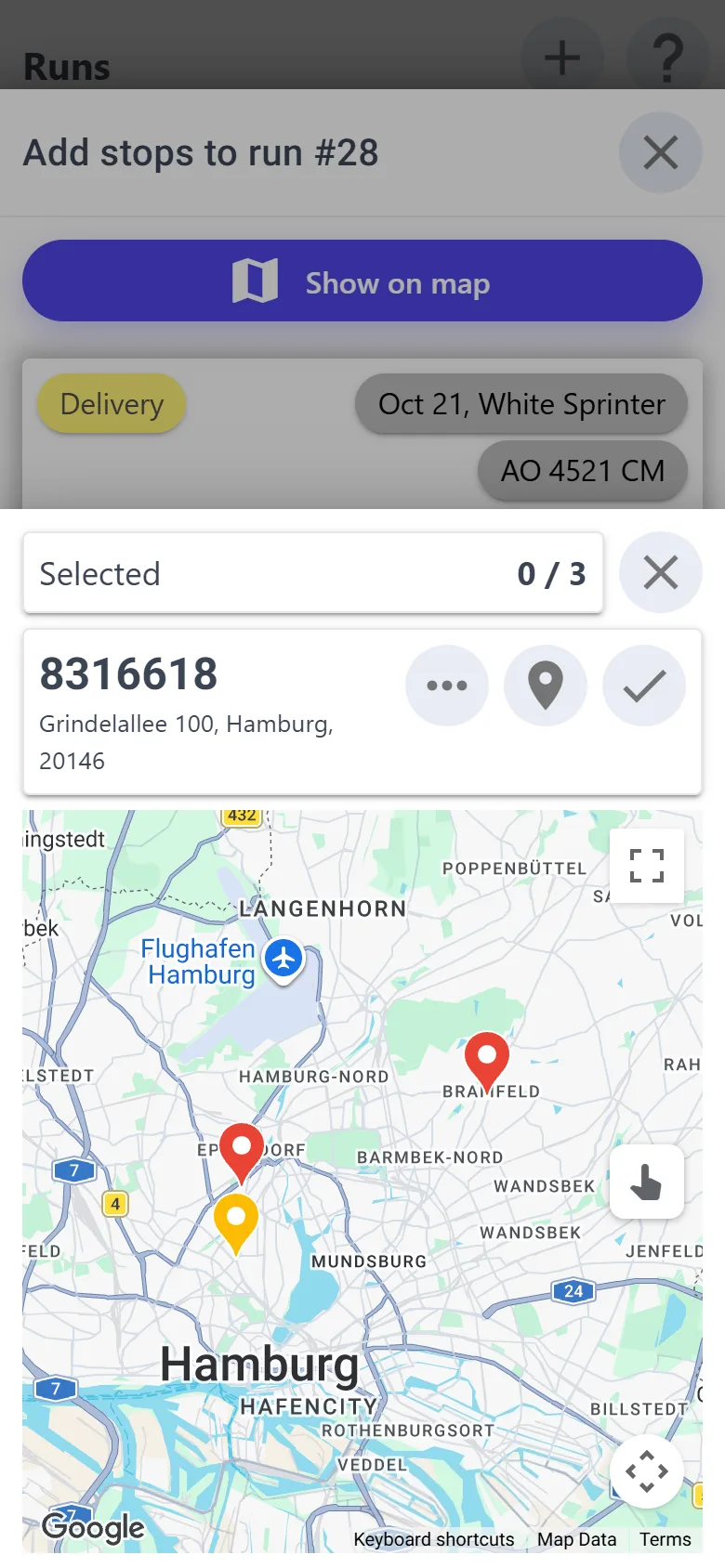
“Add stop” shows only the parcels this very run can take: the right country, the right vehicle, no other active run. Add them from the list or select them on the map.
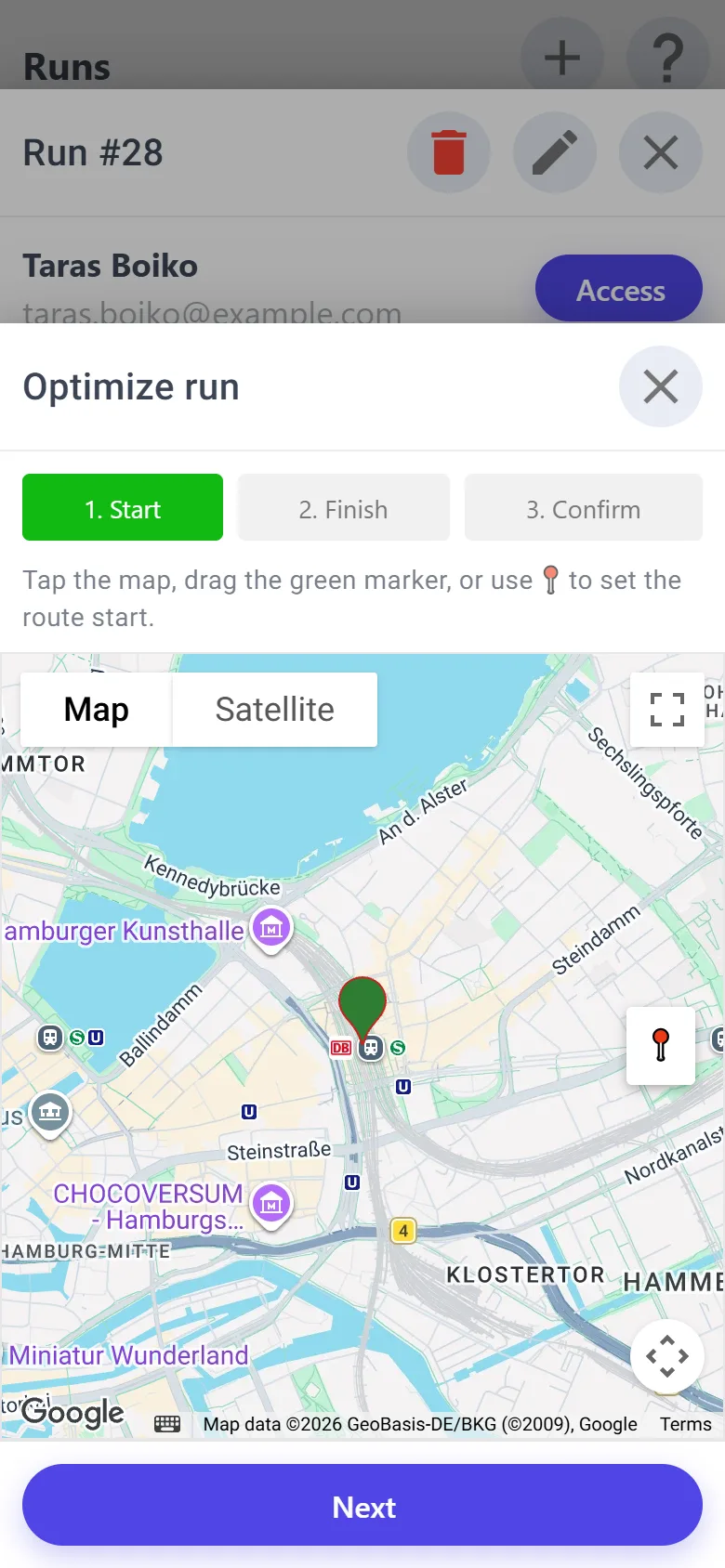
Several parcels at one address become one stop — collection and delivery together. “Optimize” puts the stops in order from start to finish, and their numbers show on the map.
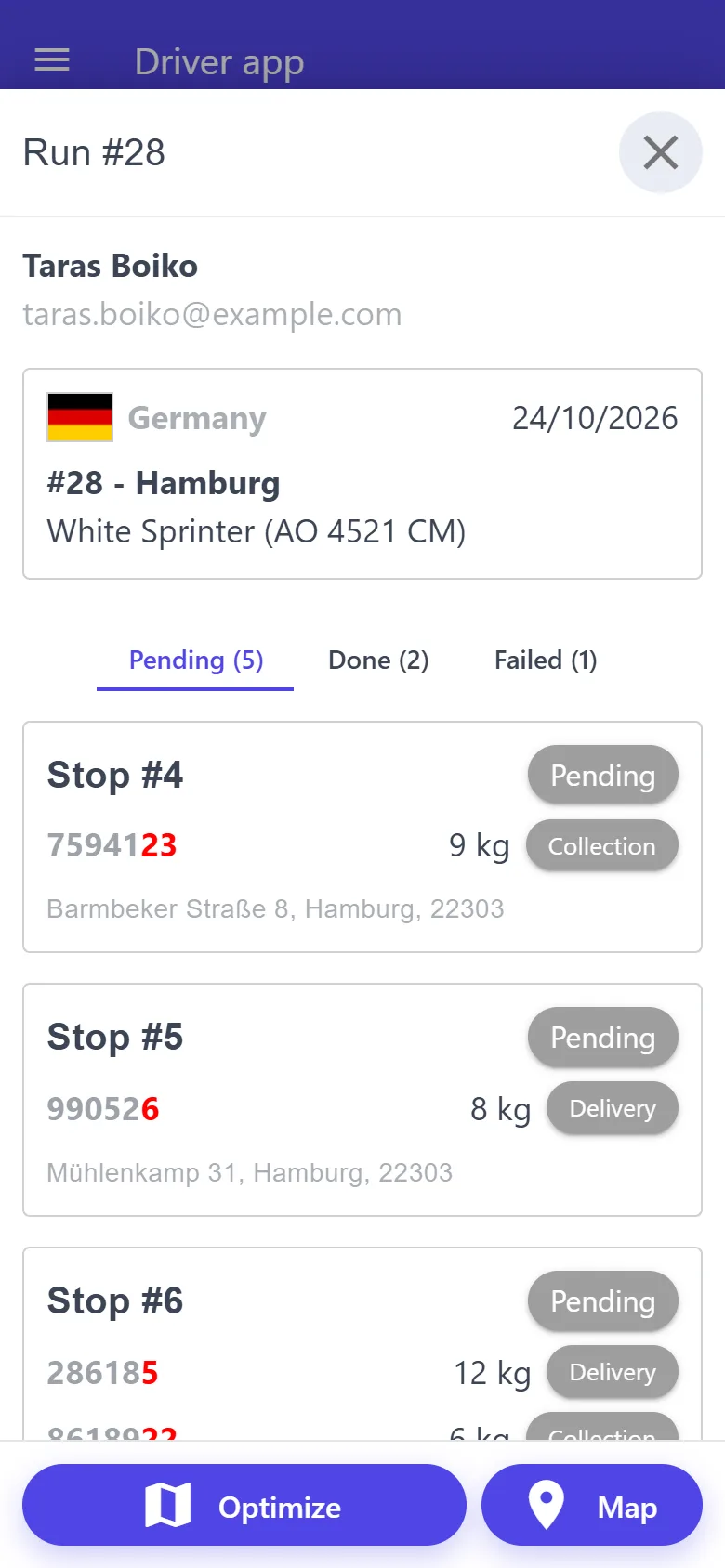
“Pending”, “Done”, “Failed” — with counters and times. A stop can't be failed without a reason, and the stop's note shows right in the list. Calling and navigating take one tap.
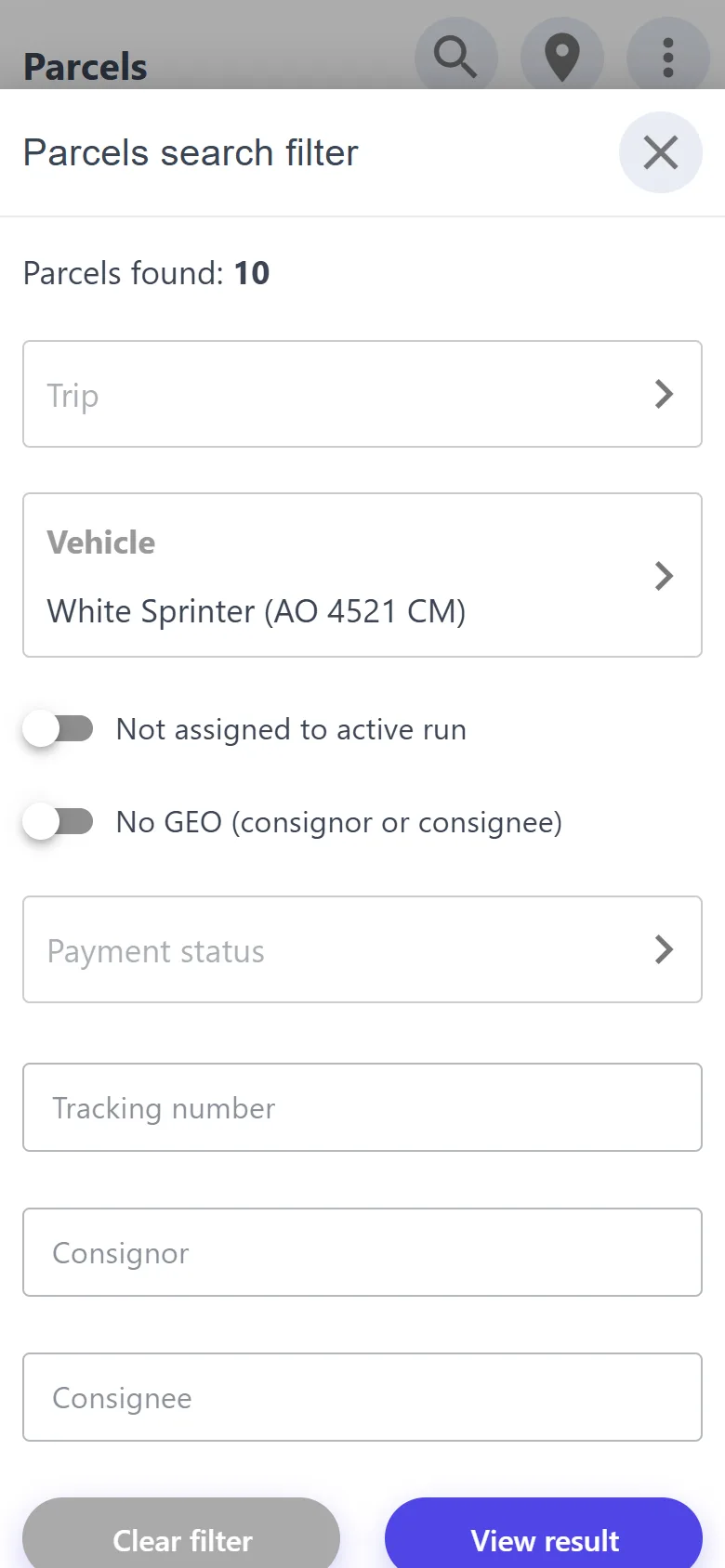
Which vehicle or warehouse it is in, and which trip it travels on. The “Vehicle” filter shows everything in the van right now, and “Not assigned to active run” shows what is not planned yet.
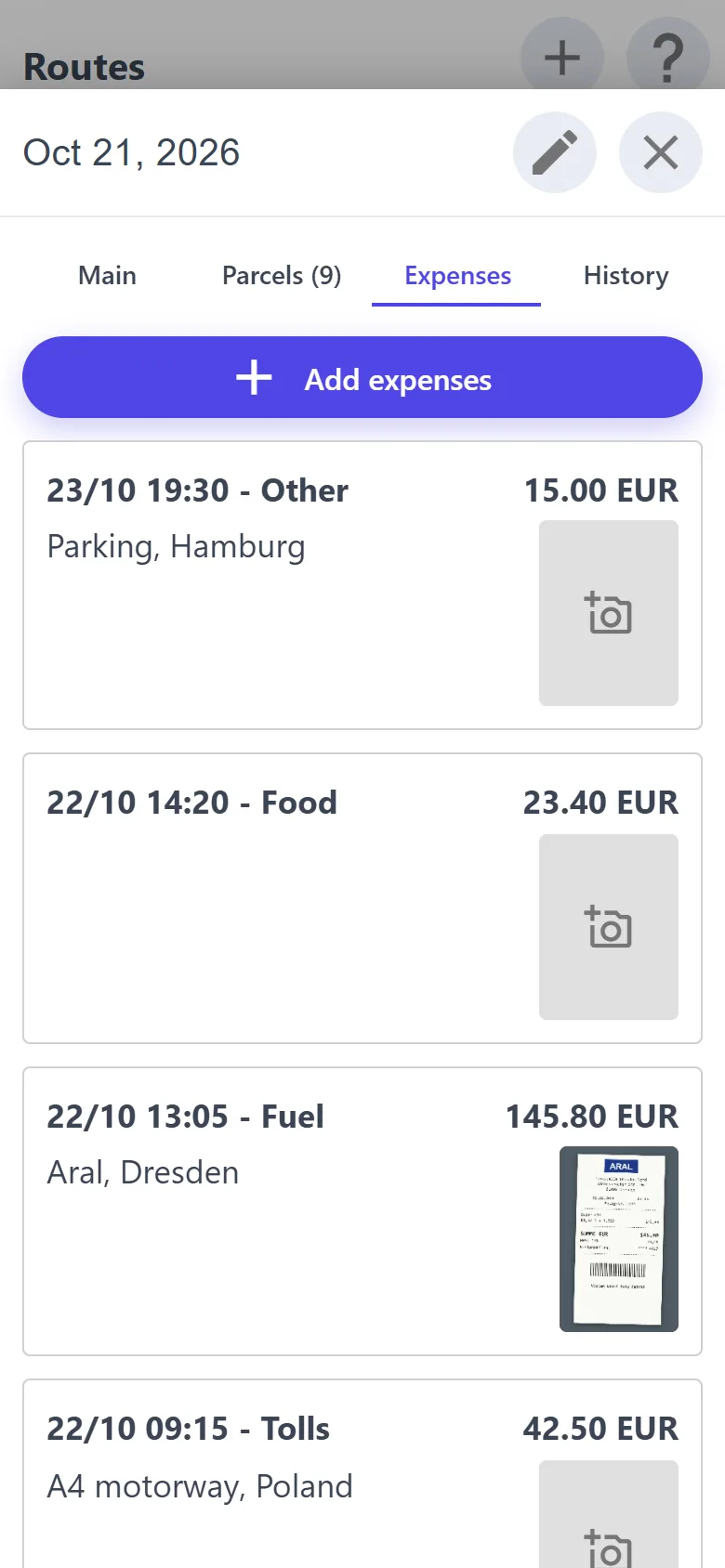
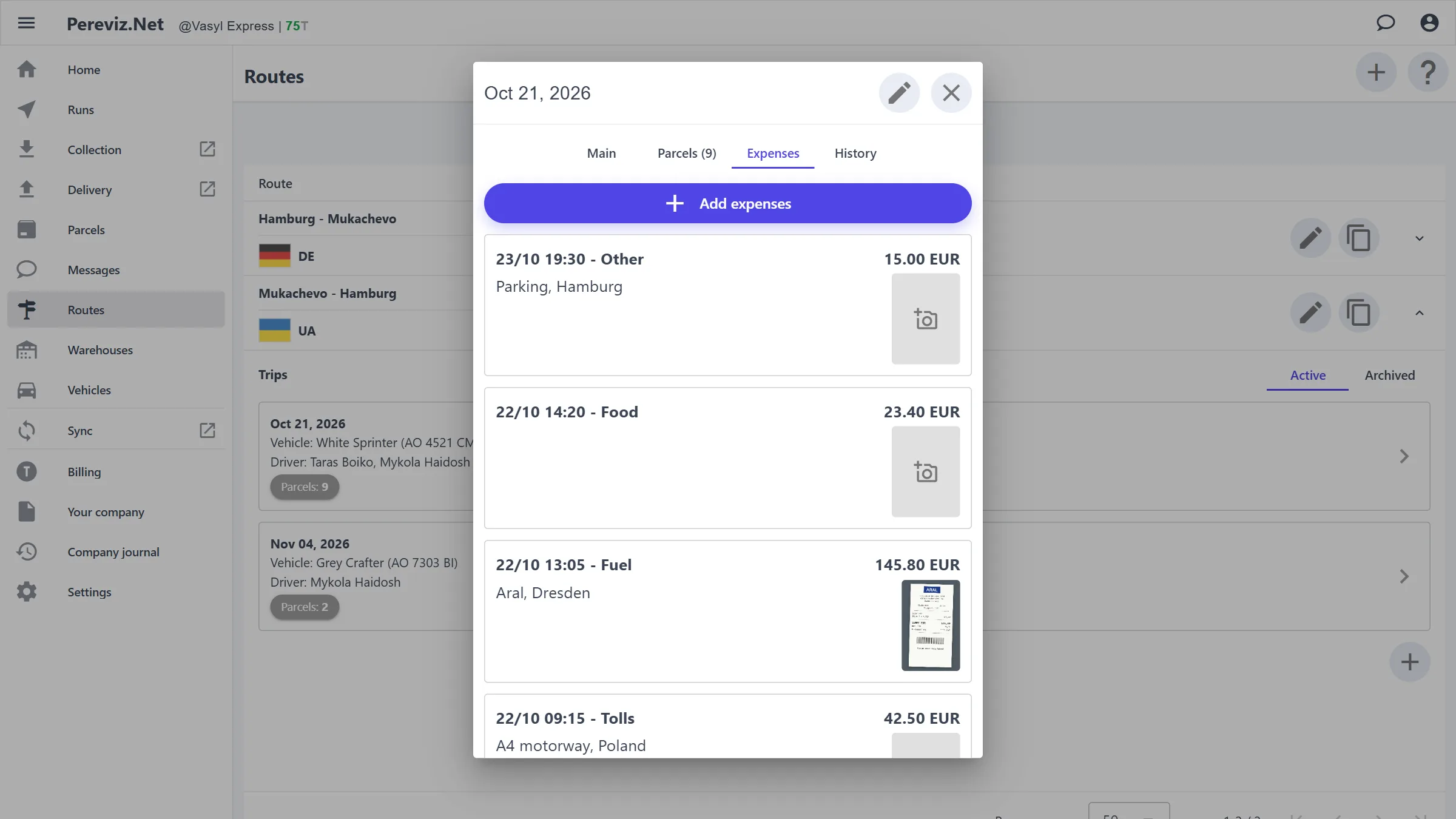
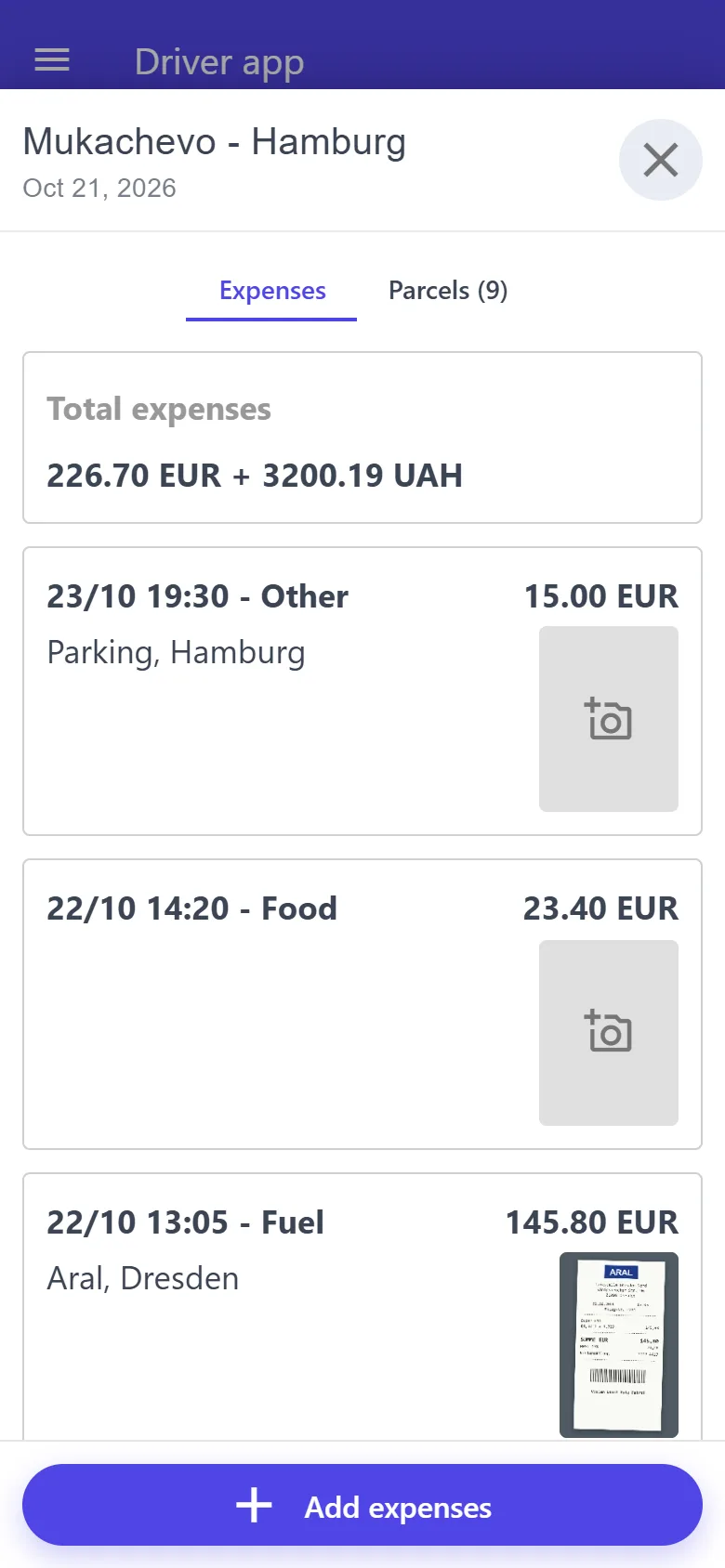
Fuel, food, repairs, tolls: the amount in hryvnias, euros, dollars or pounds and a photo of the receipt. The trip total in each currency adds up by itself.
On the highway, at the border, in a basement: collection, delivery, payment and photos are saved on the phone and sent by themselves as soon as the network is back.
A driver signs in with Google to a simple app: their trips and runs, stop updates, expenses, collection and delivery. And the journal shows who changed what, and when.
A permanent “country → country” direction with its collection and delivery methods, for example “Mukachevo → Hamburg”. Customers see only active routes.
Trip
A journey along a route on a given date: the vehicle, the drivers, the parcels and the expenses on the road.
Run
A one-day round of addresses in one country in one vehicle. In the same run parcels are both collected and delivered.
Stop
One address in a run. It can hold several parcels — to collect and to deliver together.
Vehicle
A company vehicle: a name and a license plate. Trips, runs and the parcels riding in it are assigned to a vehicle.
Warehouse
A place where parcels wait to be sent or handed over, for example an office in Mukachevo.
Collection and delivery method
“At address” — the courier comes over; “Courier office” — the parcel is brought to the office or picked up there; “Post” — through a Nova Poshta branch. The route decides which methods are available.
Waybill
A Nova Poshta waybill with a tracking number for shipping through a branch. In the app it is the “Carrier label”.
Parcel journey
Newa customer request awaiting a decision
Approve
Collectionor “Collection (PUDO)” — the customer dropped the parcel off at a branch
Set collected
Deliveryor “Delivery (PUDO)” — the consignee picks the parcel up at a branch
Set delivered
Deliveredjourney complete
“Decline” a request → Declined
“Cancel parcel” with a reason → Trash
A parcel the courier creates is treated as already accepted and goes straight to “Delivery”.
As soon as a parcel is added to a run, the customer's tracking shows “Scheduled for collection” or “Scheduled for delivery”.
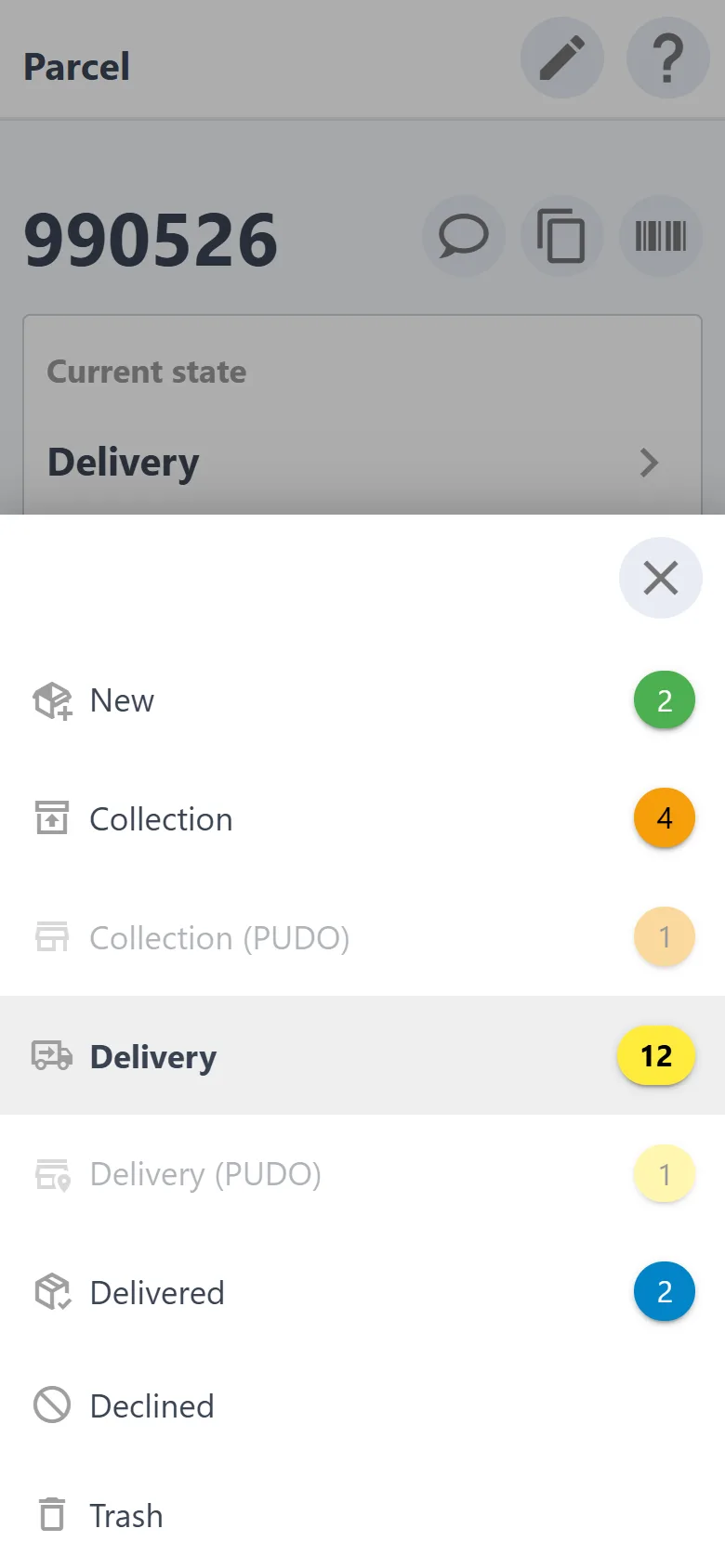
The status can be changed by hand: tap “Current state” on the parcel card. A parcel with no branch can't be moved to a “(PUDO)” folder, and the other way round.
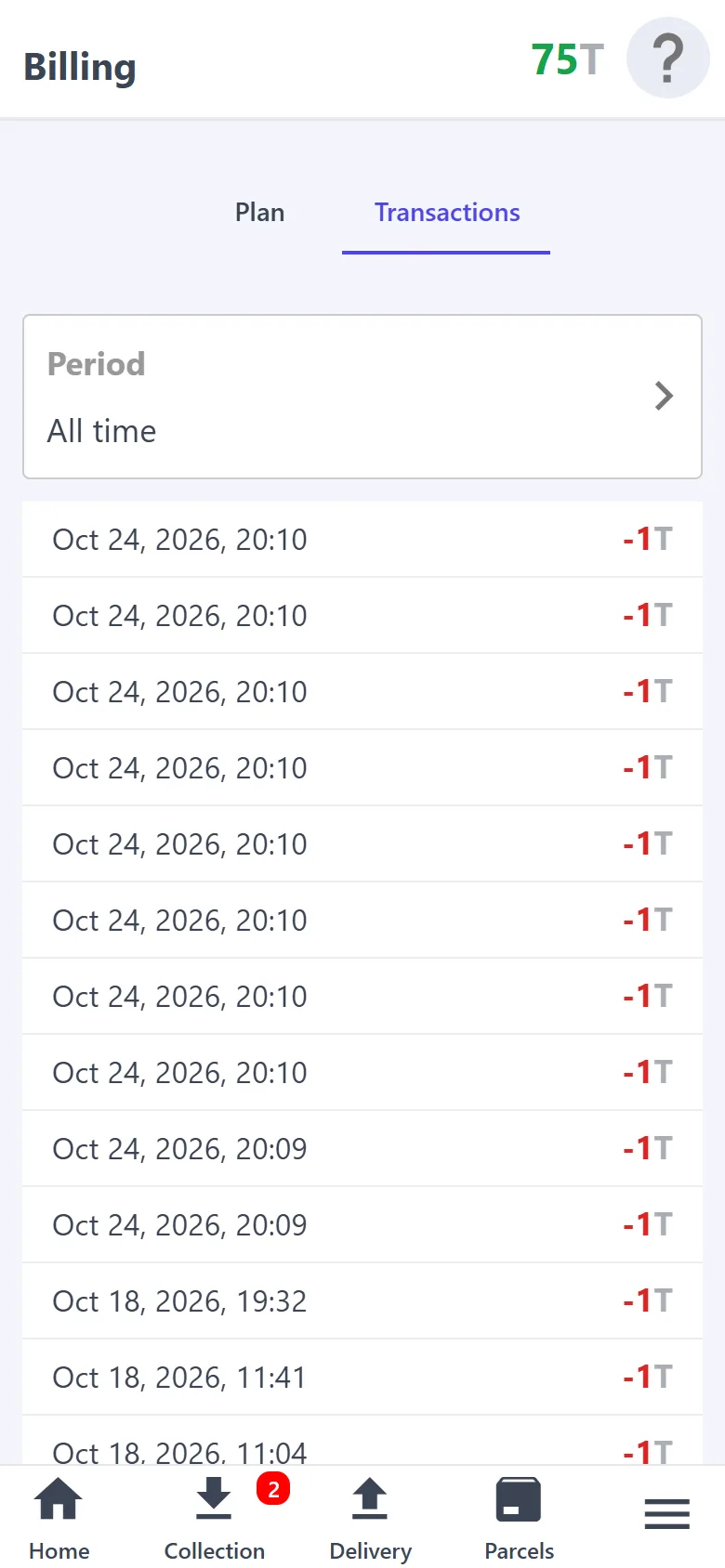
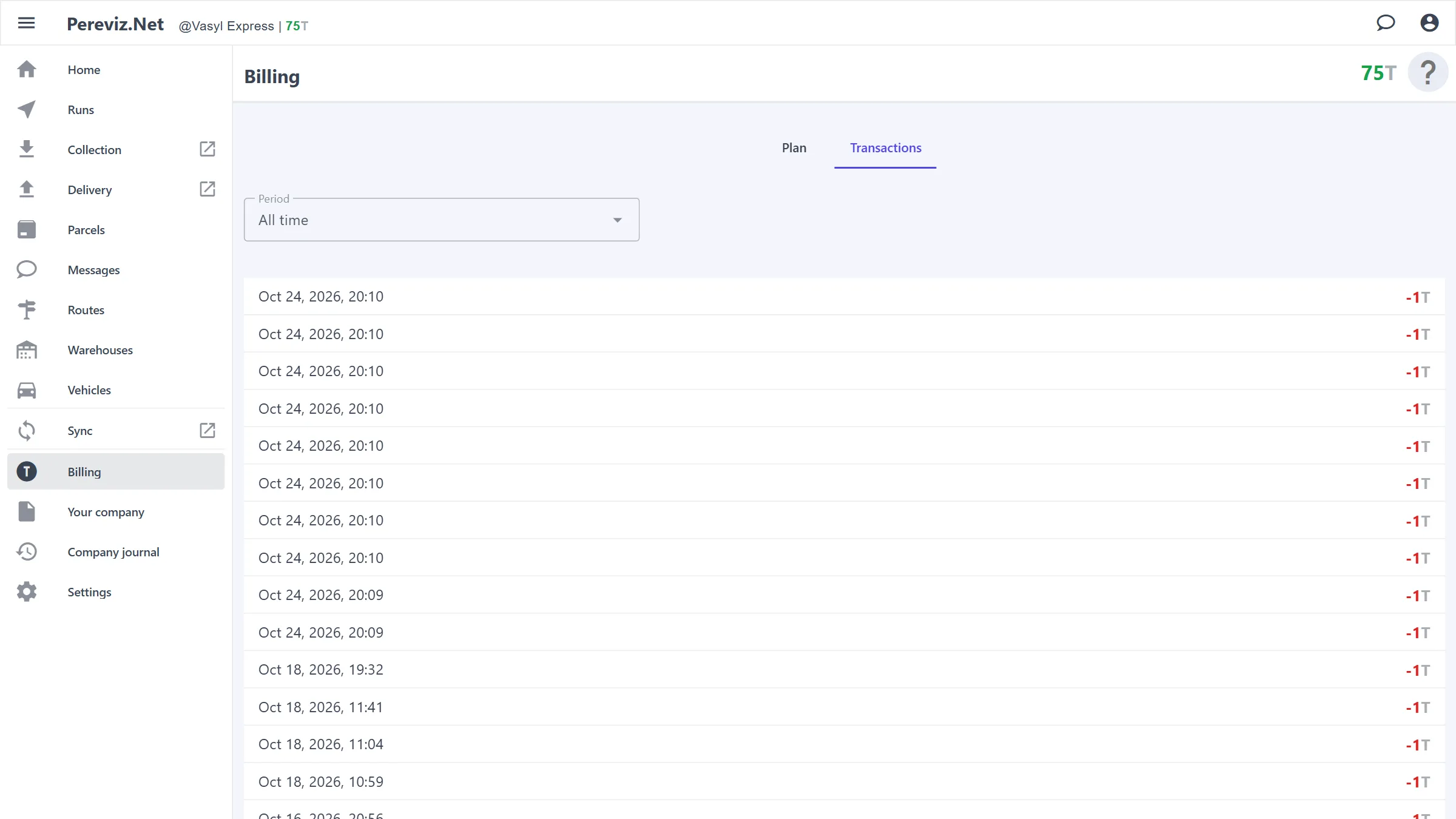
Every parcel that goes into work (“Collection”, “Delivery” or “Delivered”) charges the company balance 1 token (T), once. New and declined requests are not charged.
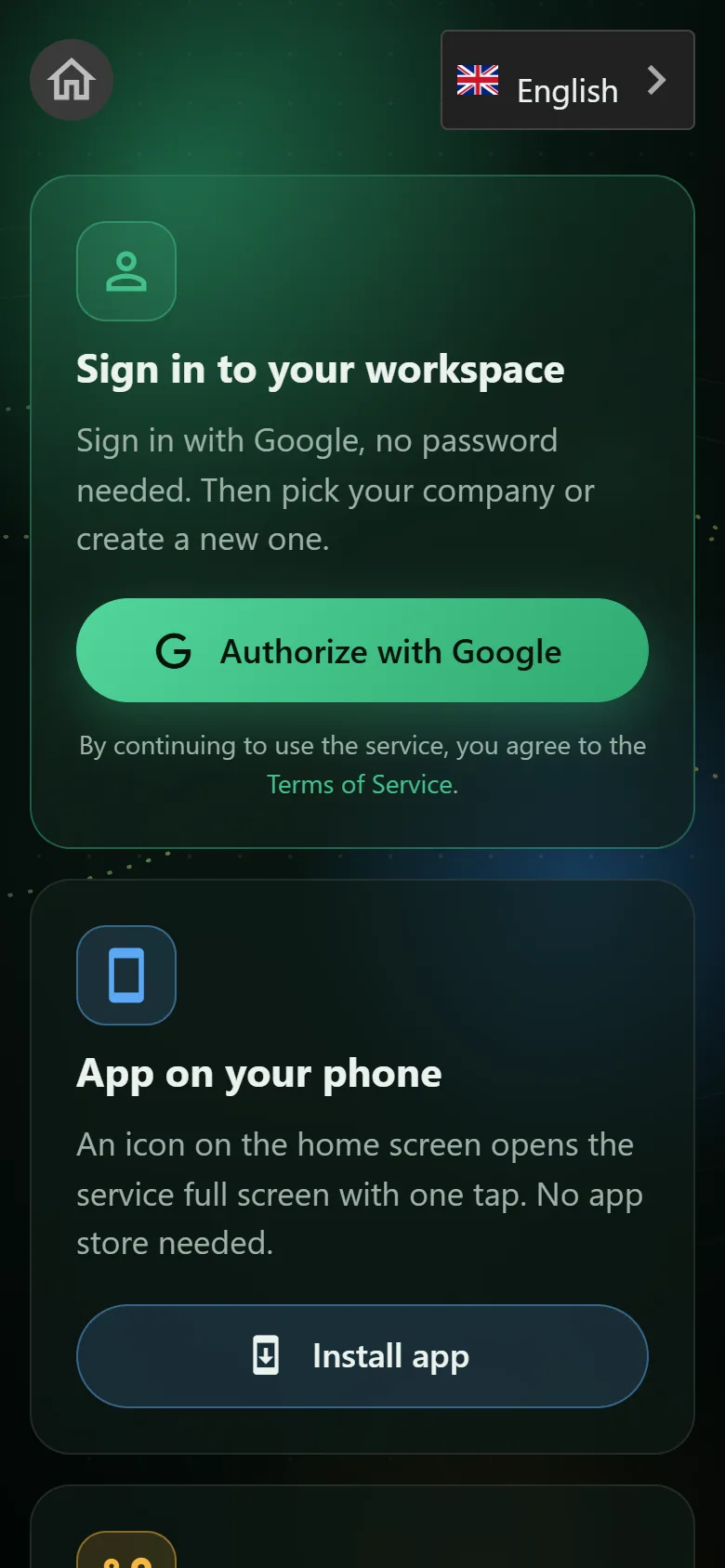
Sign-in. “Authorize with Google” — no password needed. If your email is already in some companies, pick one; otherwise “Create new company”: a name in Latin letters and a short name for the link. Only support can change the customer link later. A new company gets a 100 T bonus — that's 100 parcels.
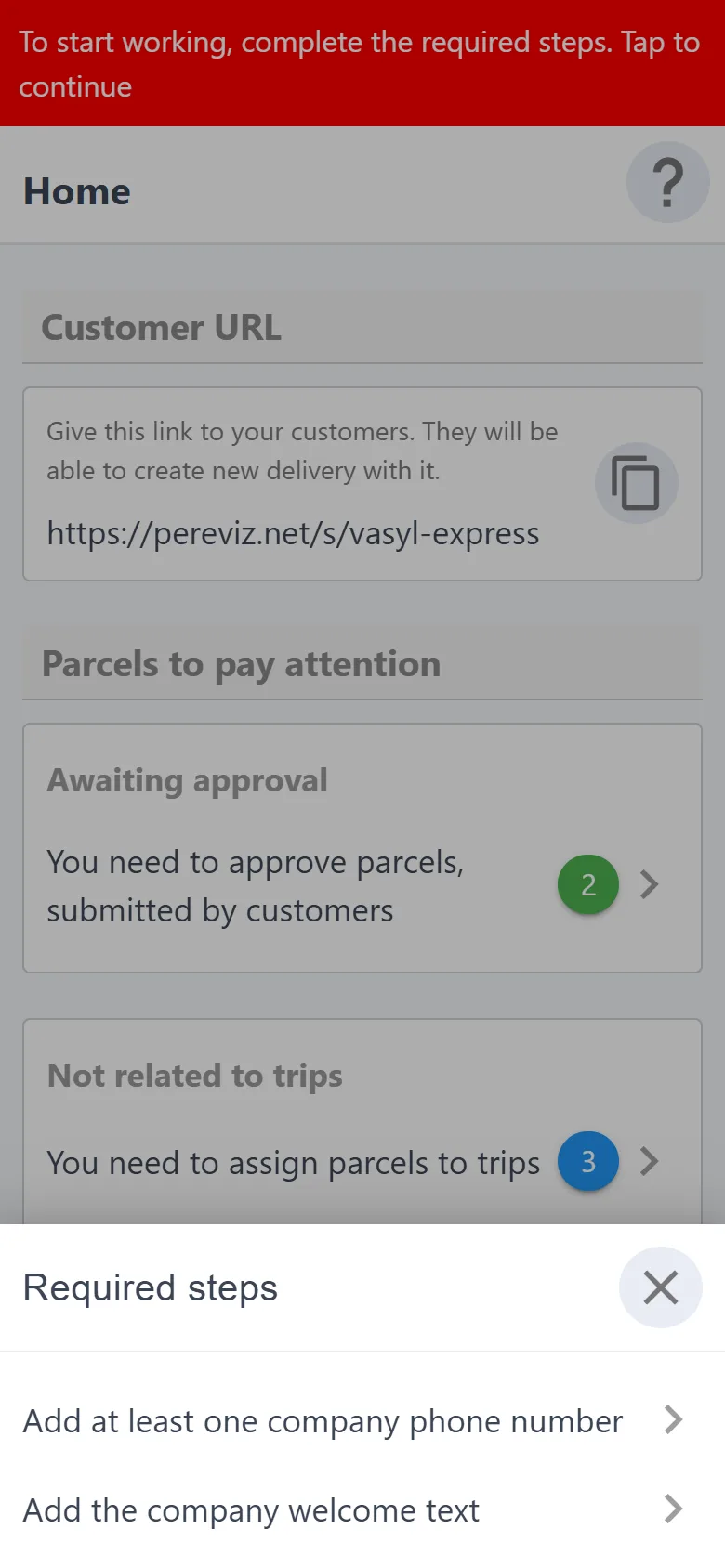
Required steps. Until the company is set up, a red bar shows at the top of the screen. Tap it to open the list: the company phone, the welcome text, a vehicle, an active route and trip, and for a route that ships by post — the Nova Poshta details. Each item opens the screen you need.
Company. Enter the phones for customers and the welcome text (terms, schedule), and a cover image if you like. Without the text and a phone, customers can't place parcels.
Vehicles. “Vehicles” → “+”: license plate and name. You can't create a run without a vehicle.
Route. The countries of departure and destination, how you collect parcels (at the address, through a post branch, at the office) and how you deliver them (at the address, by Nova Poshta, to the office).
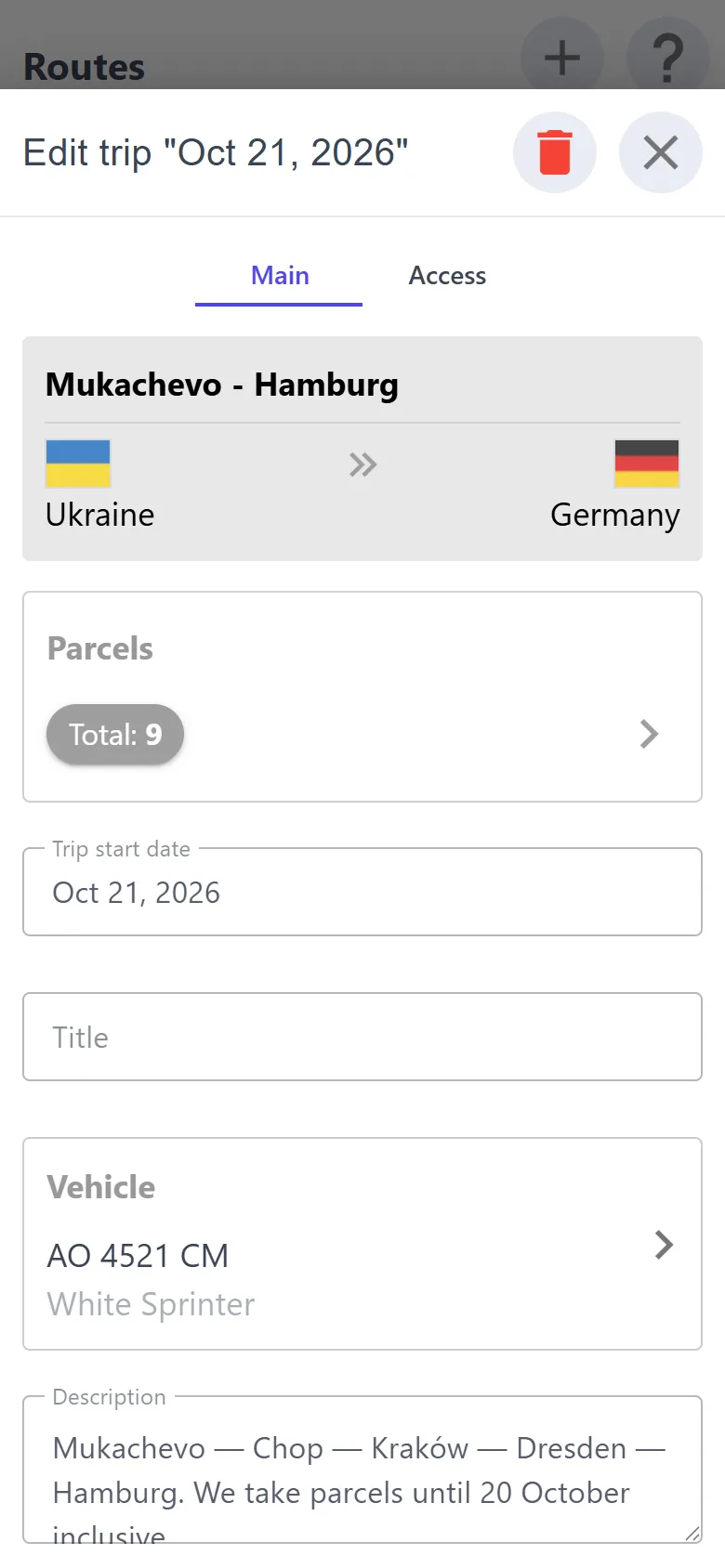
Trip. On the route card, tap “+” under the list of trips: the start date, the vehicle, and optionally a name and description. After saving, tick the trip's drivers on the “Access” tab.
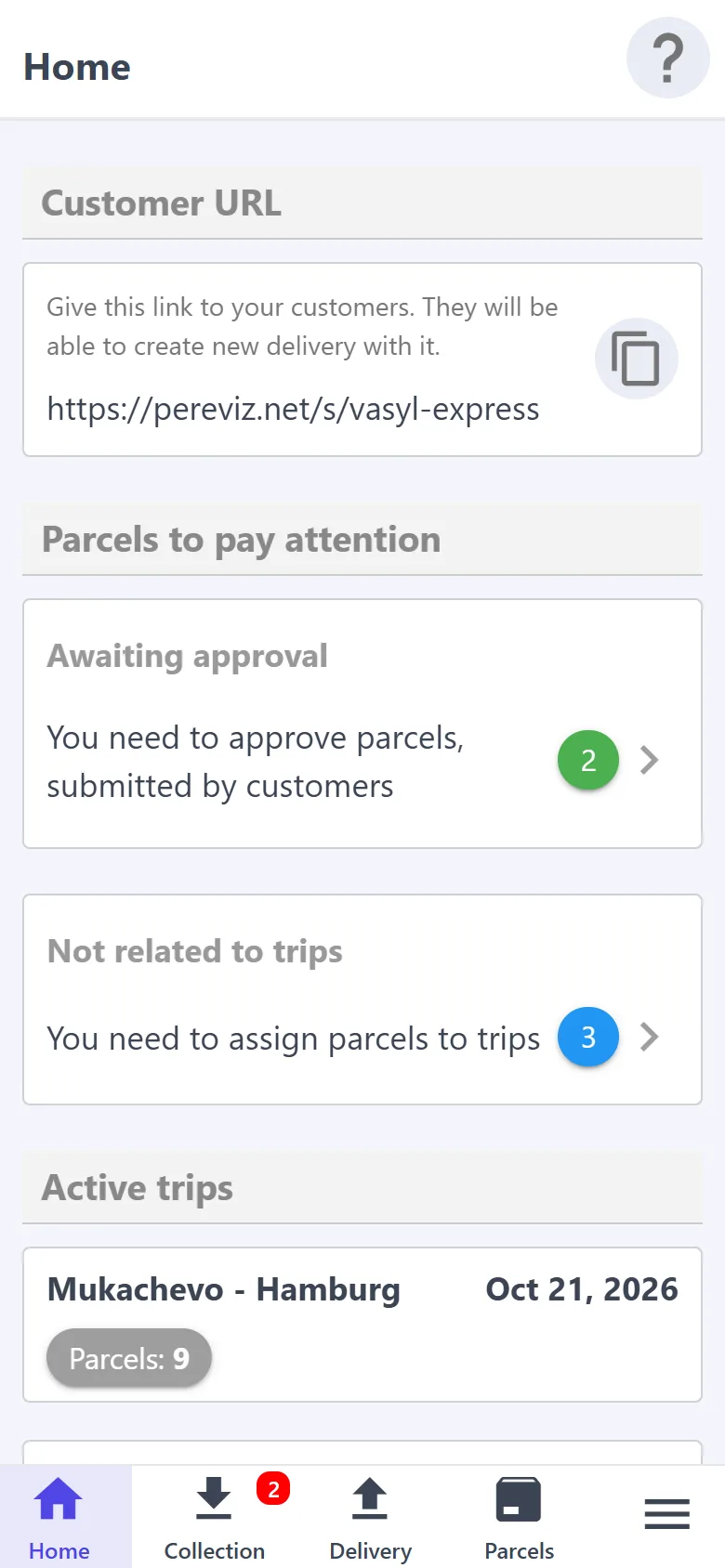
Customer link. Copy it on “Home” and give it to your customers — they place requests through it. The link to a single route is copied with the button on the route card.
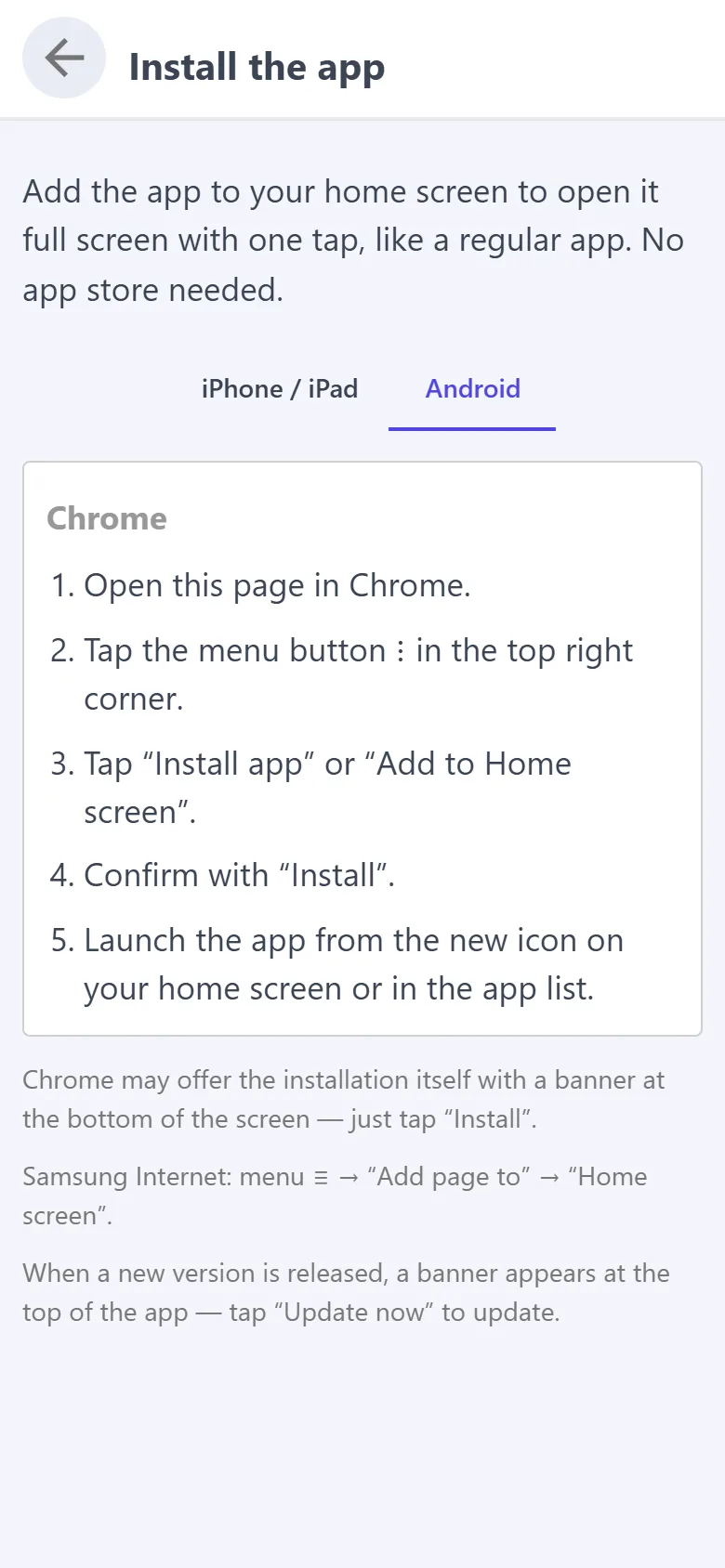
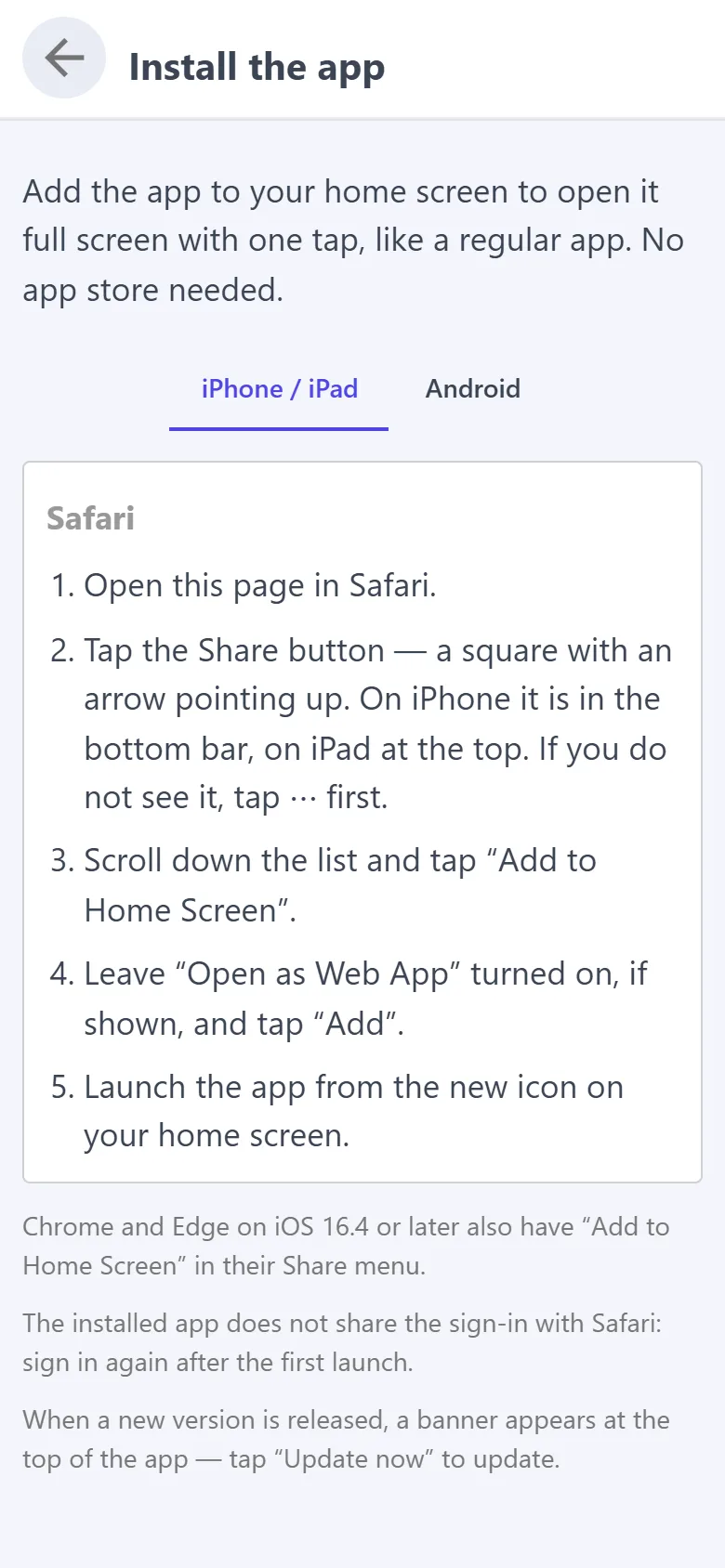
Phone and computer. Install the app on your home screen — the “How to install the app” steps are on the sign-in screen. On a computer there is nothing to install: open the desktop version.
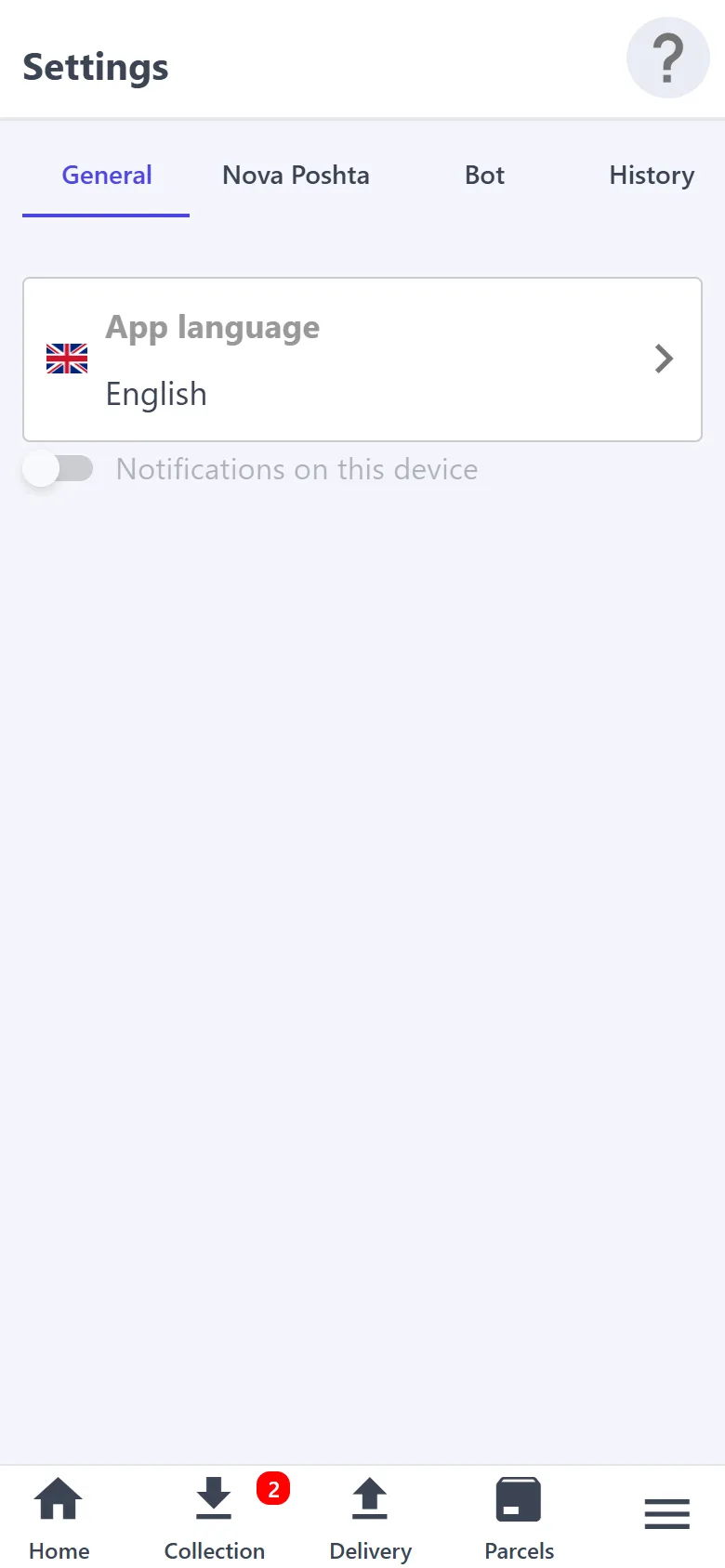
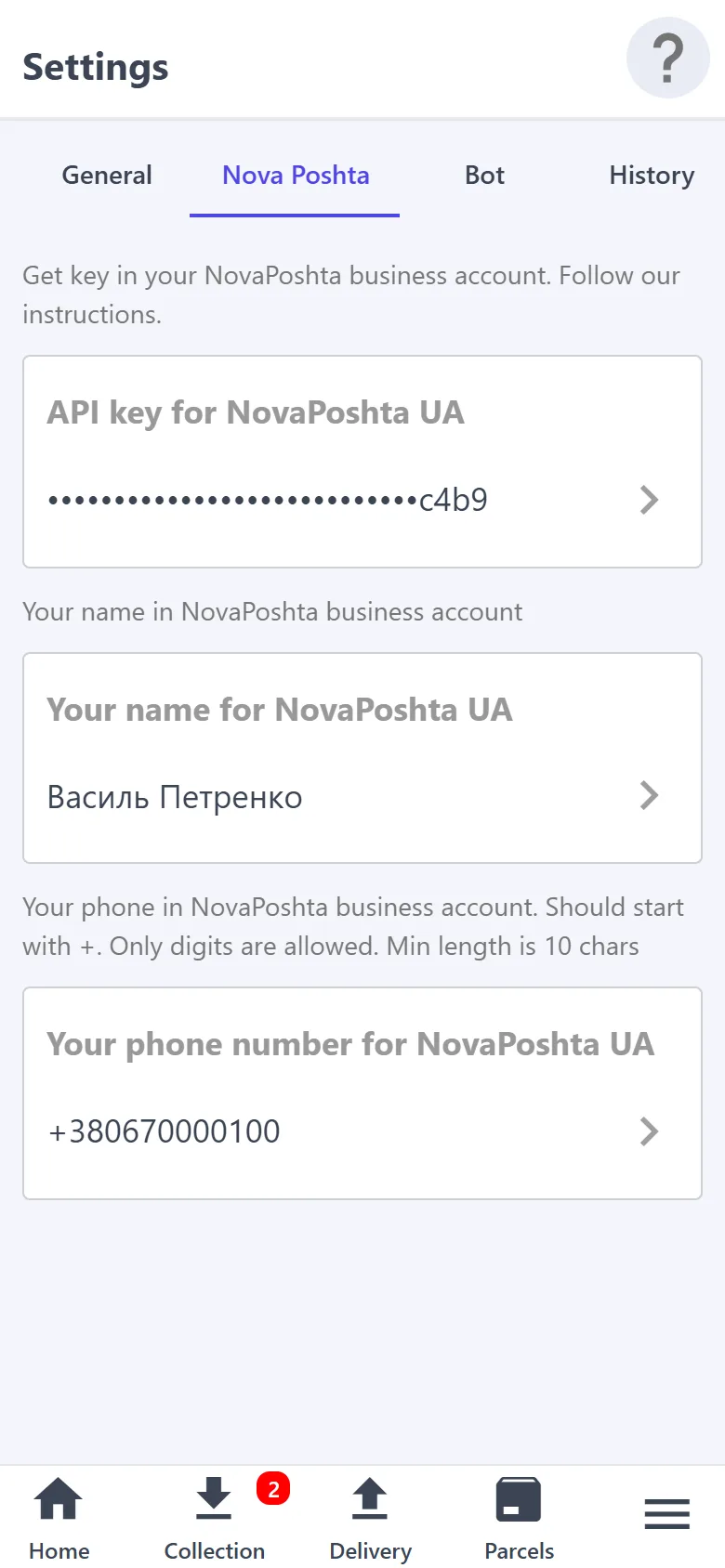
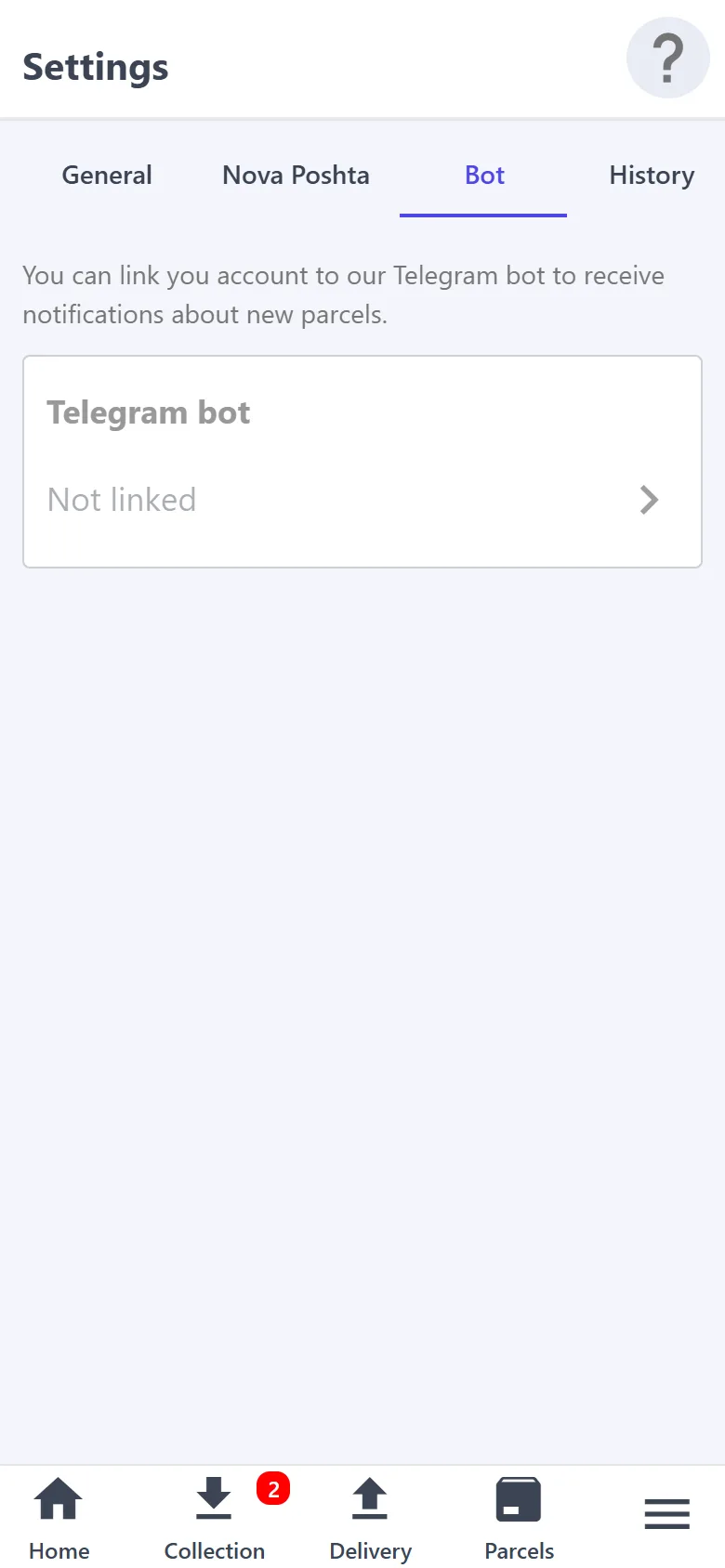
Optional. “Warehouses” — the places where parcels are kept. In “Settings” — the Nova Poshta API key (for waybills) and the Telegram bot. In “Your company” → “Users” — the drivers: they work in the driver app. In “Settings” → “General”, turn on “Notifications on this device” to be notified when a customer places a new parcel or writes in a parcel chat; on an iPhone, install the app on the home screen first. If a notification does not pop up on Android, hold the app icon → “App info” → “Notifications”, open the category and turn on “Show as pop-up”.
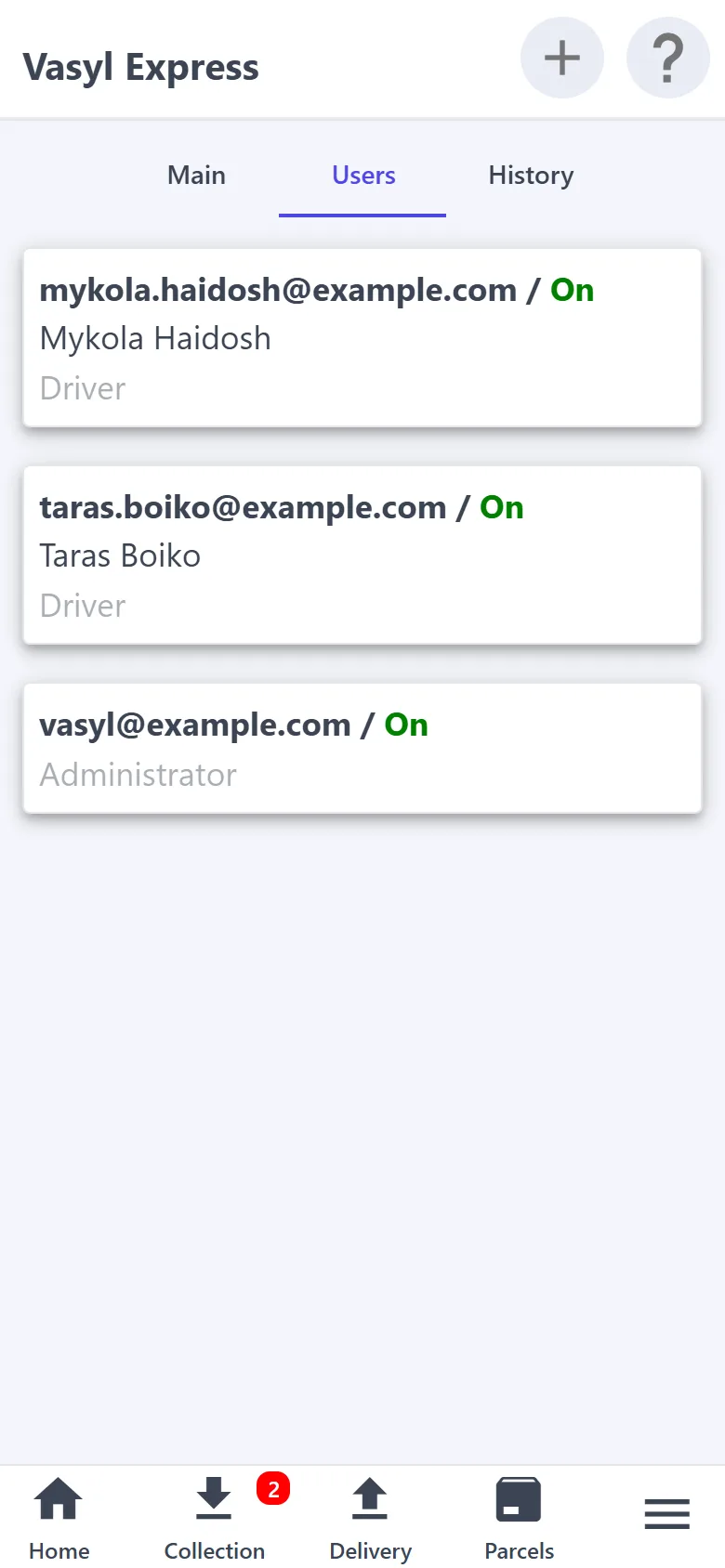
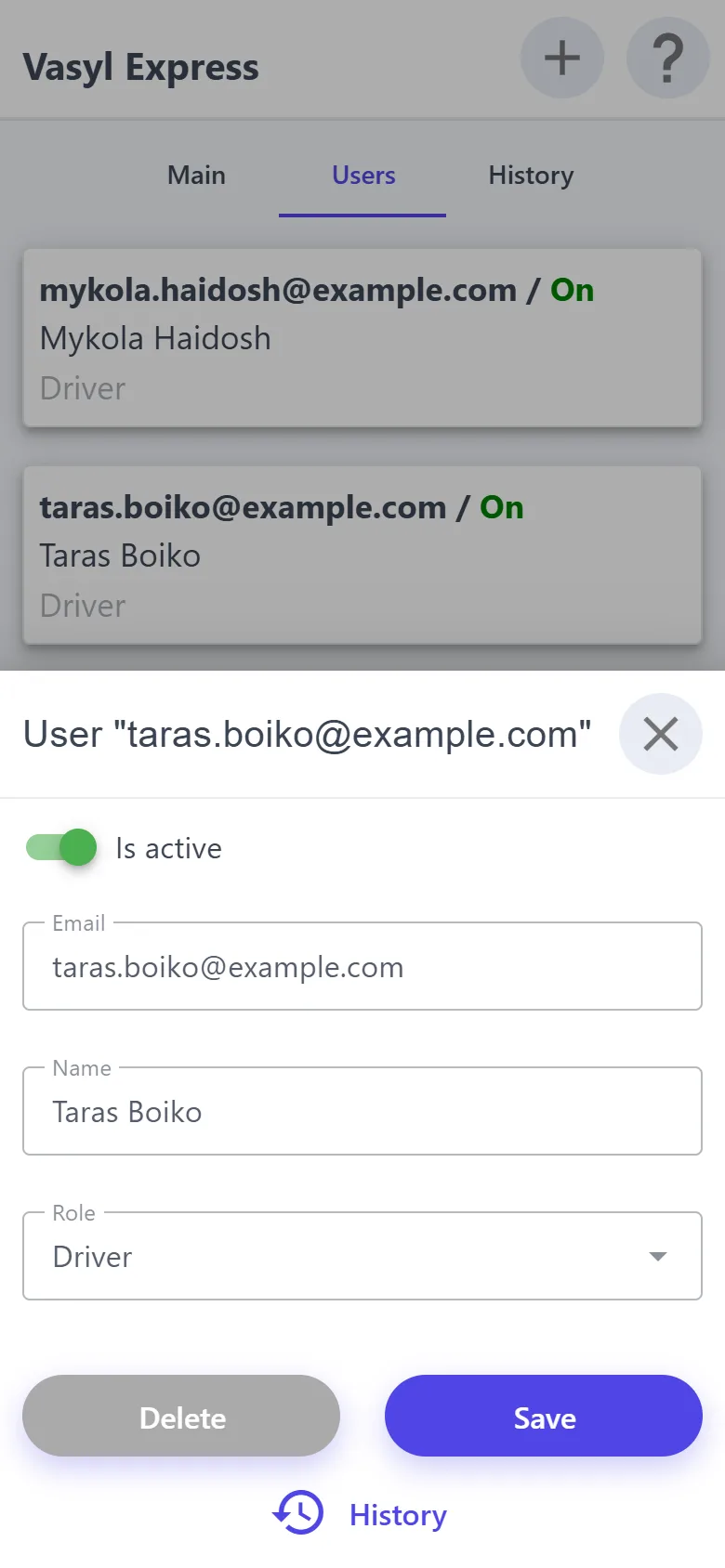
“Your company” → “Users” → “+”: the driver's email, role “Driver”
The trip → “Access” tab and the run → “Access”: tick the driver
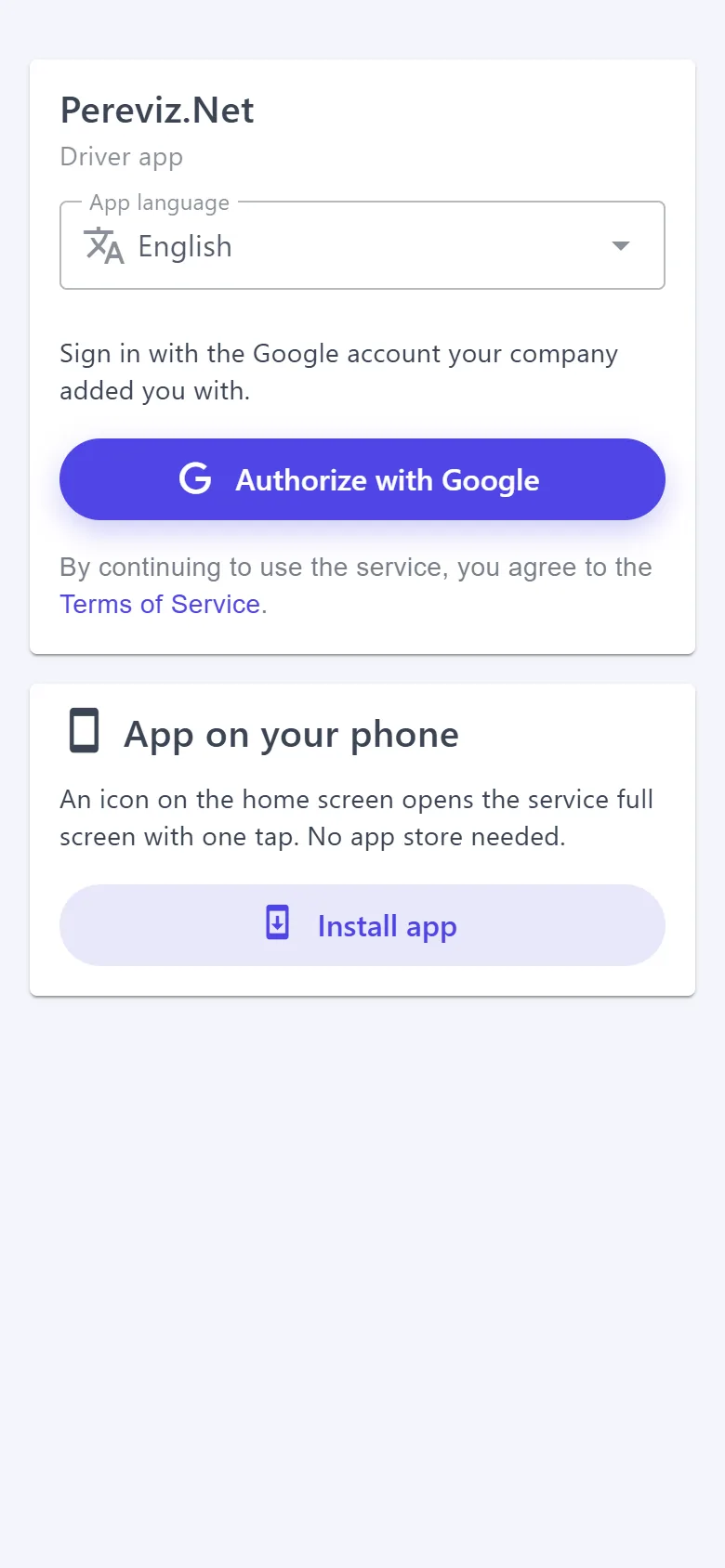
The driver opens /driver → “Authorize with Google” → the company
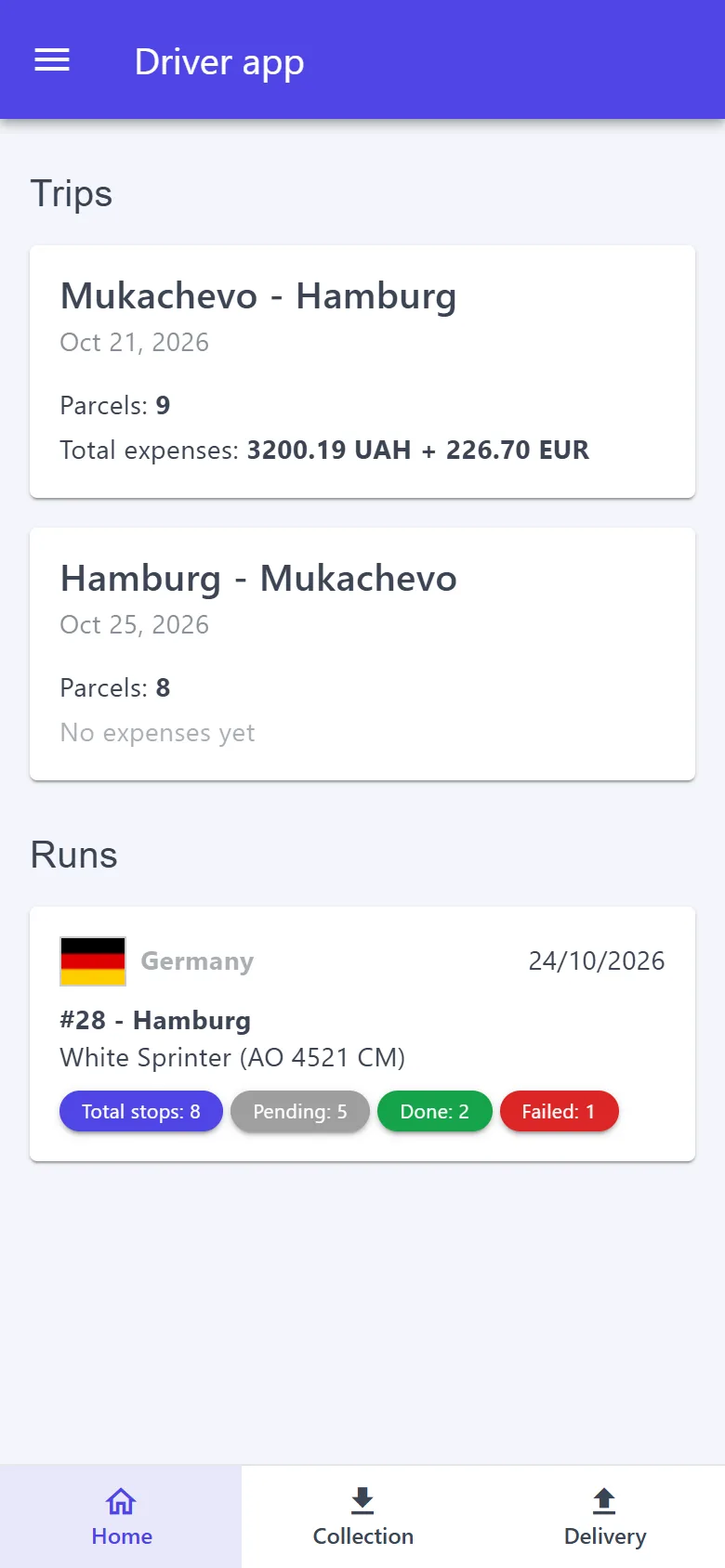
“Home”: their trips and runs
Stops in order, expenses with receipts, collection and delivery — from their phone
A customer wrote in the chat
A notification on the phone and a counter next to “Messages” in the menu
Open the chat from the list or from the parcel card
The consignor and the consignee see the reply
Sections
Daily work
Navigation
The bottom bar: “Home”, “Collection” with the counter of new requests, “Delivery”, “Parcels” — folders by status, and ☰ — the side menu.
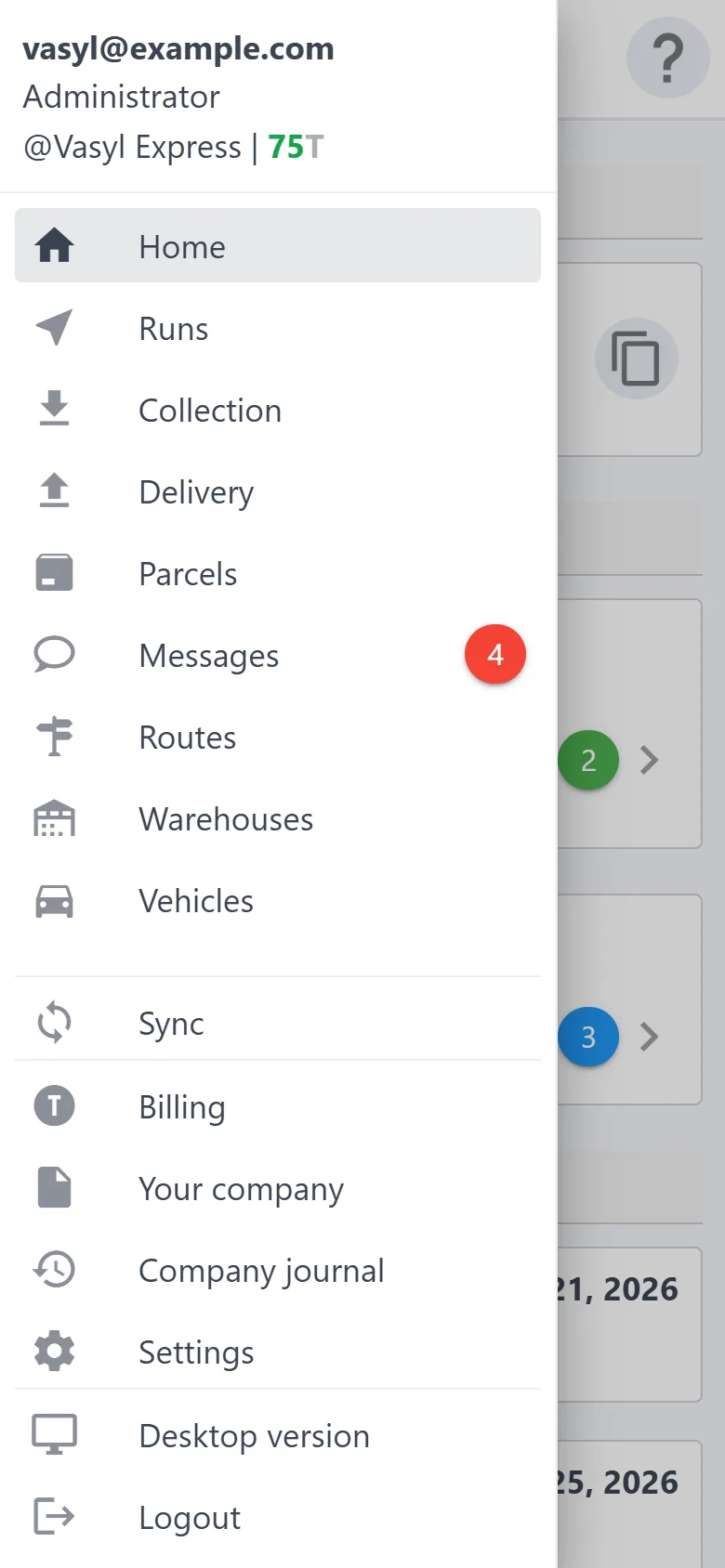
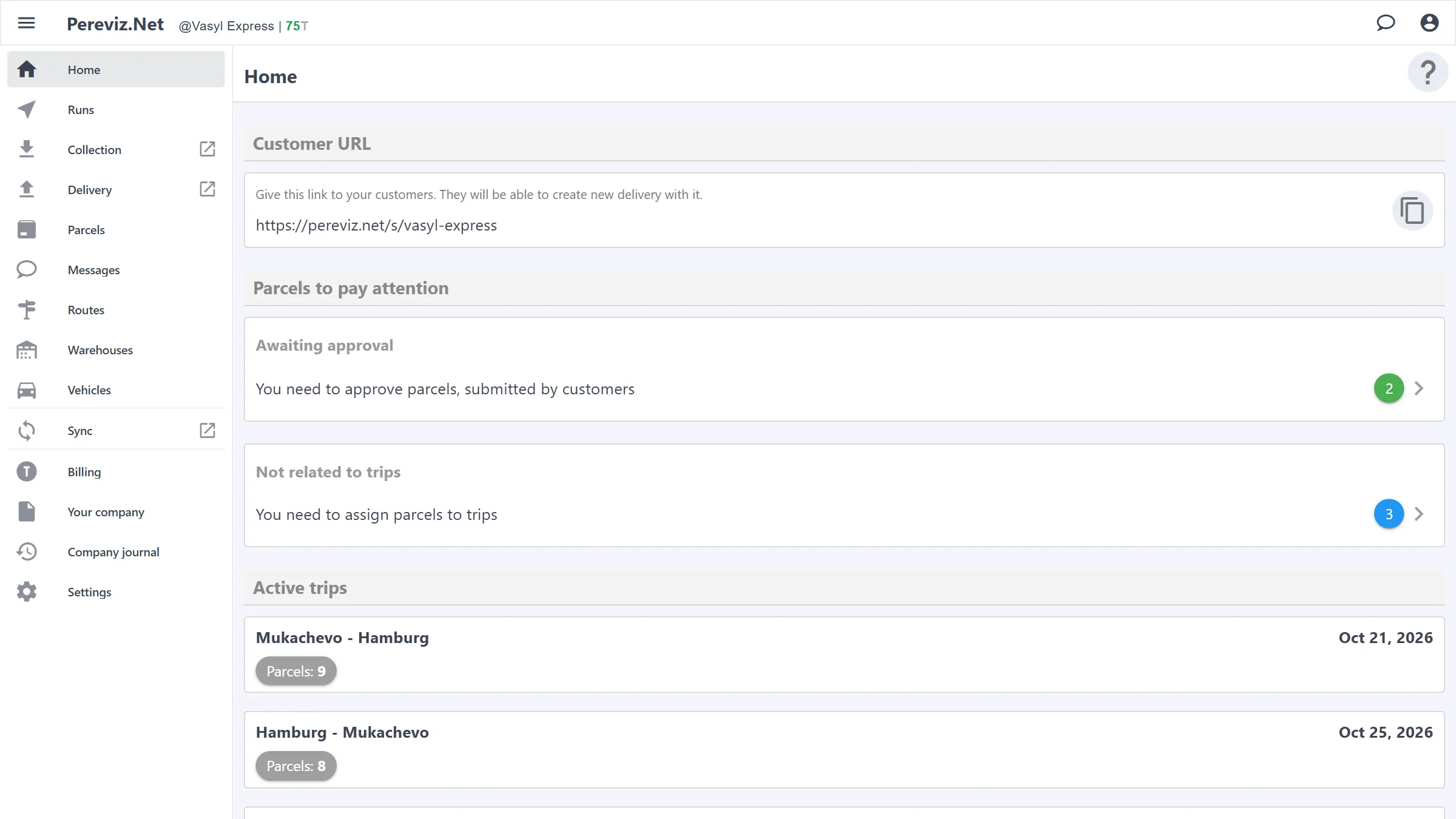
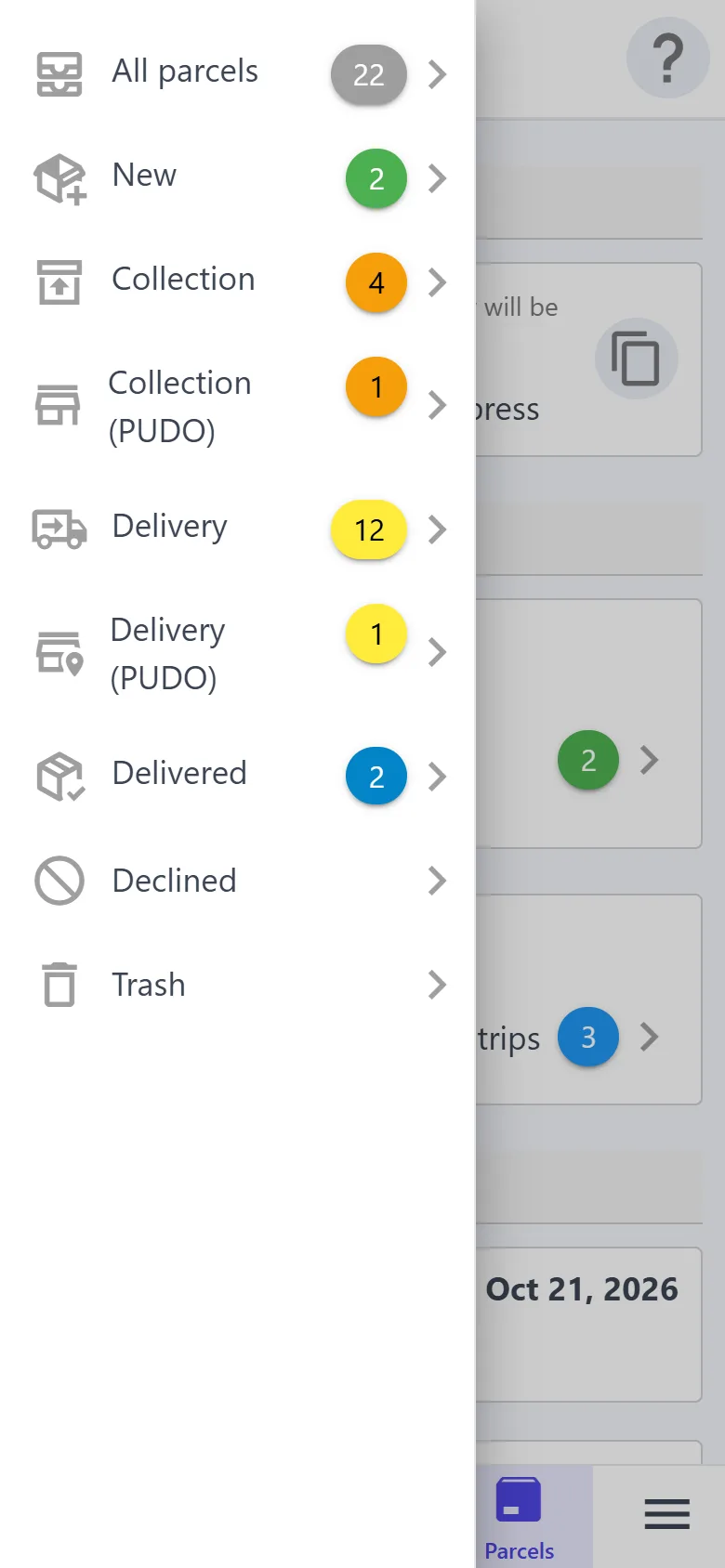
The side menu: every section, among them “Runs”, “Routes”, “Warehouses”, “Vehicles”, “Messages” with the unread counter, “Sync” with the counter of unsaved changes, “Billing”, “Your company”, “Company journal”, “Settings”; at the bottom — “Desktop version” and “Logout”. At the top — your email, role, company and balance.
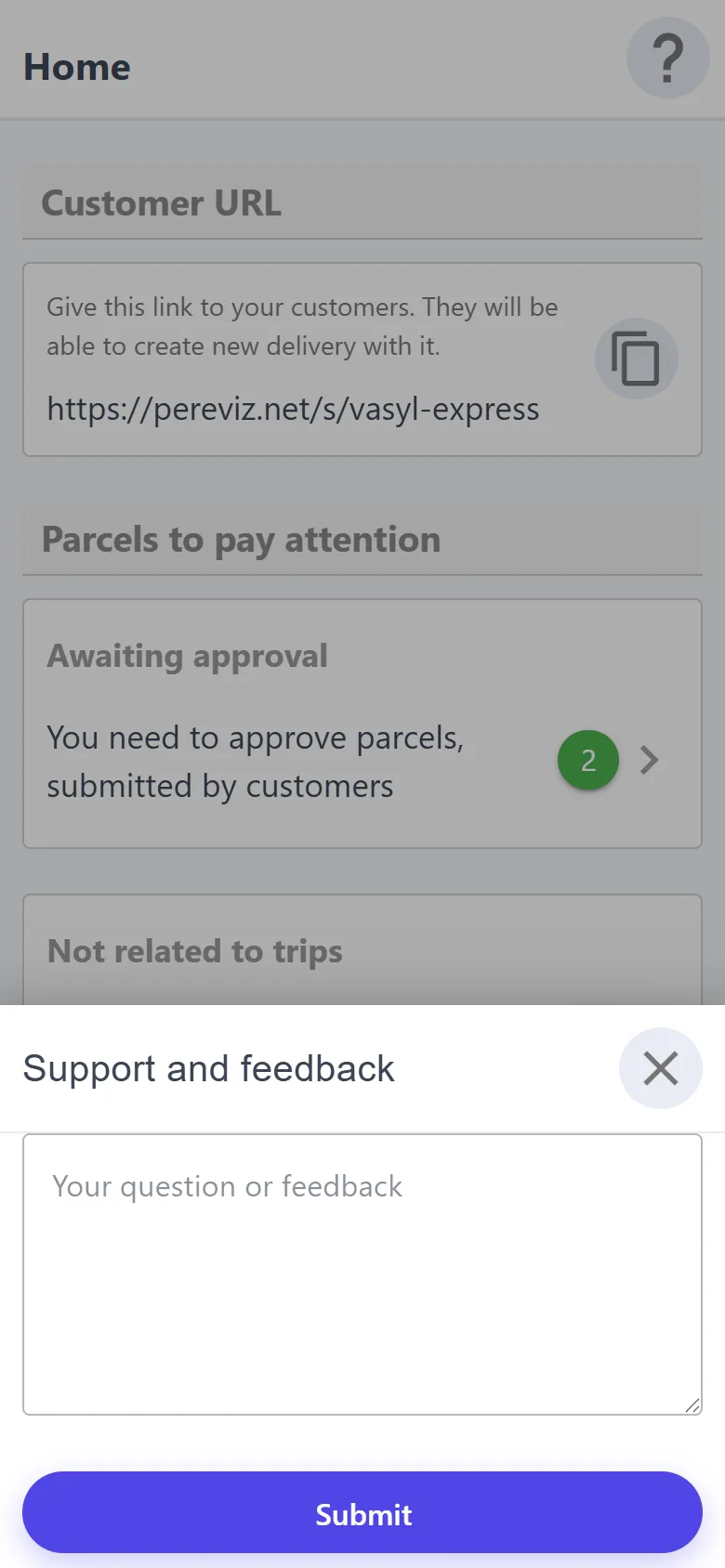
The “?” icon at the top of the screen opens the help center.
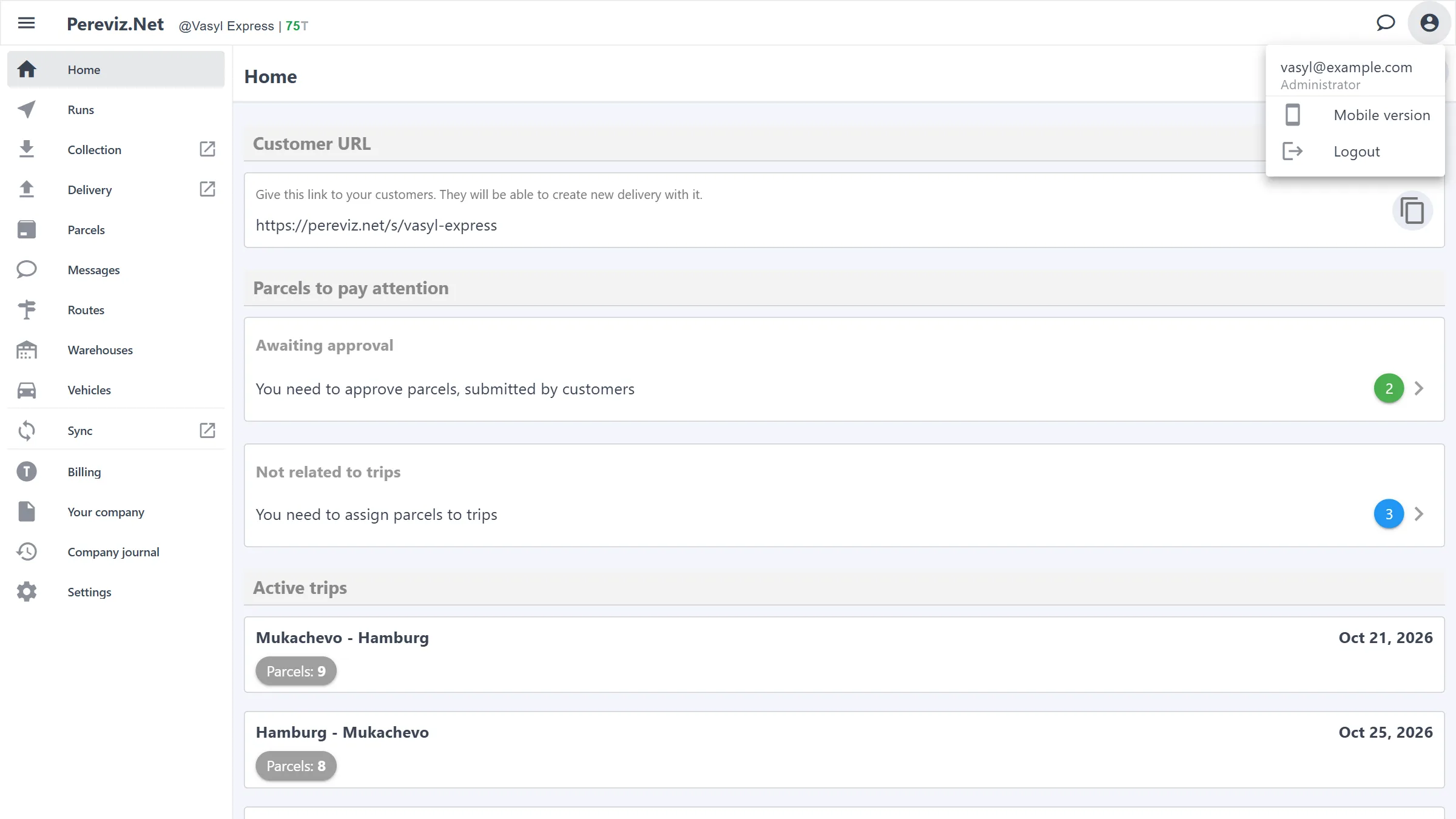
On a computer the menu stays on the left, and “Mobile version” and “Logout” are in the account menu at the top right.
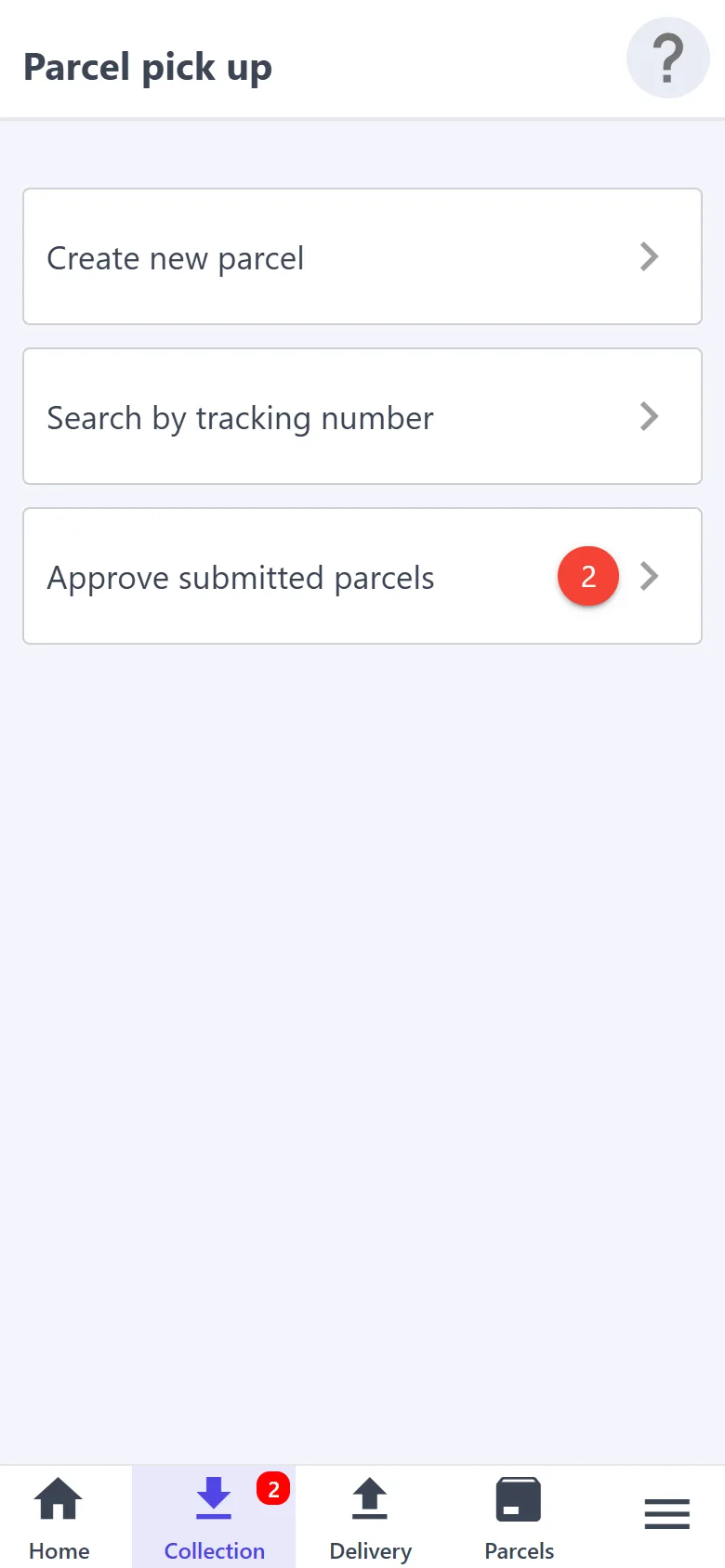
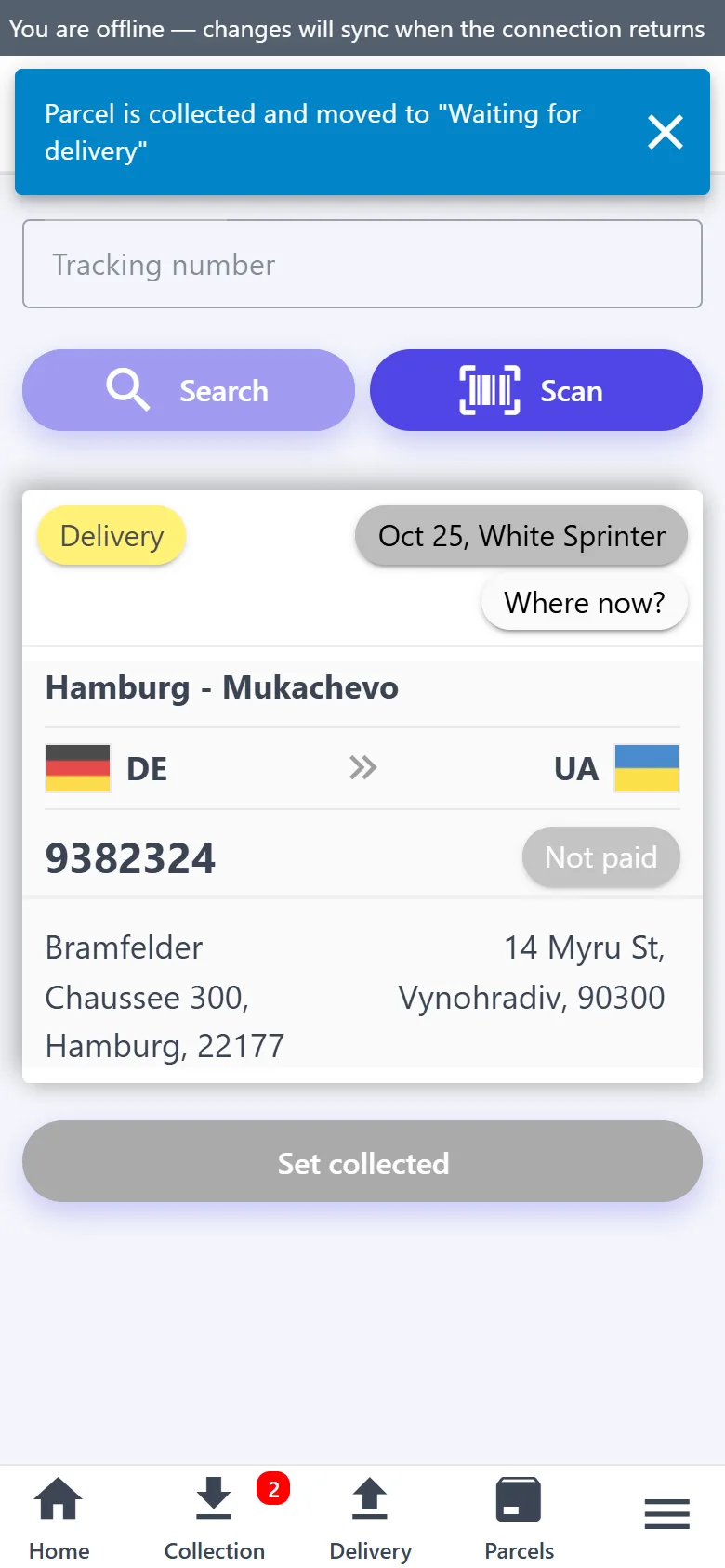
“Search by tracking number”, or scan a QR code or barcode → “Set collected”.
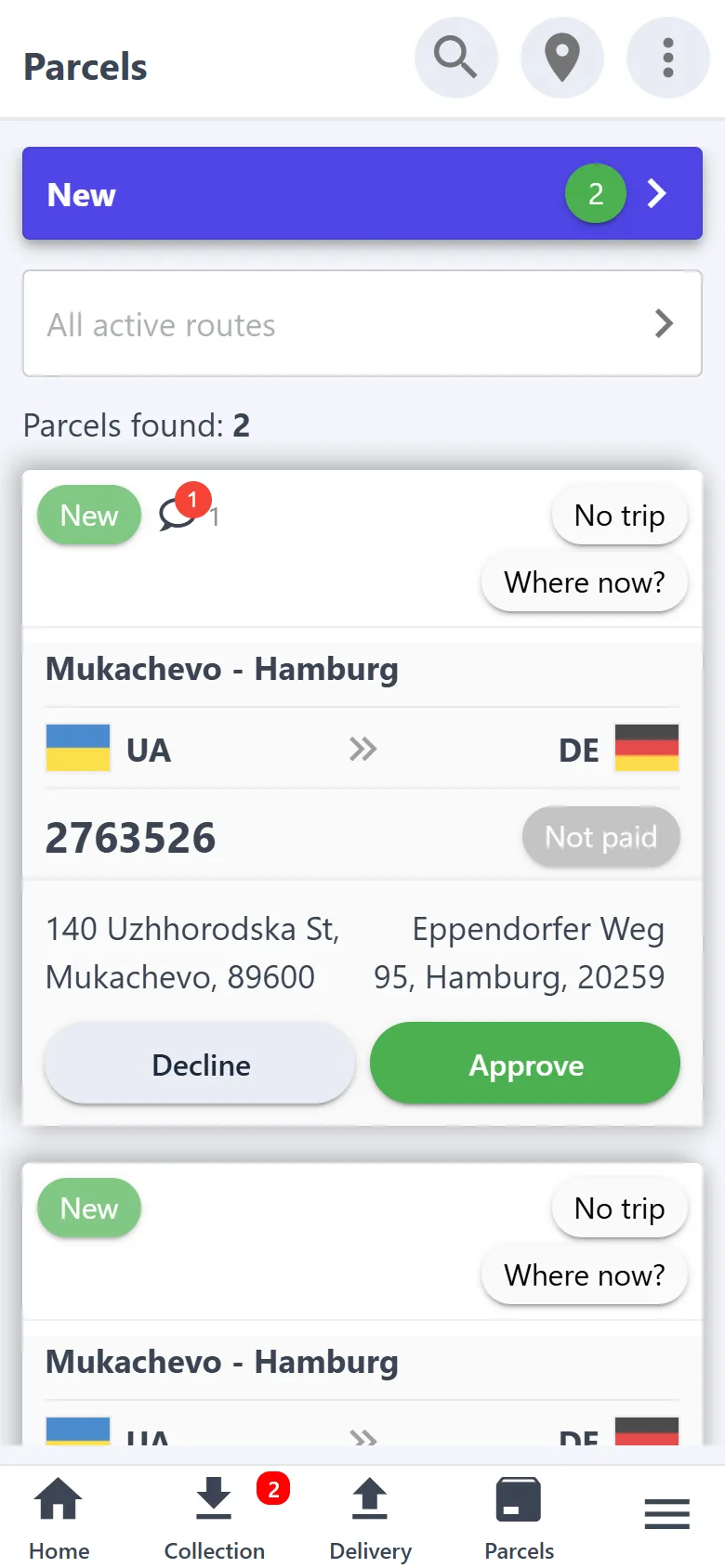
“Approve submitted parcels” — new requests with “Approve” and “Decline” buttons; the counter of new ones is on the bottom bar. After “Approve” the app offers a trip of the route right away; after “Decline” it opens the chat so you can tell the customer why.
On a computer new requests open from “Home” → “Awaiting approval”: a table, with “Approve” and “Decline” at the top of the card on the right. “Collection” itself opens in the mobile version.
A parcel is placed straight from the phone, and the Nova Poshta waybill is created by itself.
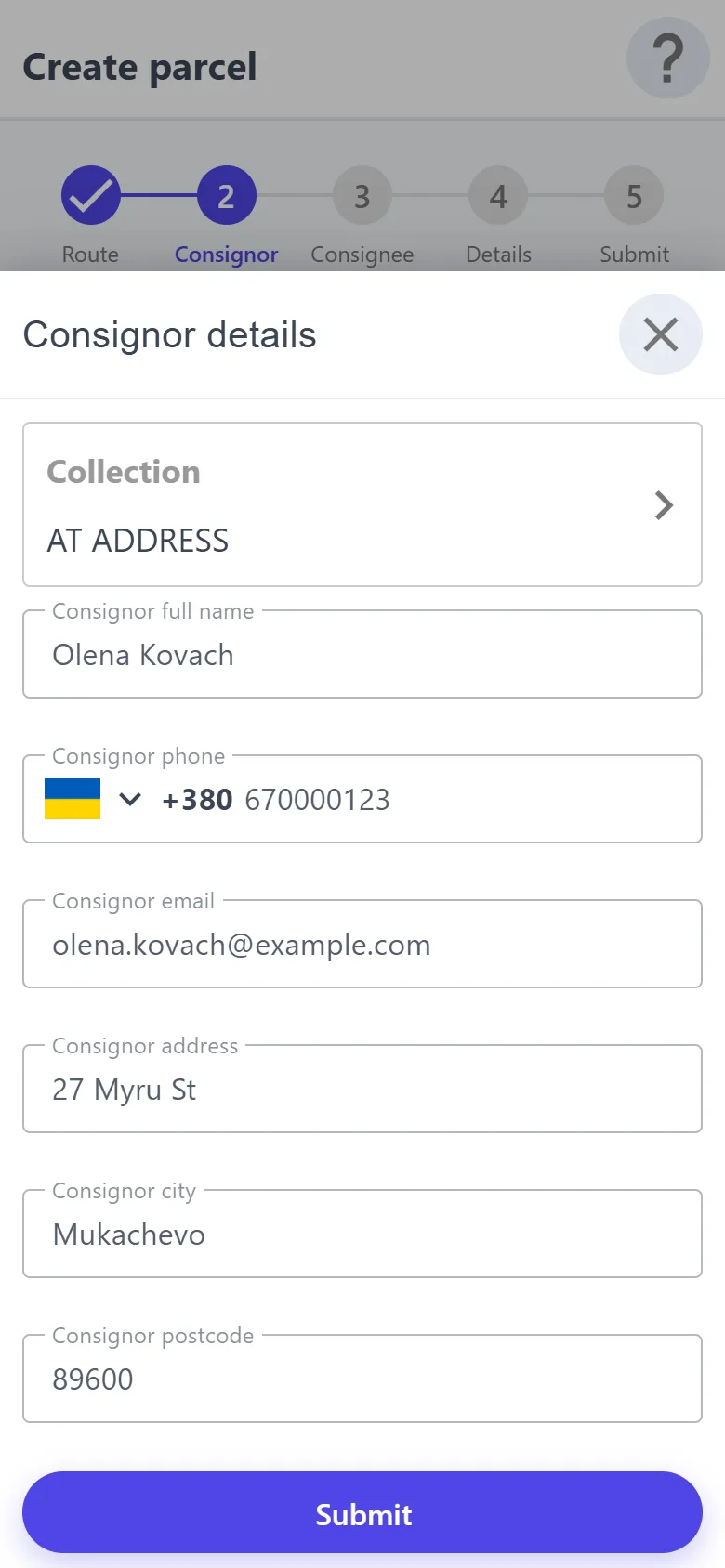
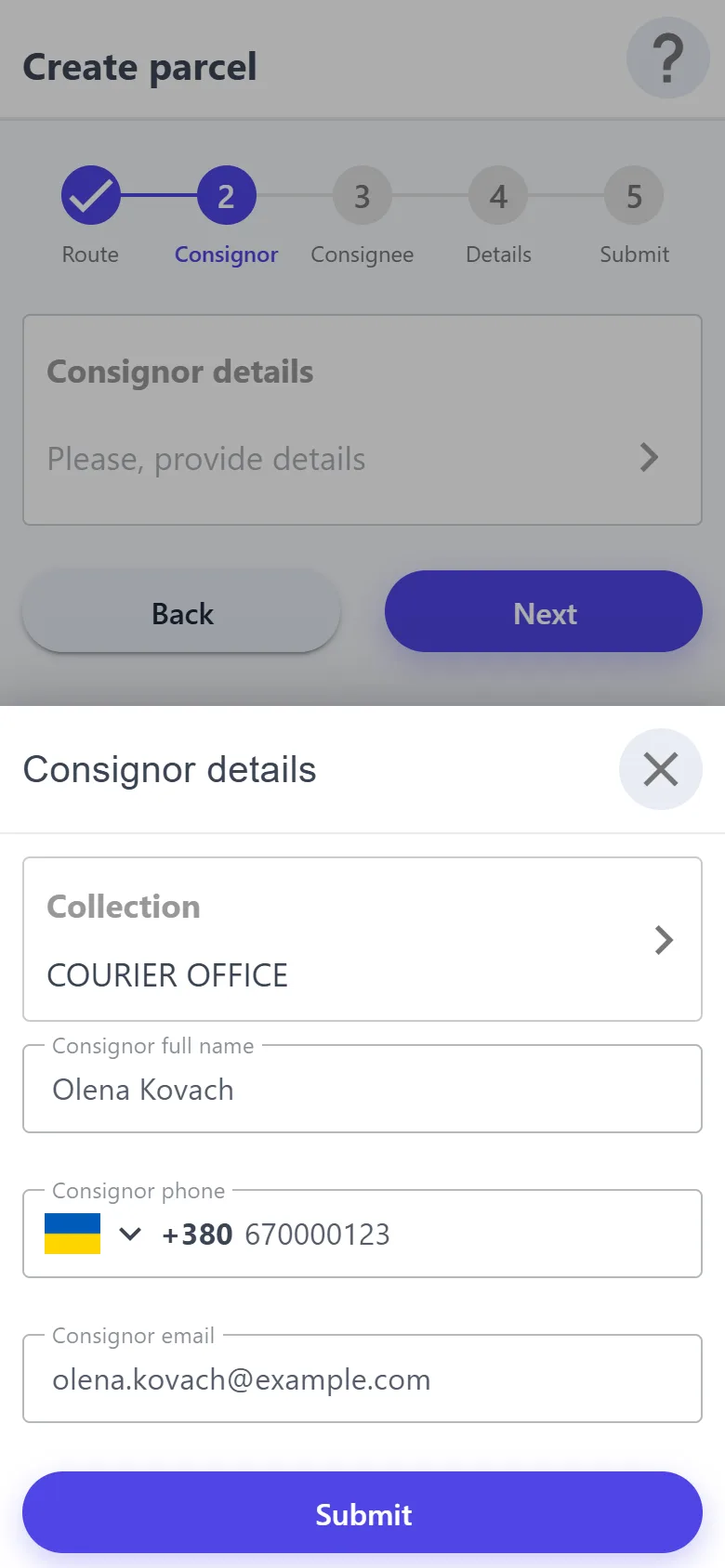
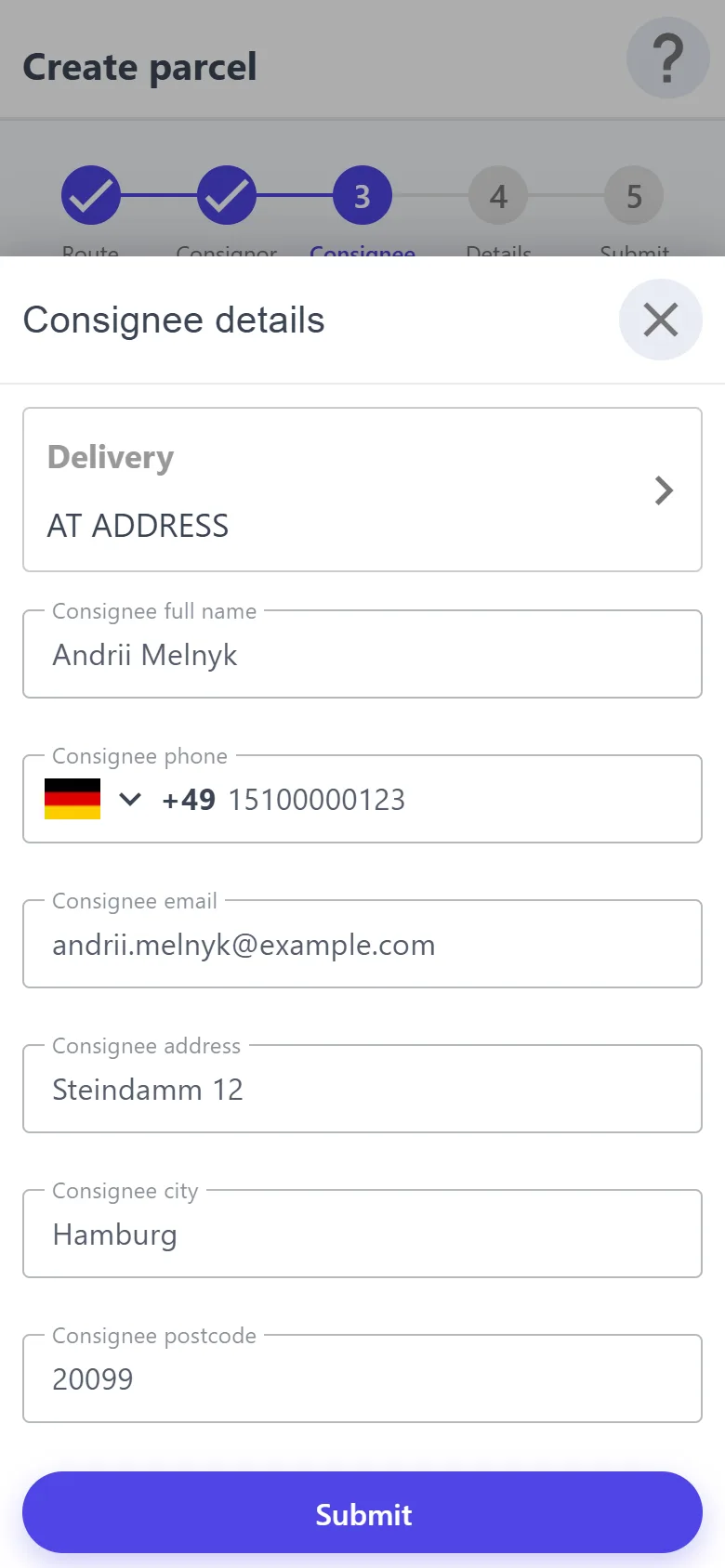
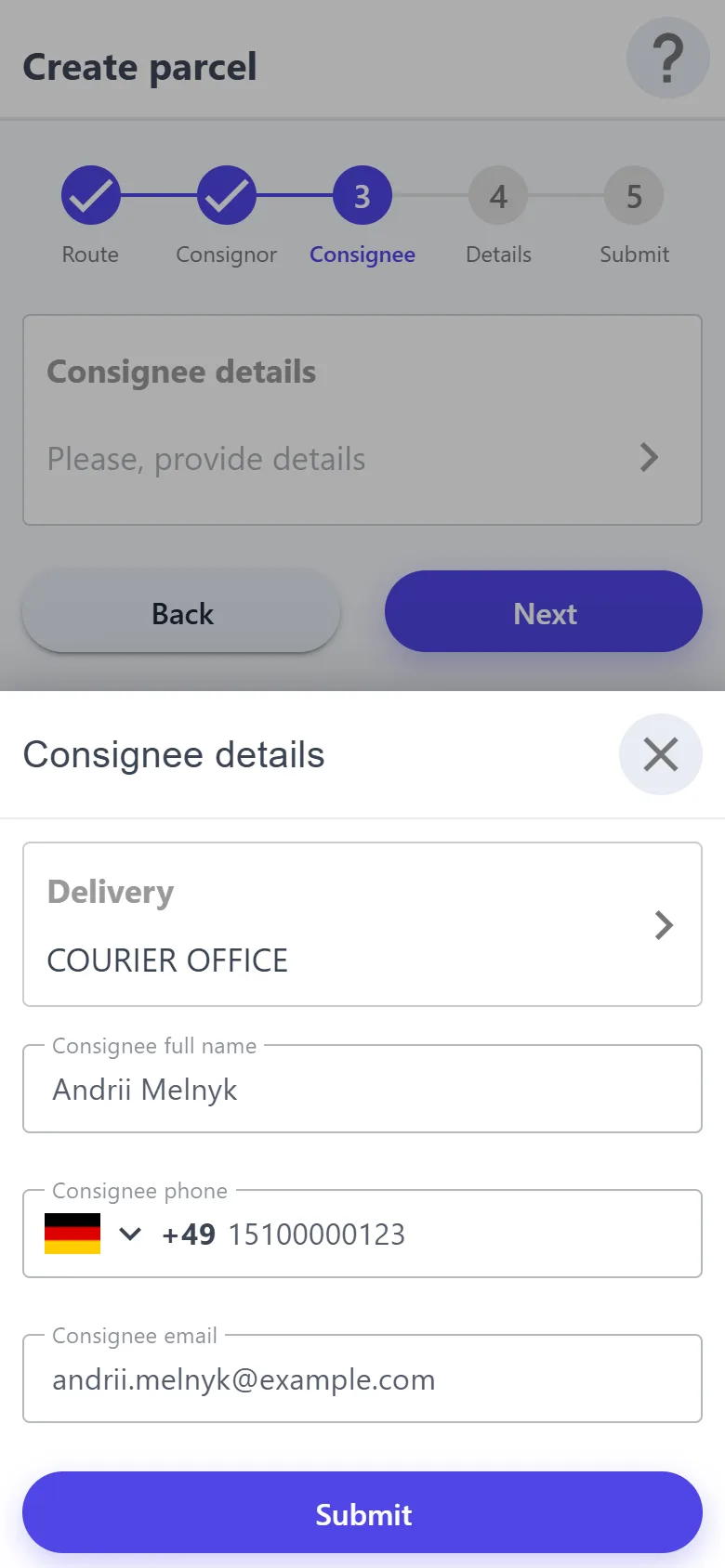
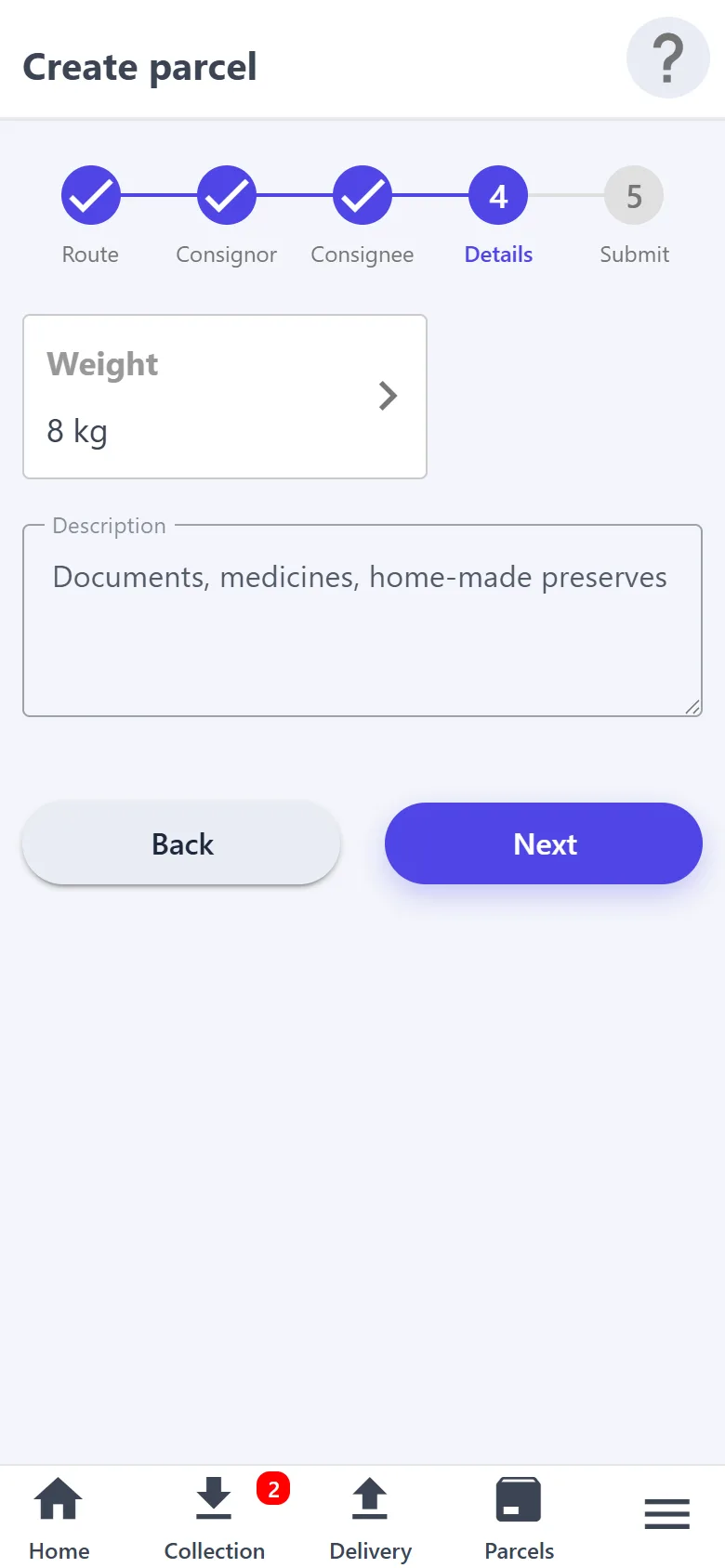
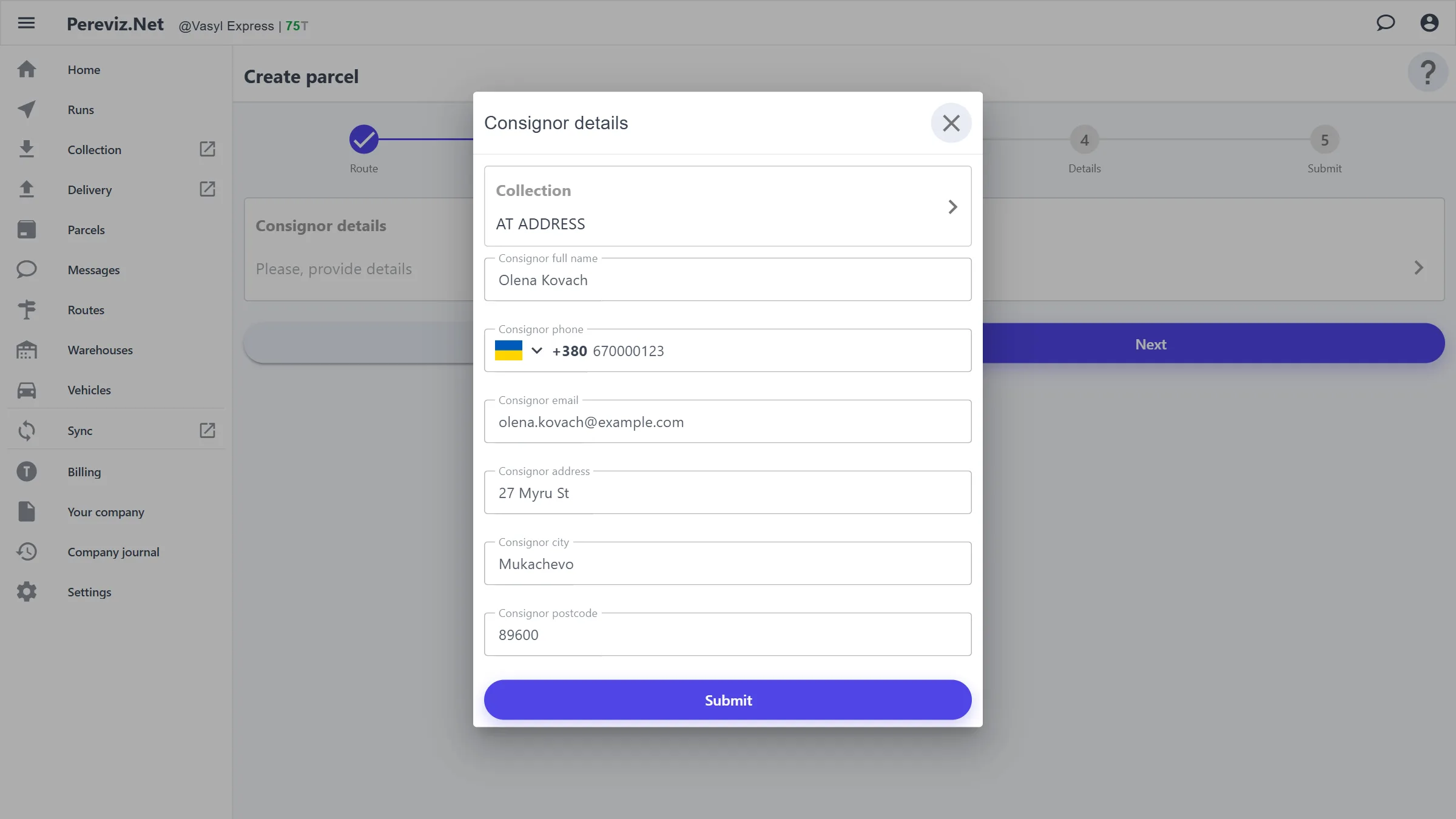
“Collection” → “Create new parcel”. Five steps: route, consignor, consignee, details, review → “Create”. “Back” returns to the previous step without losing what you entered. On a computer — “+” in “Parcels”, the same form.
On the route step you can enter a “Short code” — the number the tracking number ends with, printed in large digits on the label. Leave it empty and the next number is assigned by itself.
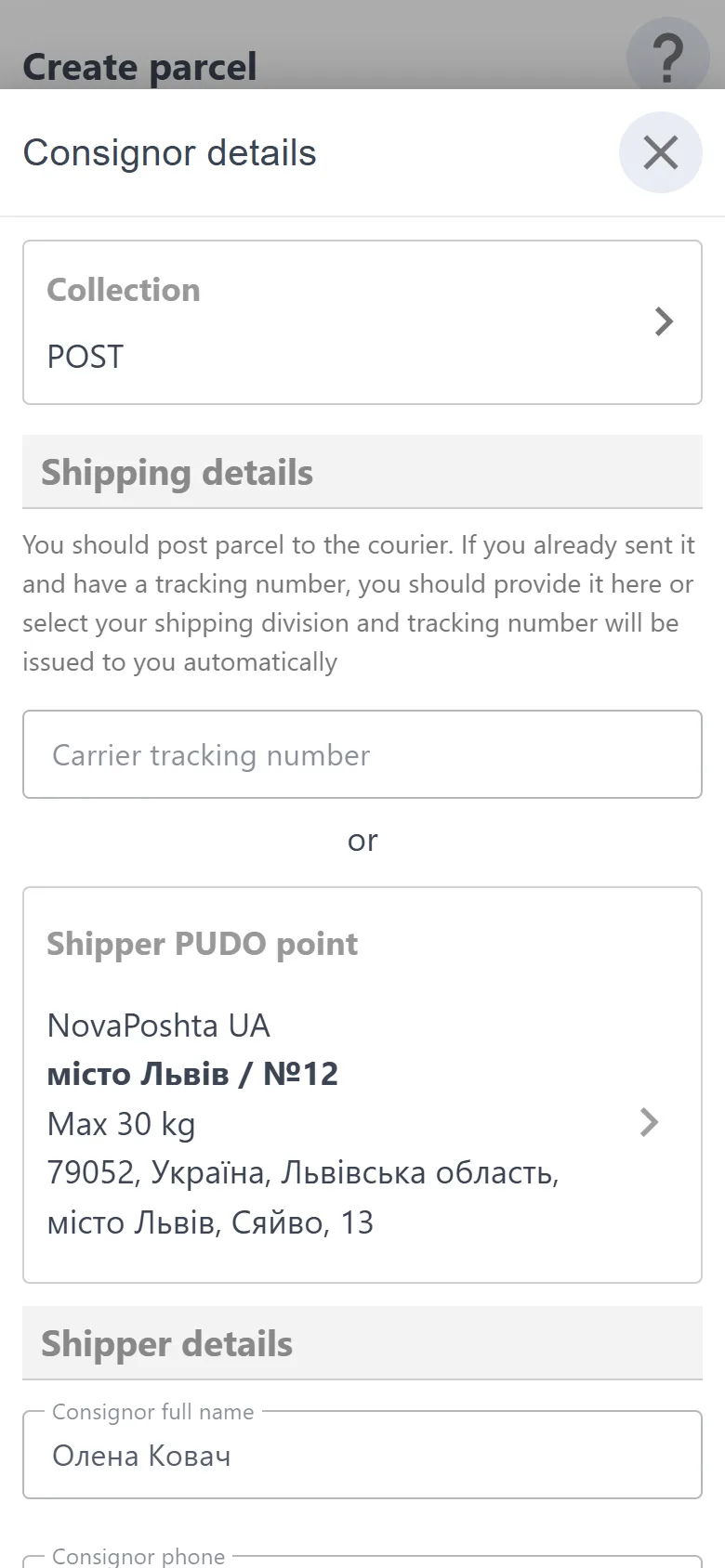
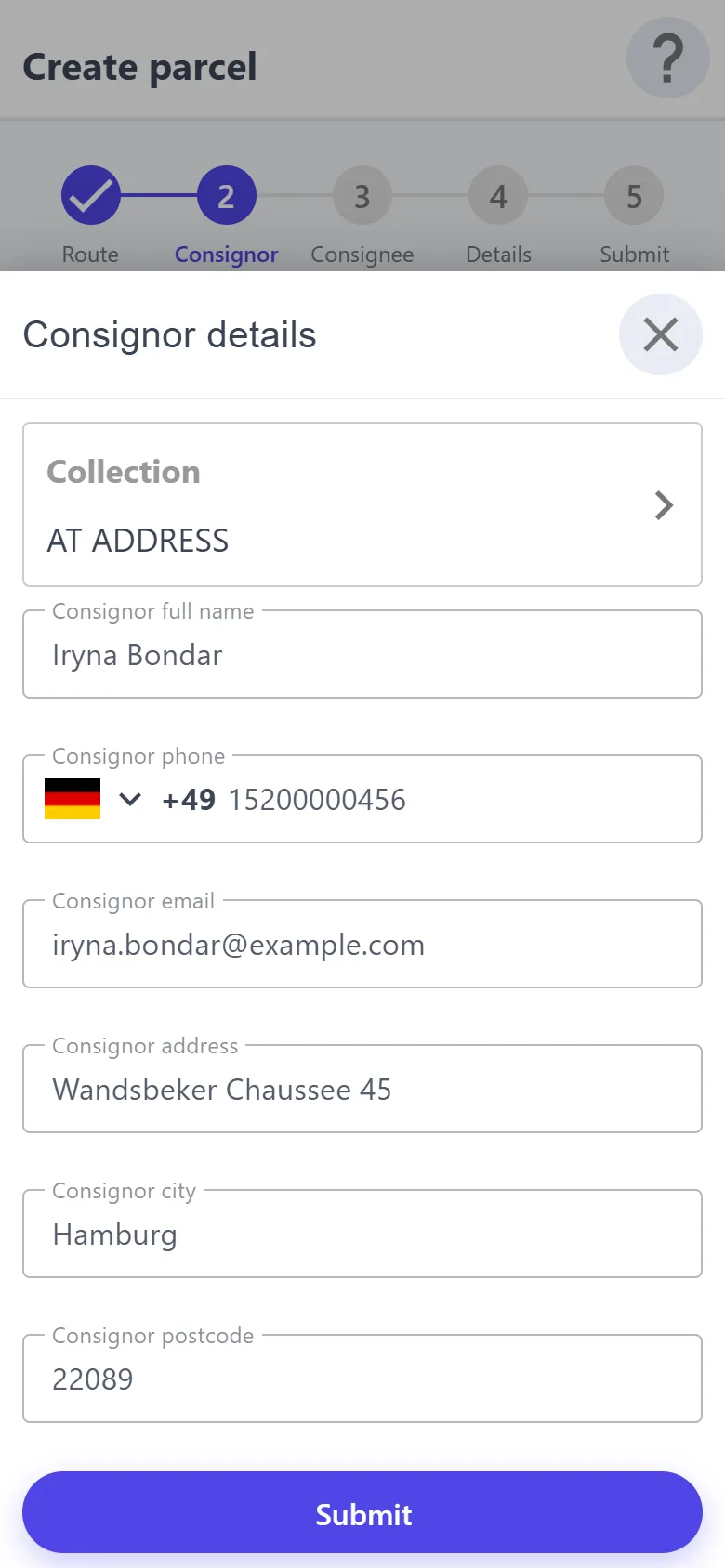
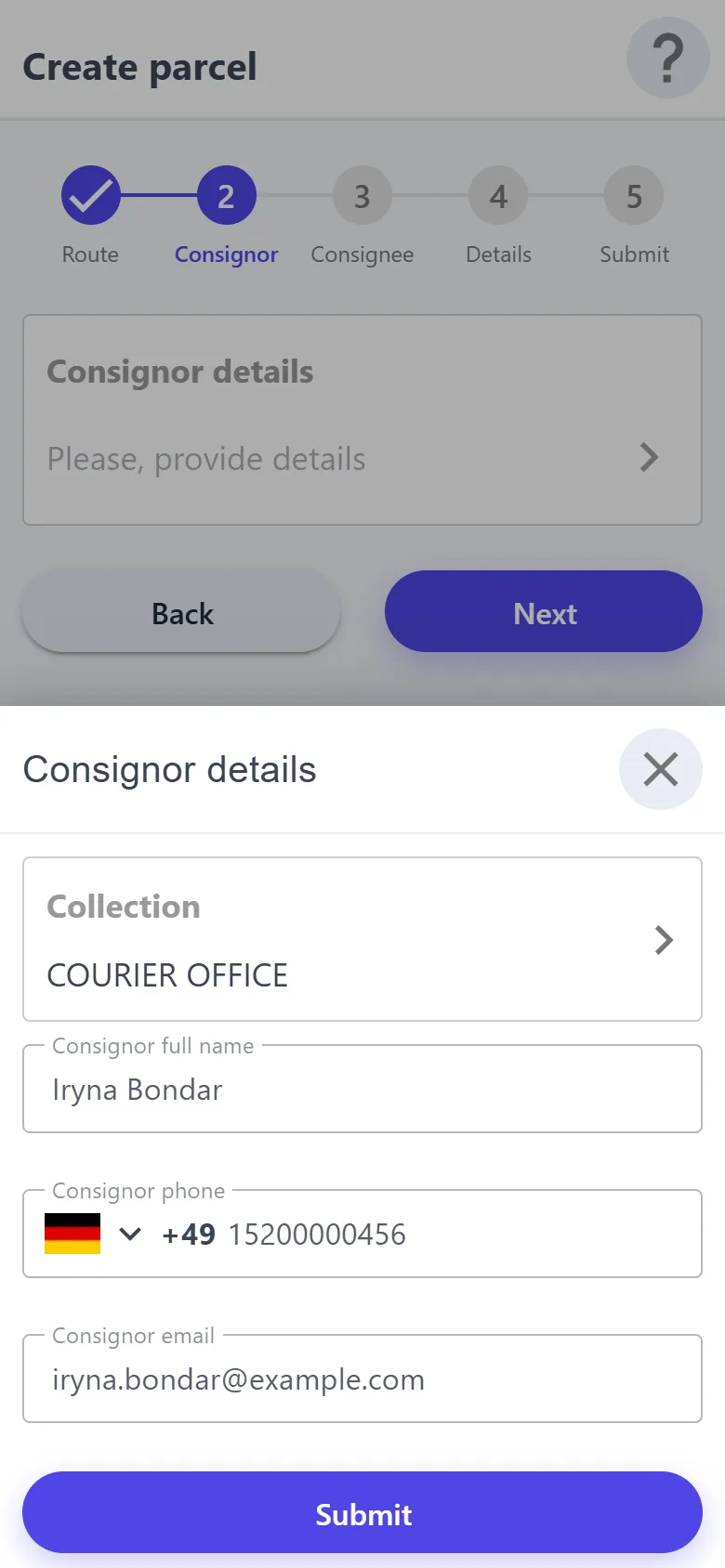
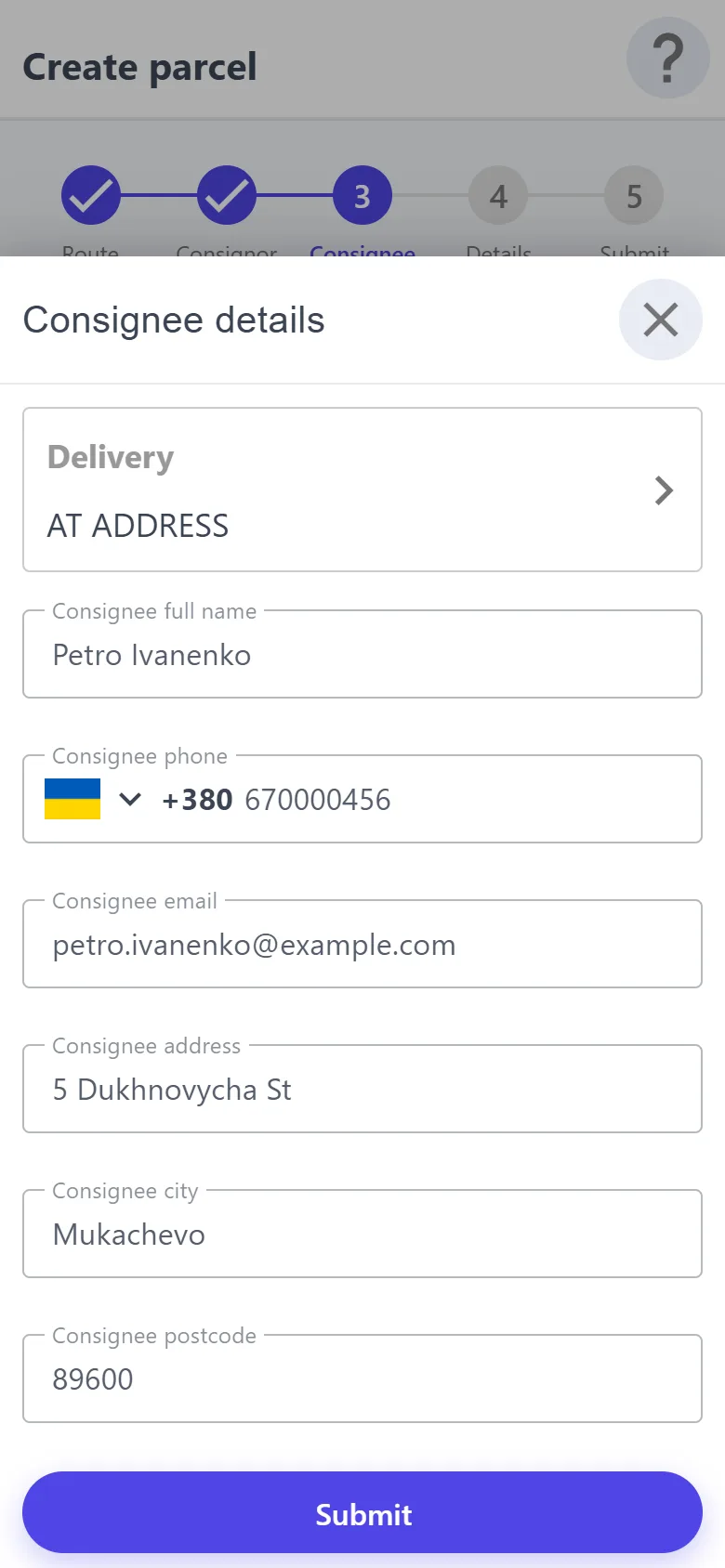
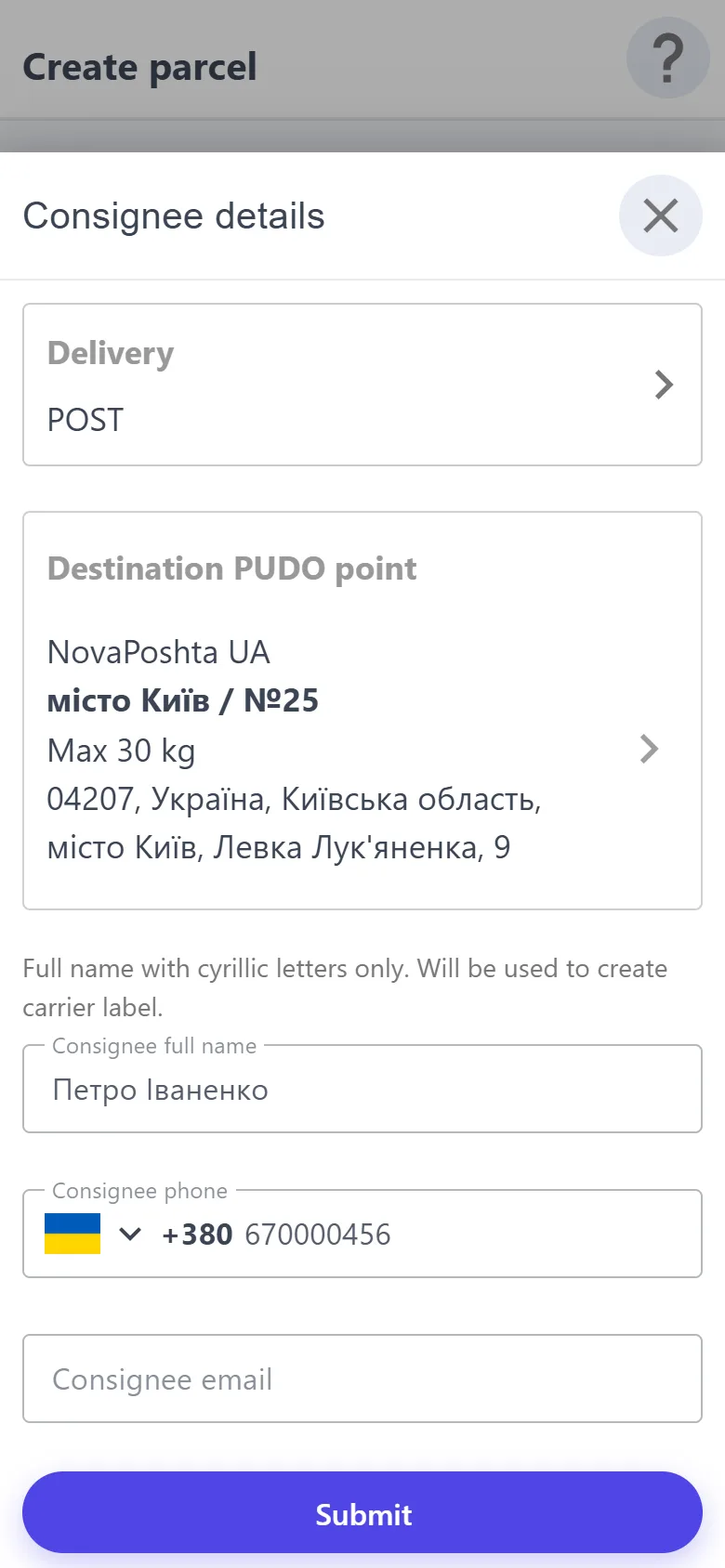
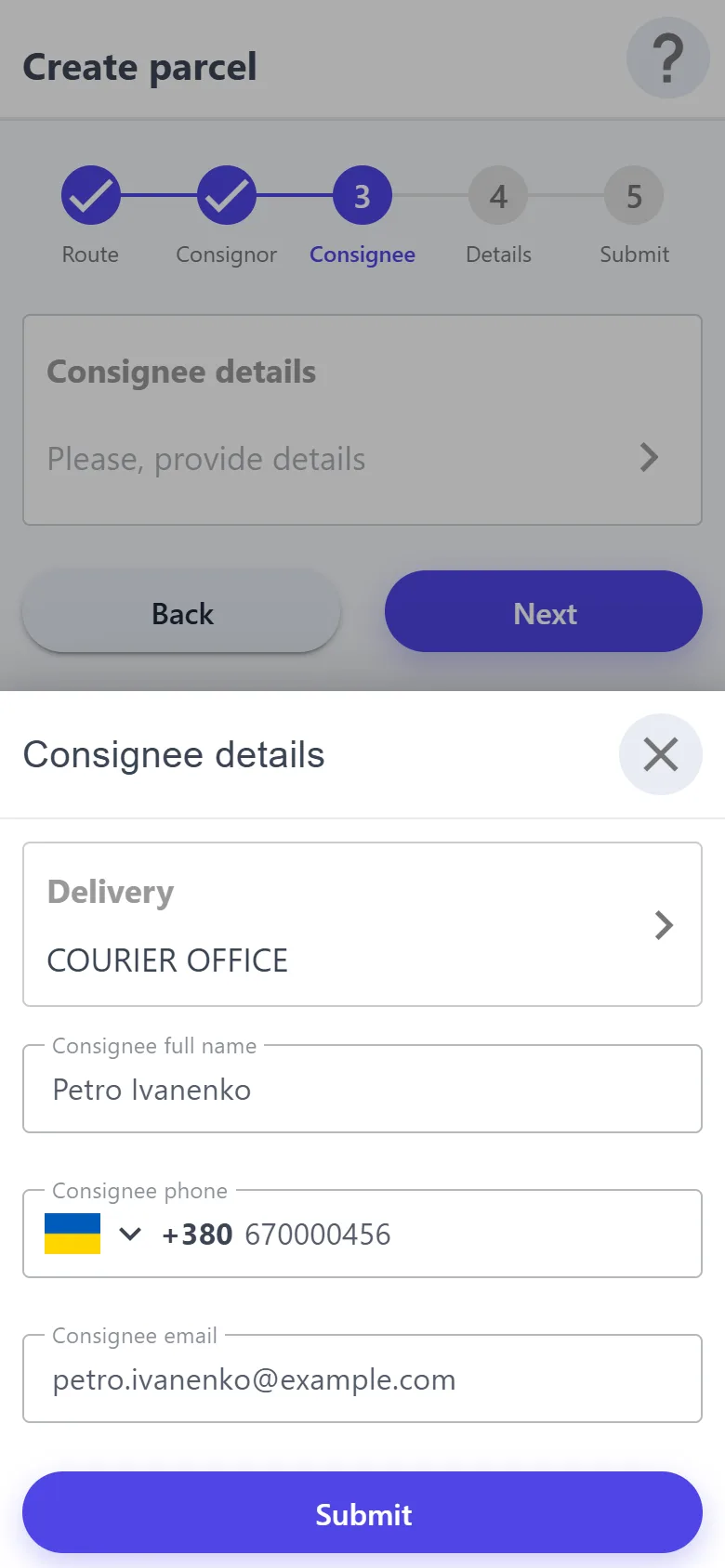
In the consignor or consignee window, pick the method first — only those enabled on the route are shown. Name and phone are required, email is optional.
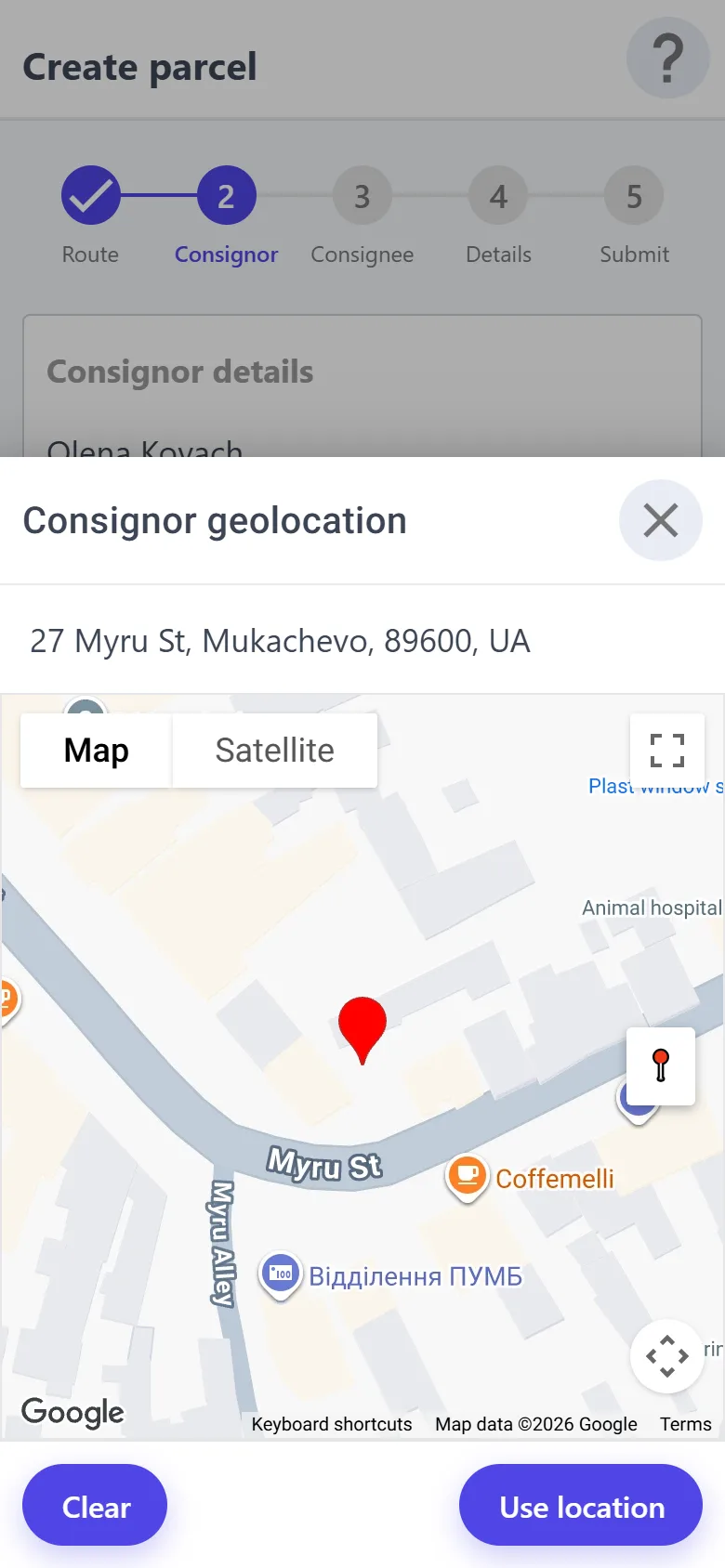
At address — the address, city and postcode (the postcode is optional for the consignee). Then “Consignor geolocation” or “Consignee geolocation”: the map opens at the address you entered — drag the marker or tap the right spot and press “Use location”. You can't go on without a point on the map, and the app asks you to confirm a point outside the route's country.
Post — the name in Cyrillic only, as it goes on the waybill. Consignor: the waybill number if the parcel has already been sent, or their branch — then a waybill to your branch is created on saving; the step shows which branch to send it to. Consignee: their branch and a Ukrainian phone number; the waybill is also created on saving.
Courier office — only the name and phone: the parcel is brought to the office or picked up there, no address or map needed.
Details — the weight in kilograms and a description of the contents, both required.
After “Create” the parcel goes straight to “Delivery” or “Delivery (PUDO)” and charges 1 T. For a parcel with a consignee branch, the carrier label window opens.
Needs a network. A waybill is created only if “Settings” → “Nova Poshta” holds the API key and the sender's name and phone. If it fails, the parcel is saved anyway, and the label window shows the error and lets you try again.
Every parcel at hand: where it is, which trip it travels on, whether it is paid.
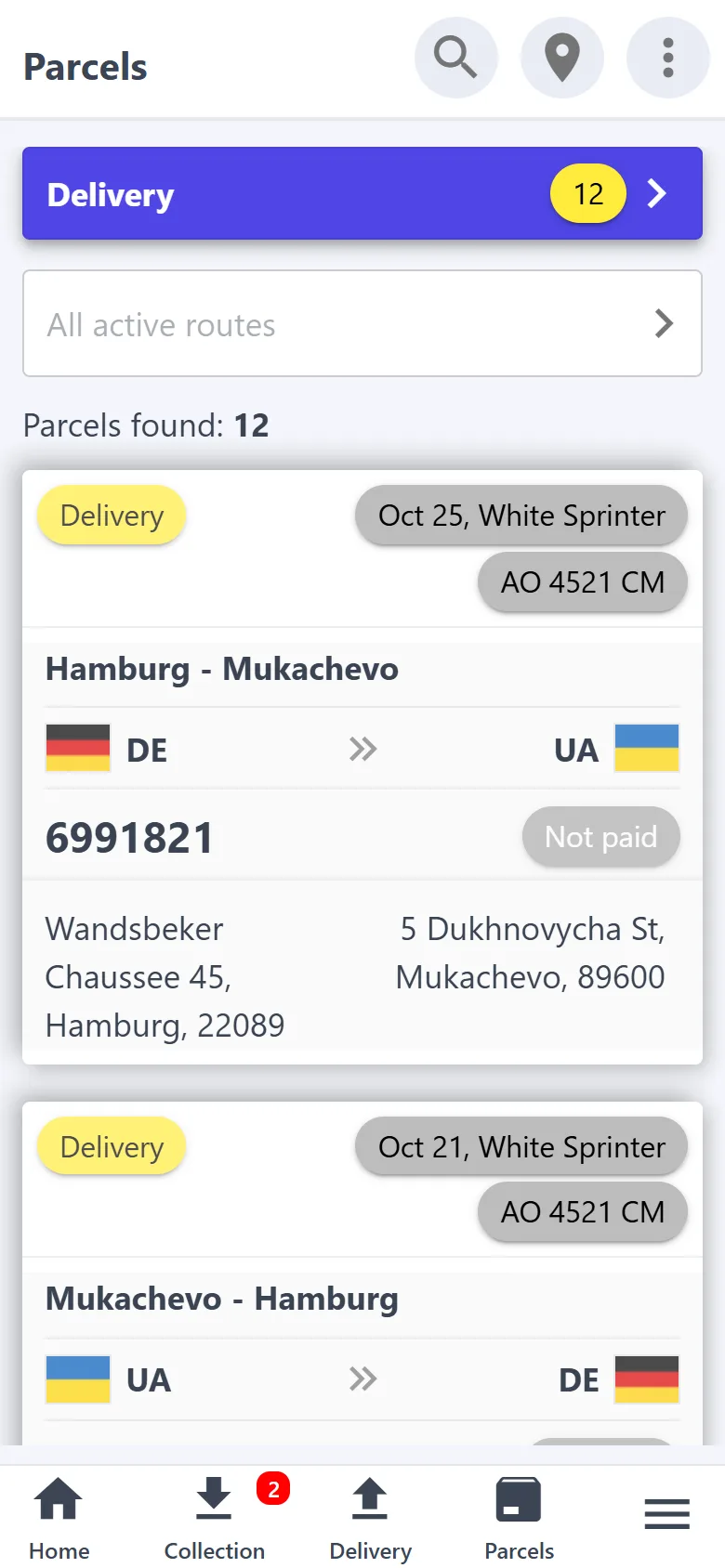
Folders by status with counters — the “Parcels” button on the bottom bar; a route filter.
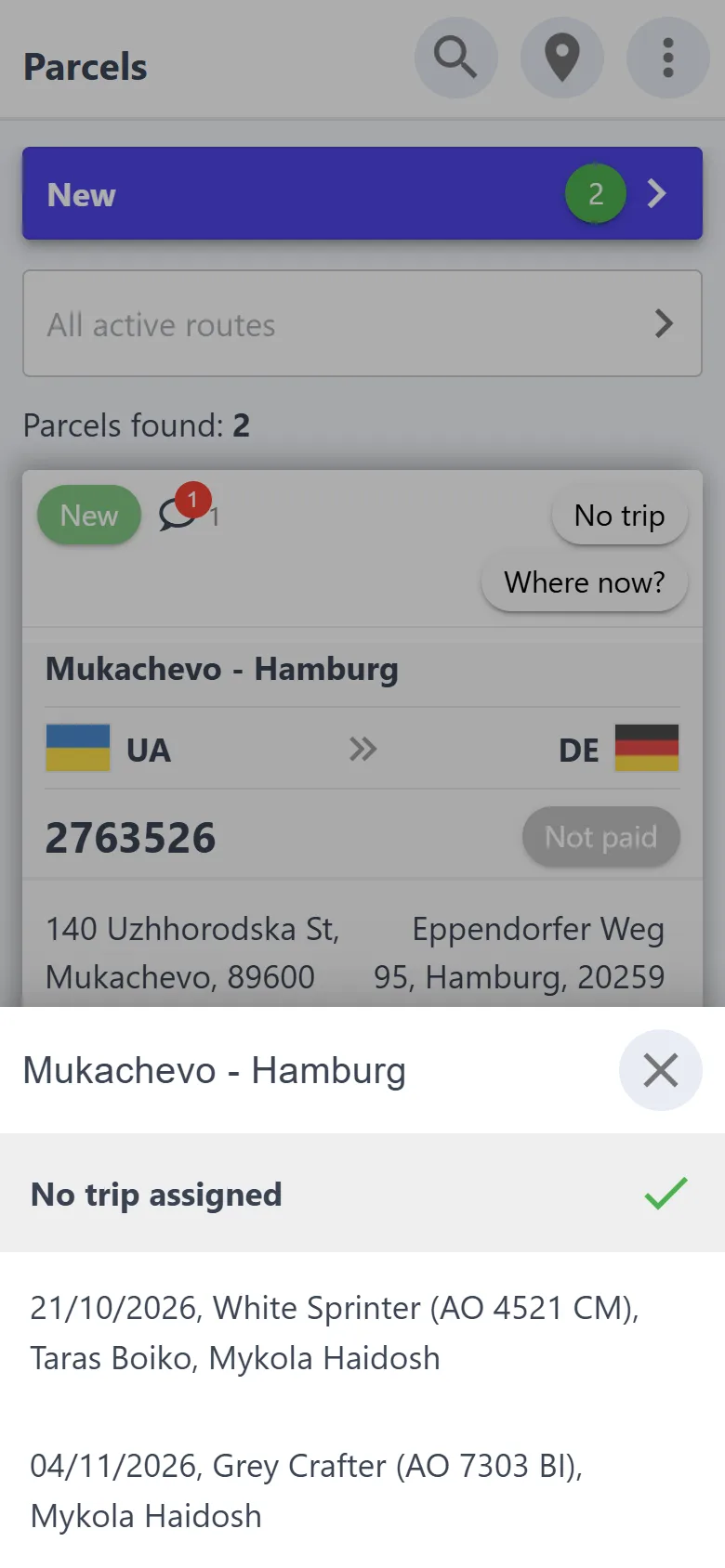
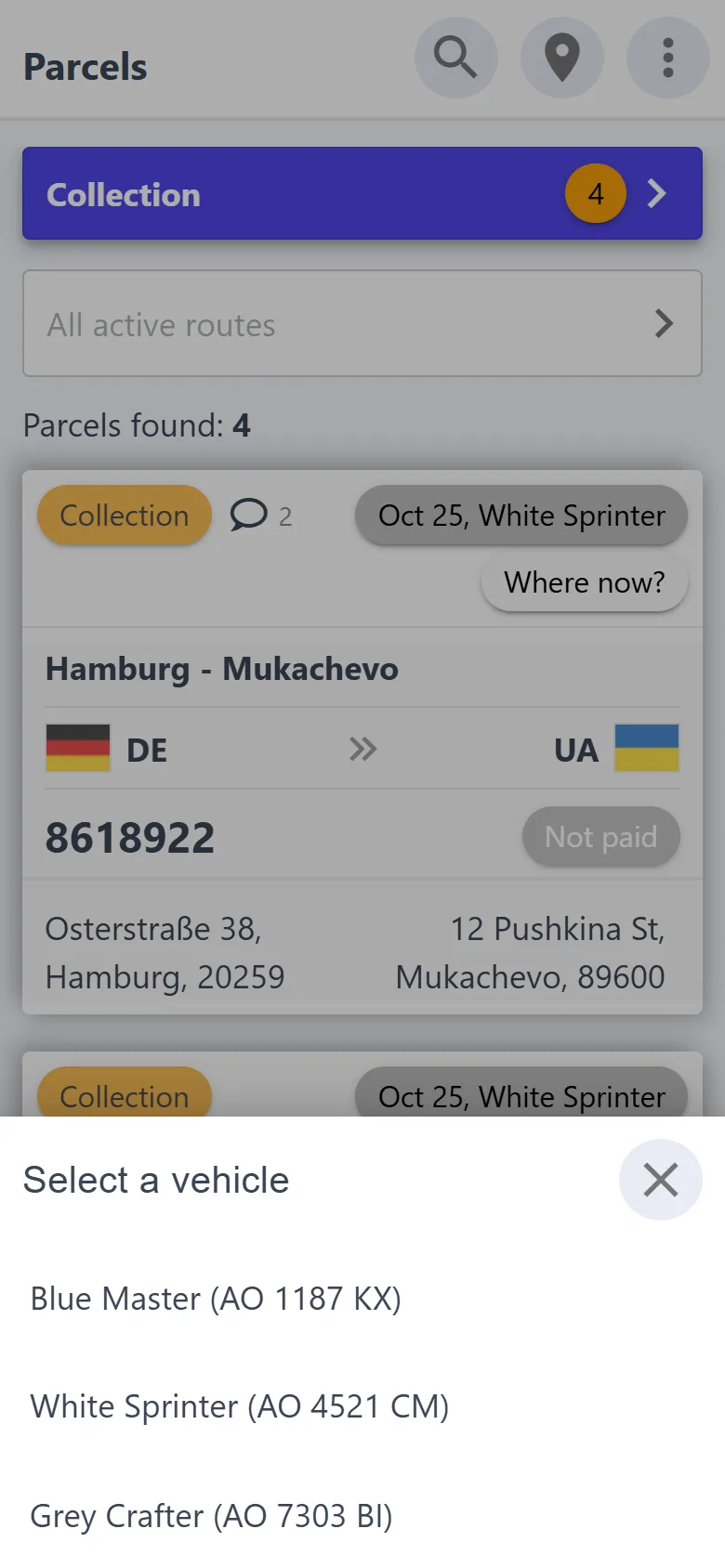
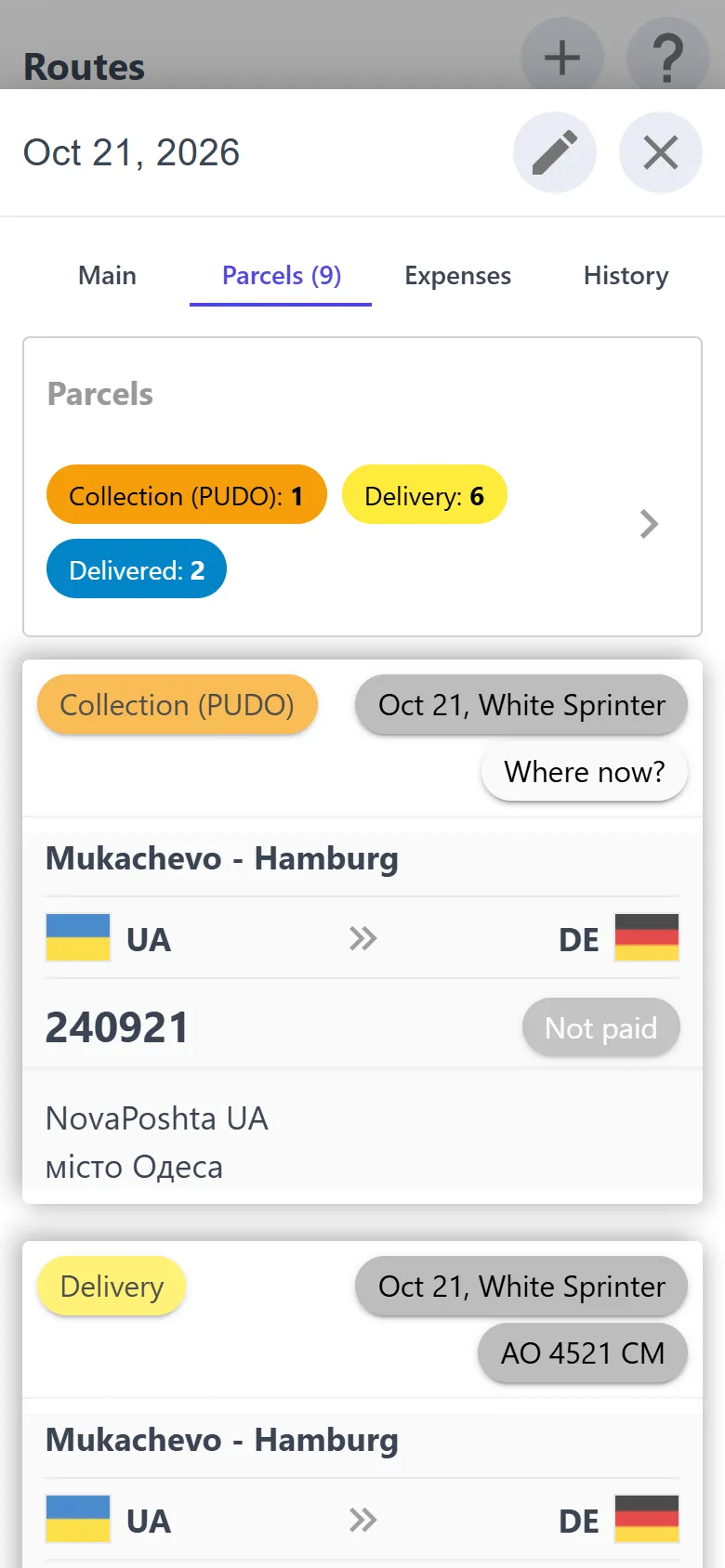
A parcel card carries two tags: the trip (date and vehicle) and “Where now?” — the vehicle's license plate or the warehouse name. A tap assigns a trip or changes the place: “Vehicle”, “Warehouse” or “Set as Inbound”.
Search: trip; vehicle — everything in the van right now; “Not assigned to active run”; “No GEO”; payment status; tracking number; consignor or consignee — by name, phone, email, address, city or postcode.
New requests are approved and declined right in the list. The chat badge shows new messages.
“Download parcels” in the ⋮ menu — the found parcels in Excel.
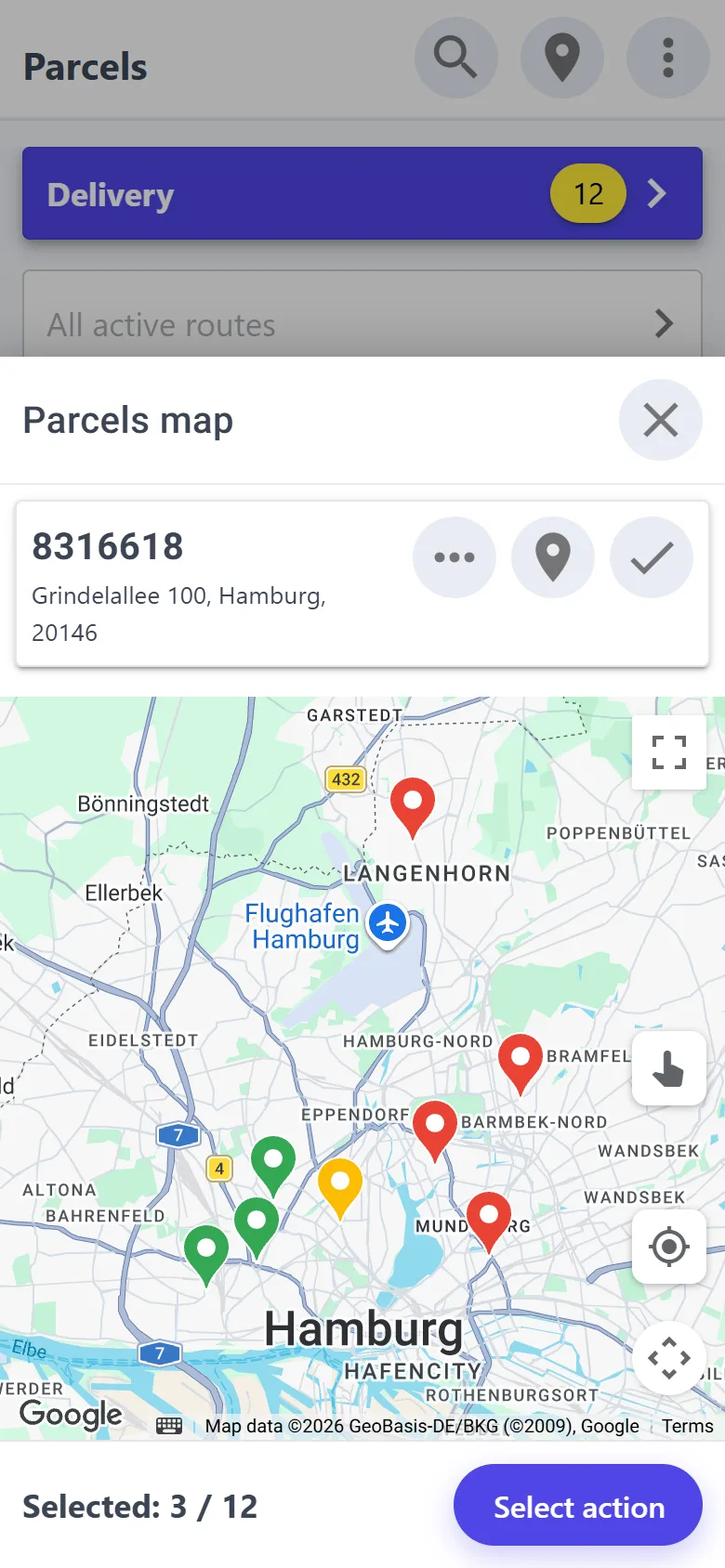
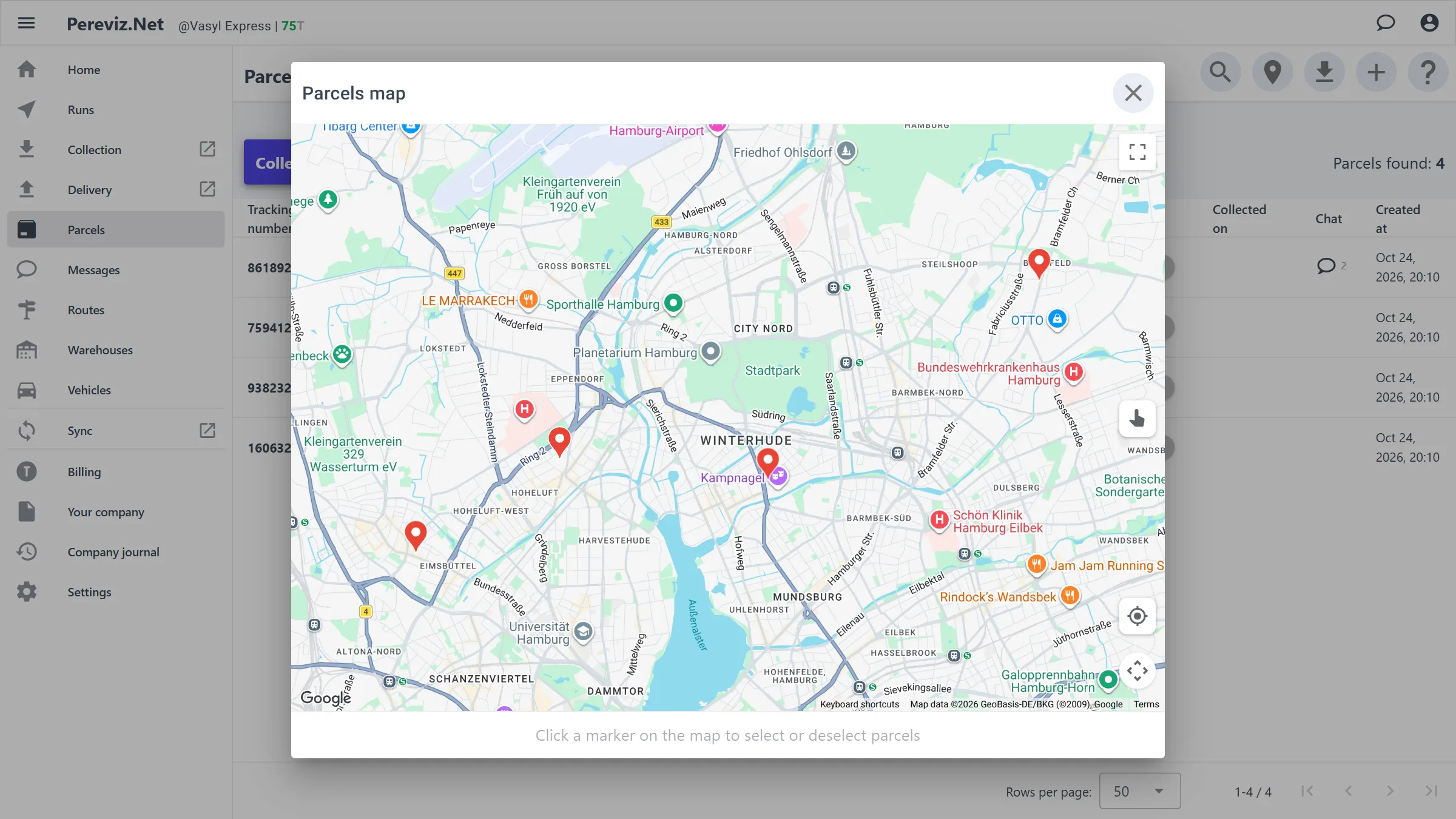
Map: consignor or consignee points. Tap a marker and ✓, or circle them with a finger → “Select action” → “Add parcels to run” — an existing run or a new one.
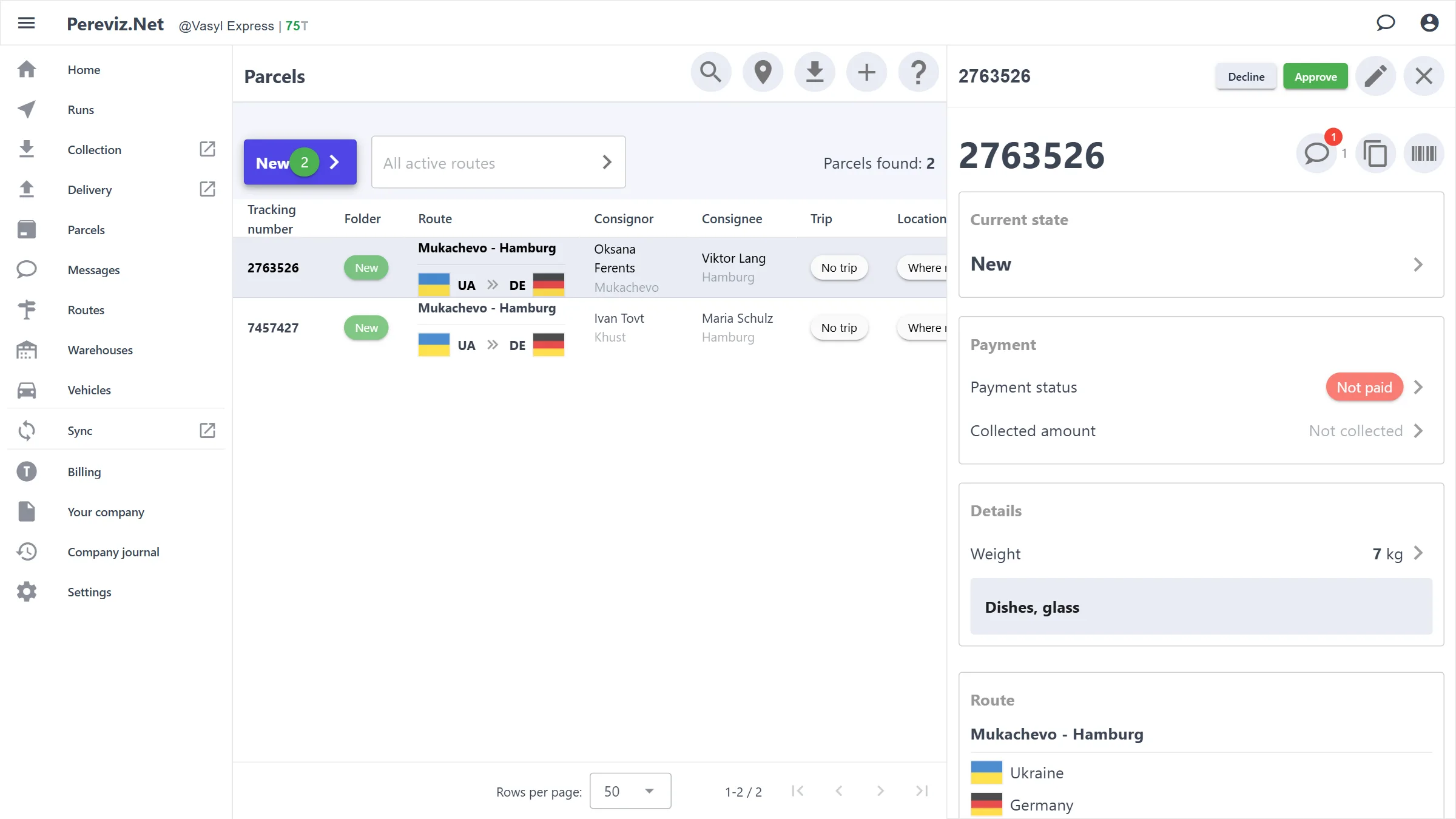
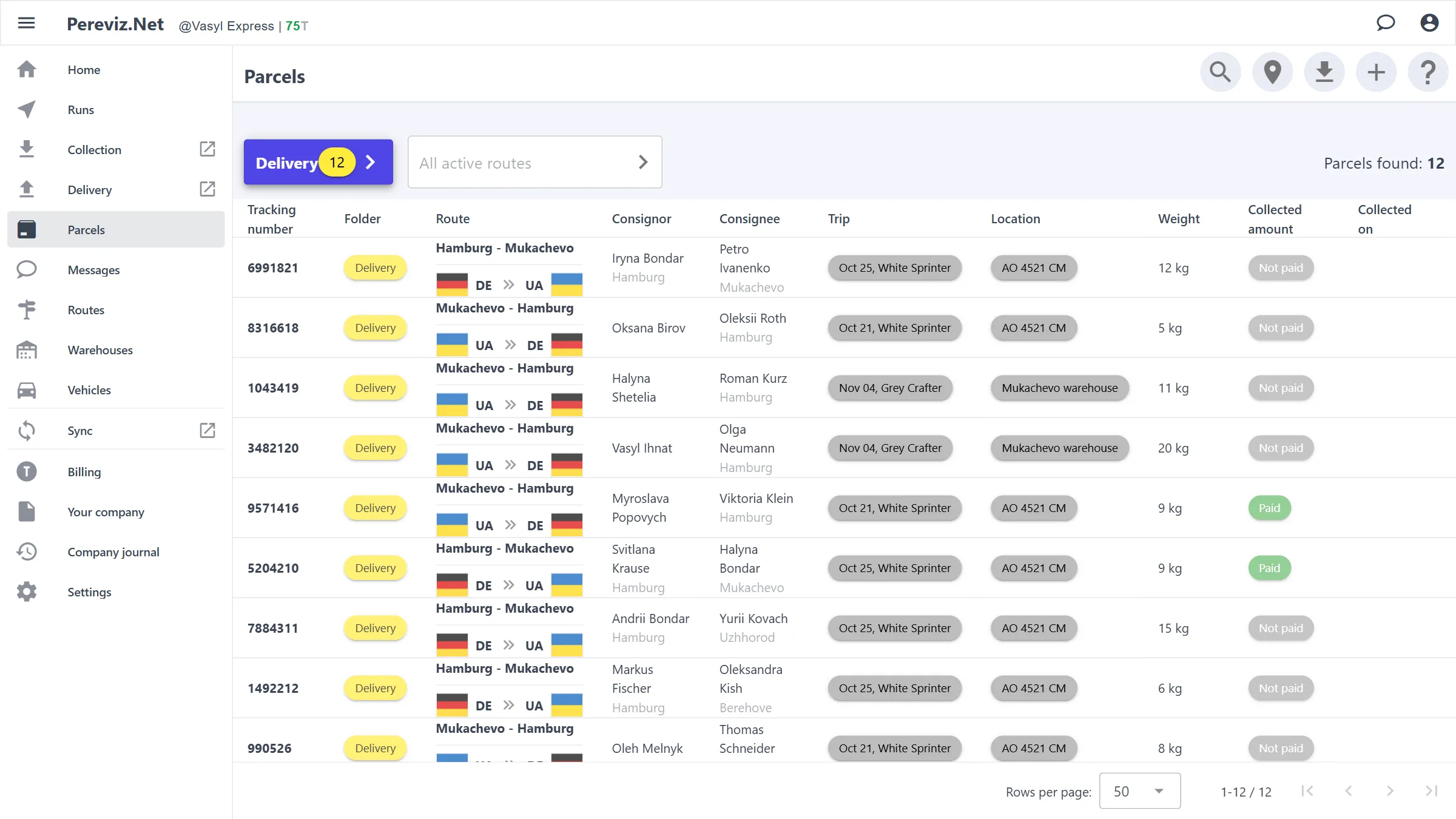
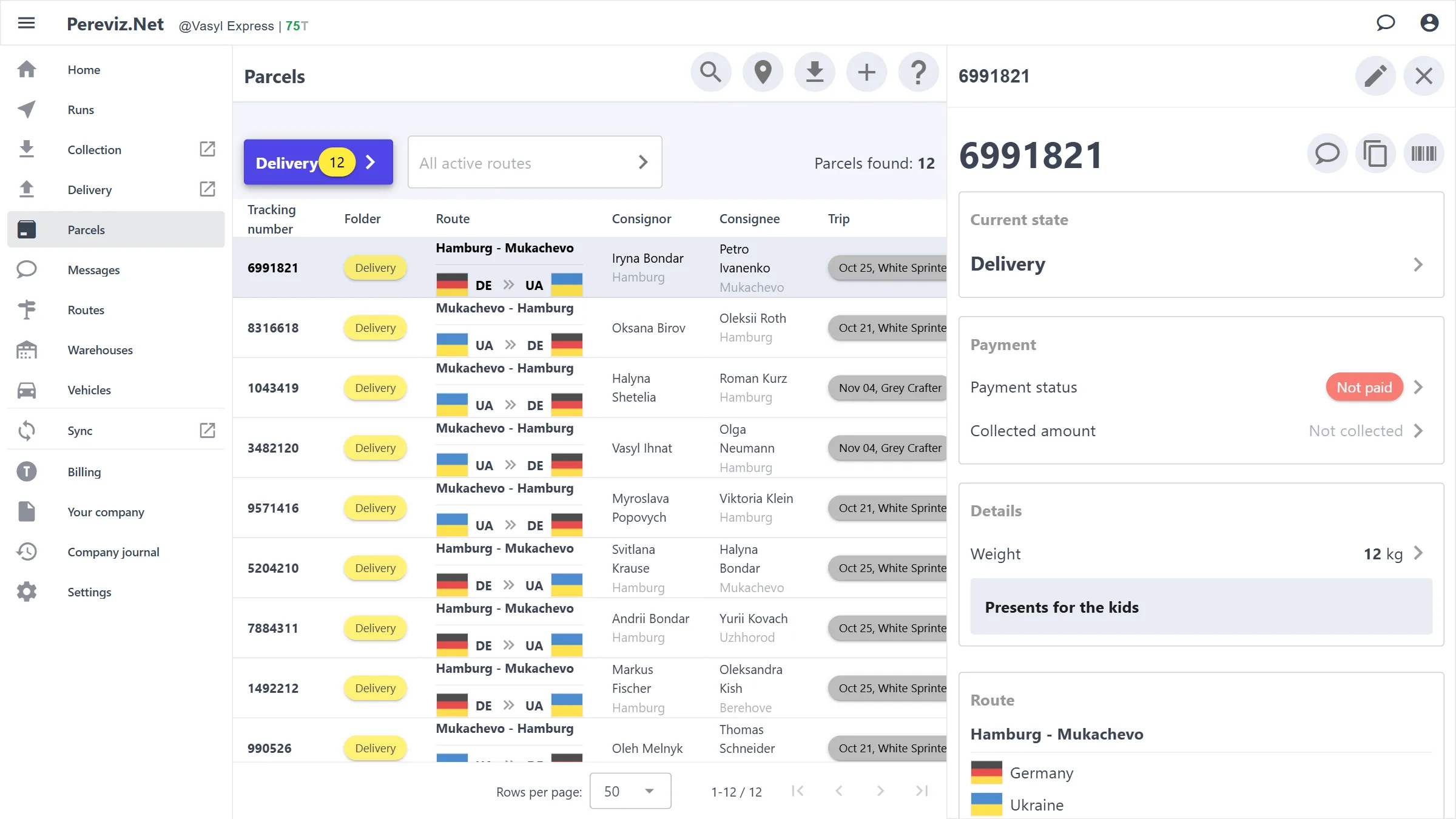
On a computer parcels are a table: tracking number, folder, route, consignor, consignee, trip, location, weight, payment, dates and chat. Most columns sort with a click on the header, and the trip and “Where now?” change right in the row.
The whole parcel on one screen — from the request to the photos and the handover mark.
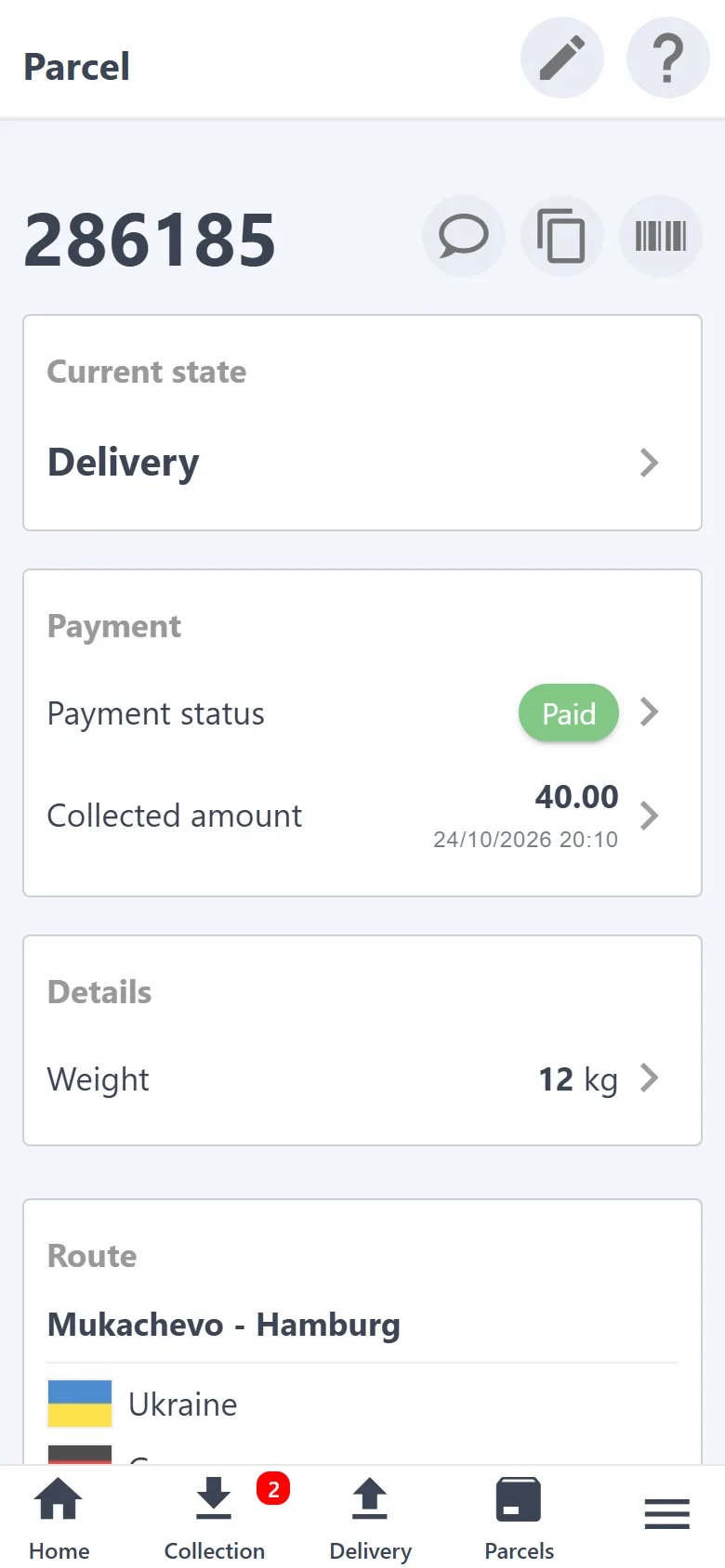
“Current state” — tap to change the status; payment, weight and description, route, trip. The pencil at the top edits the parcel, and inside it is “Duplicate parcel”: a copy with the same data, its own tracking number and waybills goes to “New”.
Payment: “Paid / Not paid” and the collected amount — entering an amount marks the parcel paid.
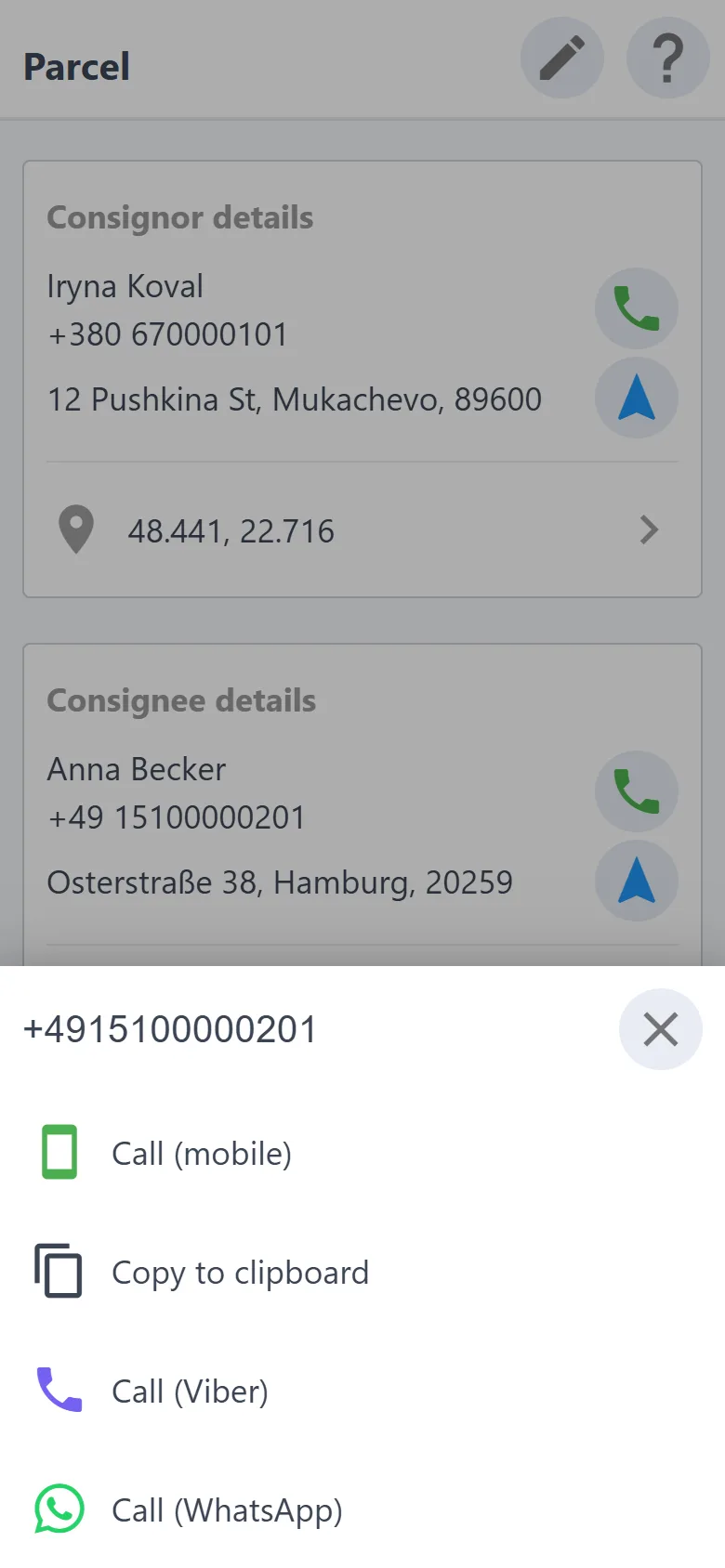
Consignor and consignee: call, Viber, WhatsApp, copy the number, Google Maps navigation by address or geo point.
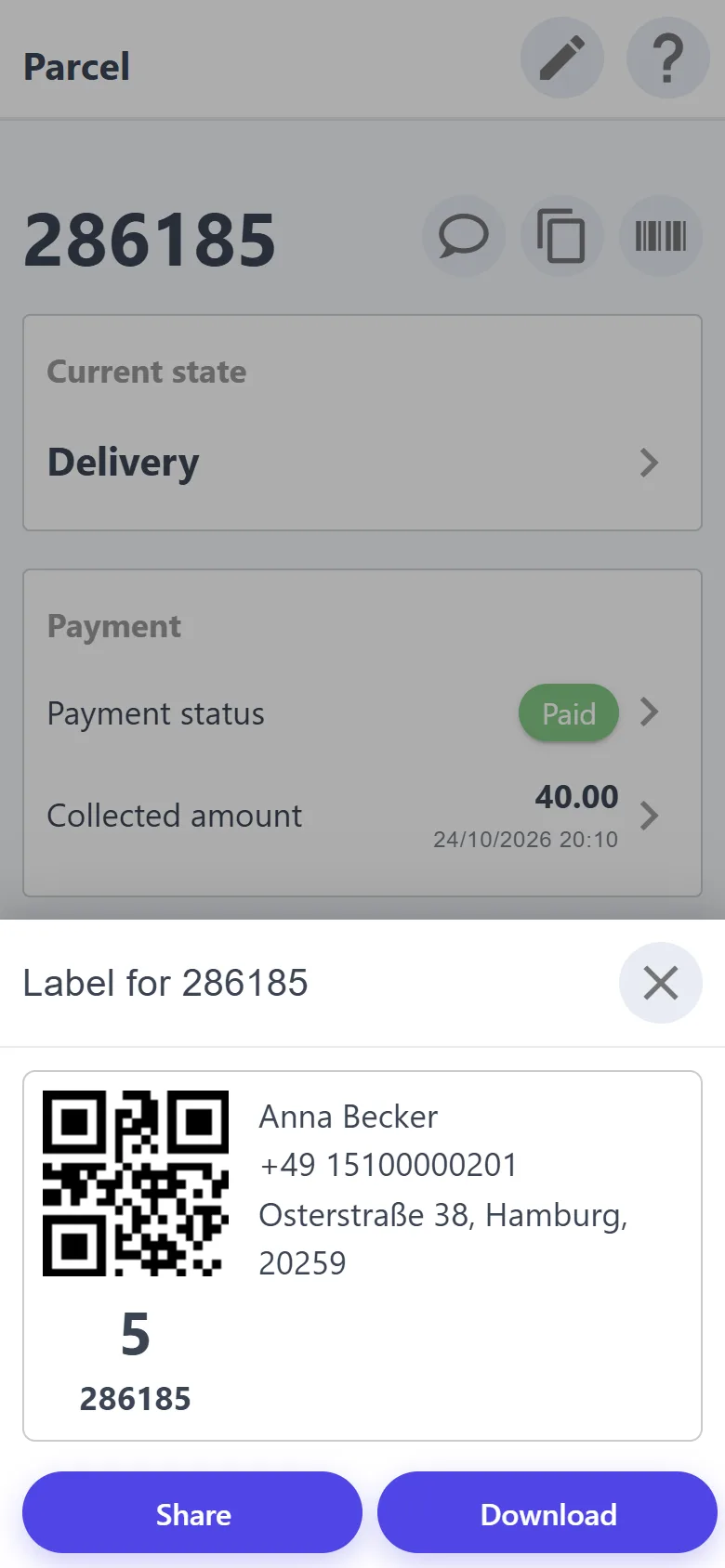
The barcode icon — your own label with a QR code and the short code: share it or download it.
Nova Poshta waybills for collection and delivery — create again, download.
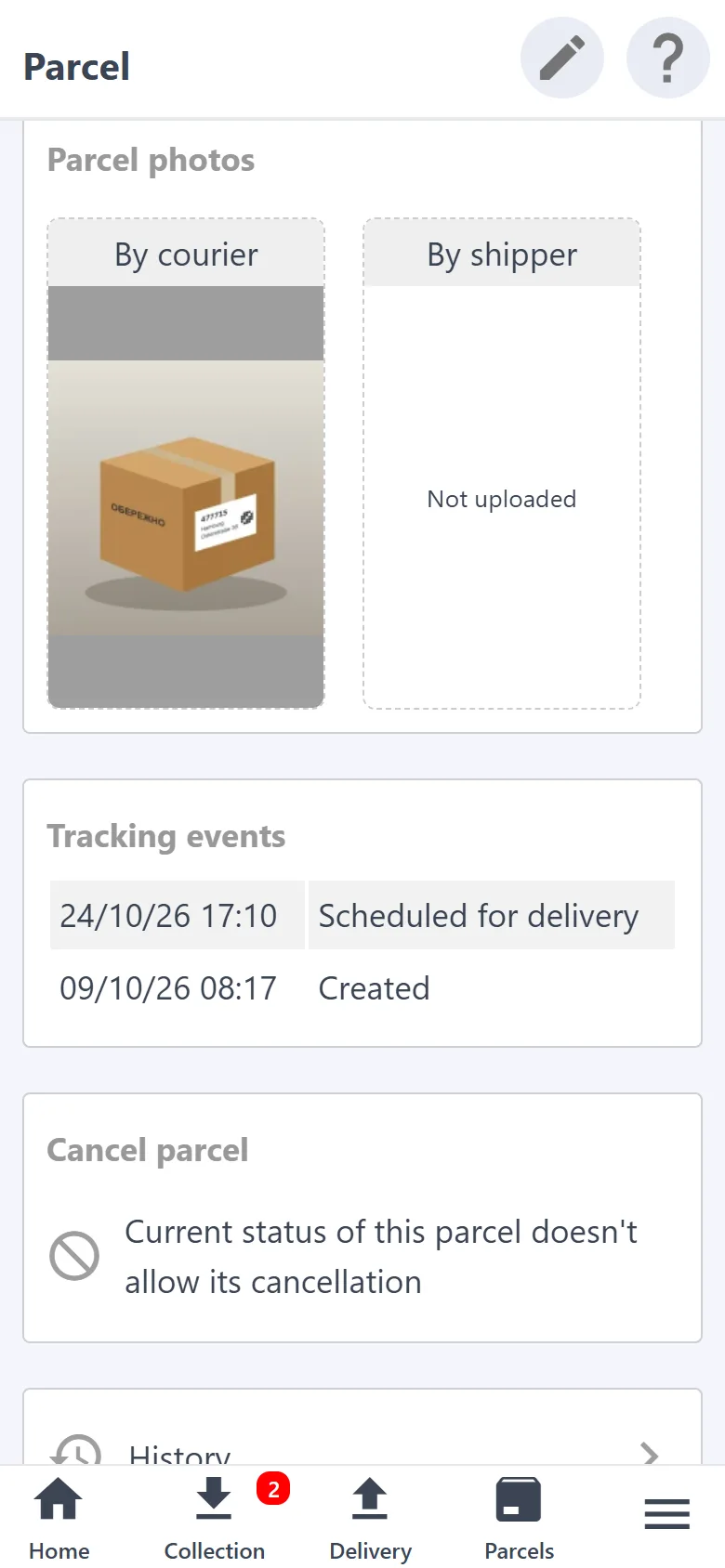
The message icon — chat with the customer. Photos from the courier and from the consignor, tracking events.
Cancelling the parcel with a reason; “History” — who changed what.
On a computer the card opens as a panel to the right of the table, and the list stays in view.
A round of addresses without extra kilometers: the app picks the parcels that fit, groups them by address and puts the stops in order.
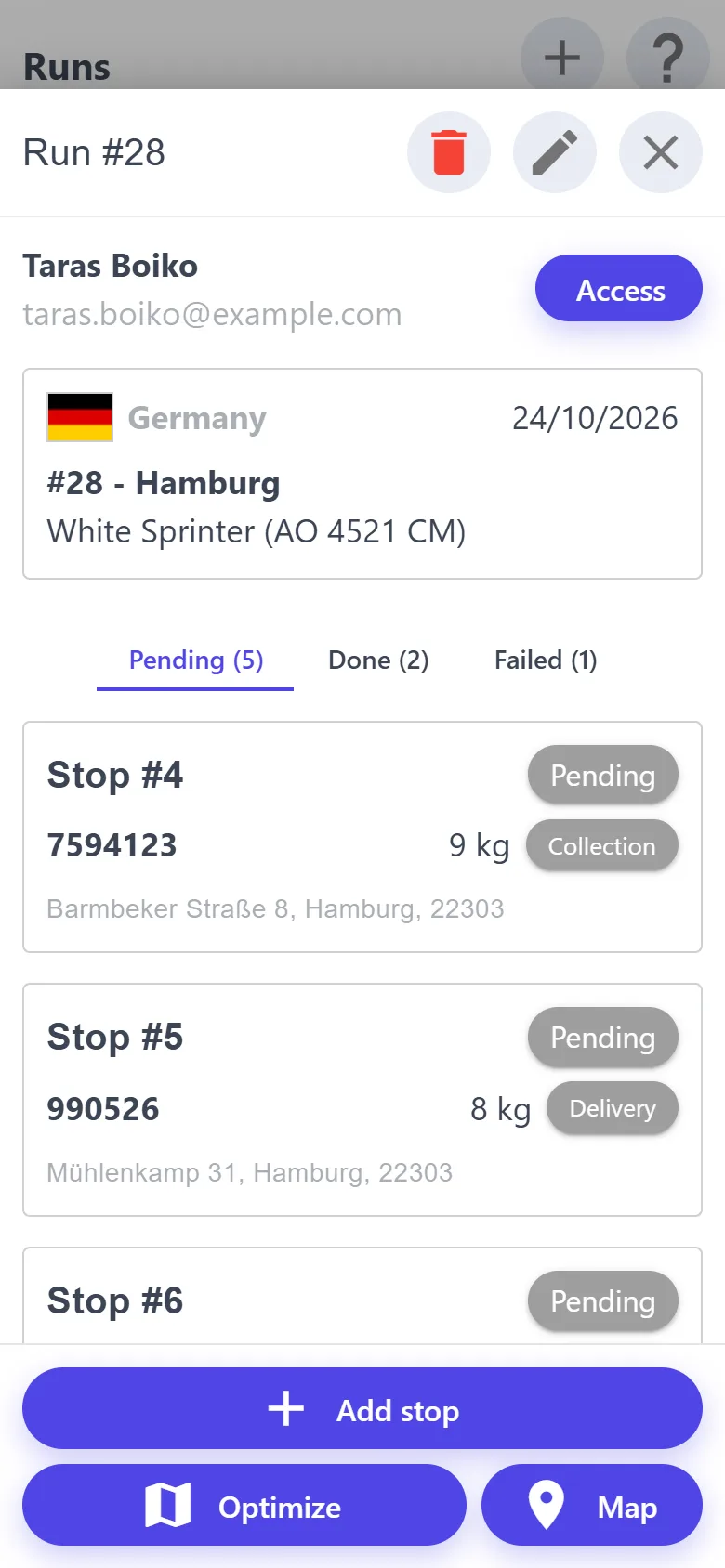
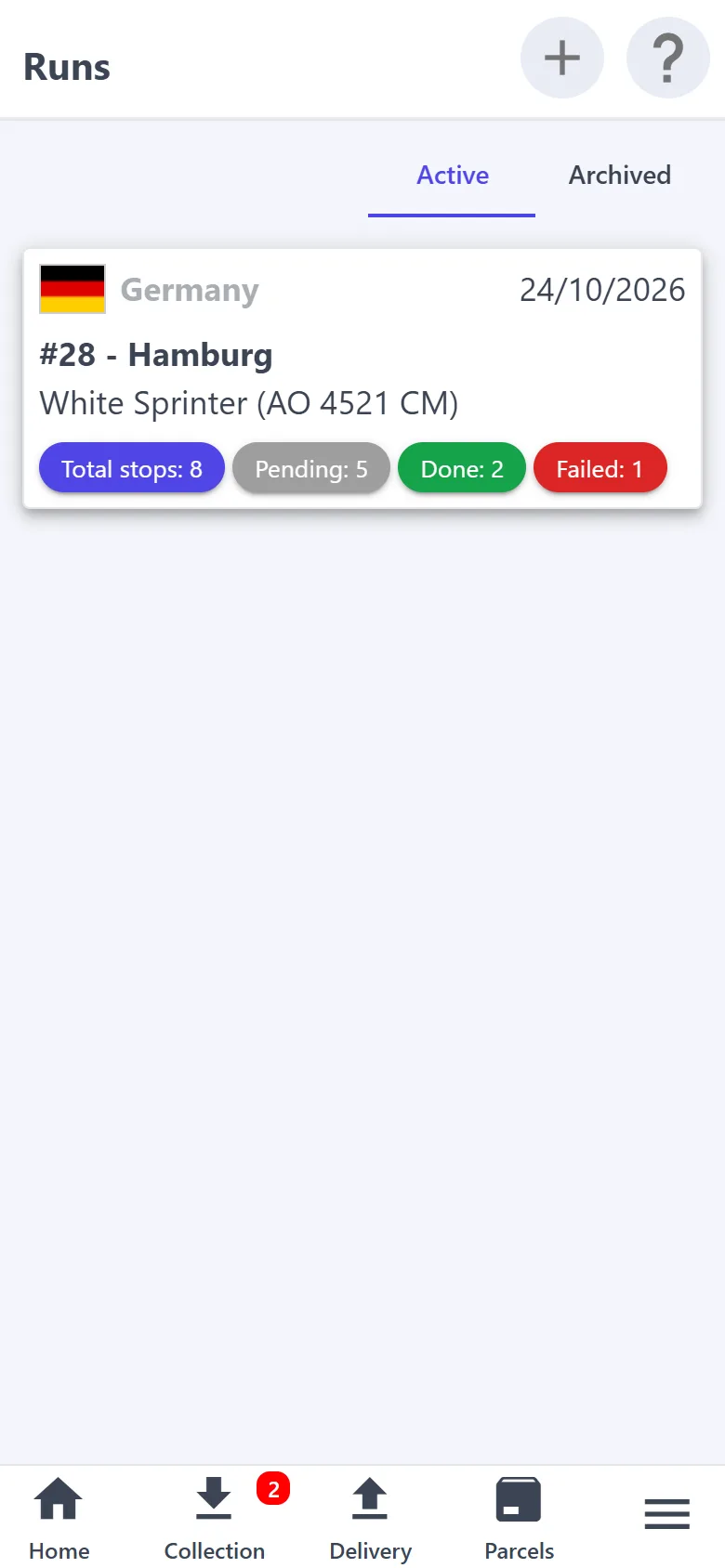
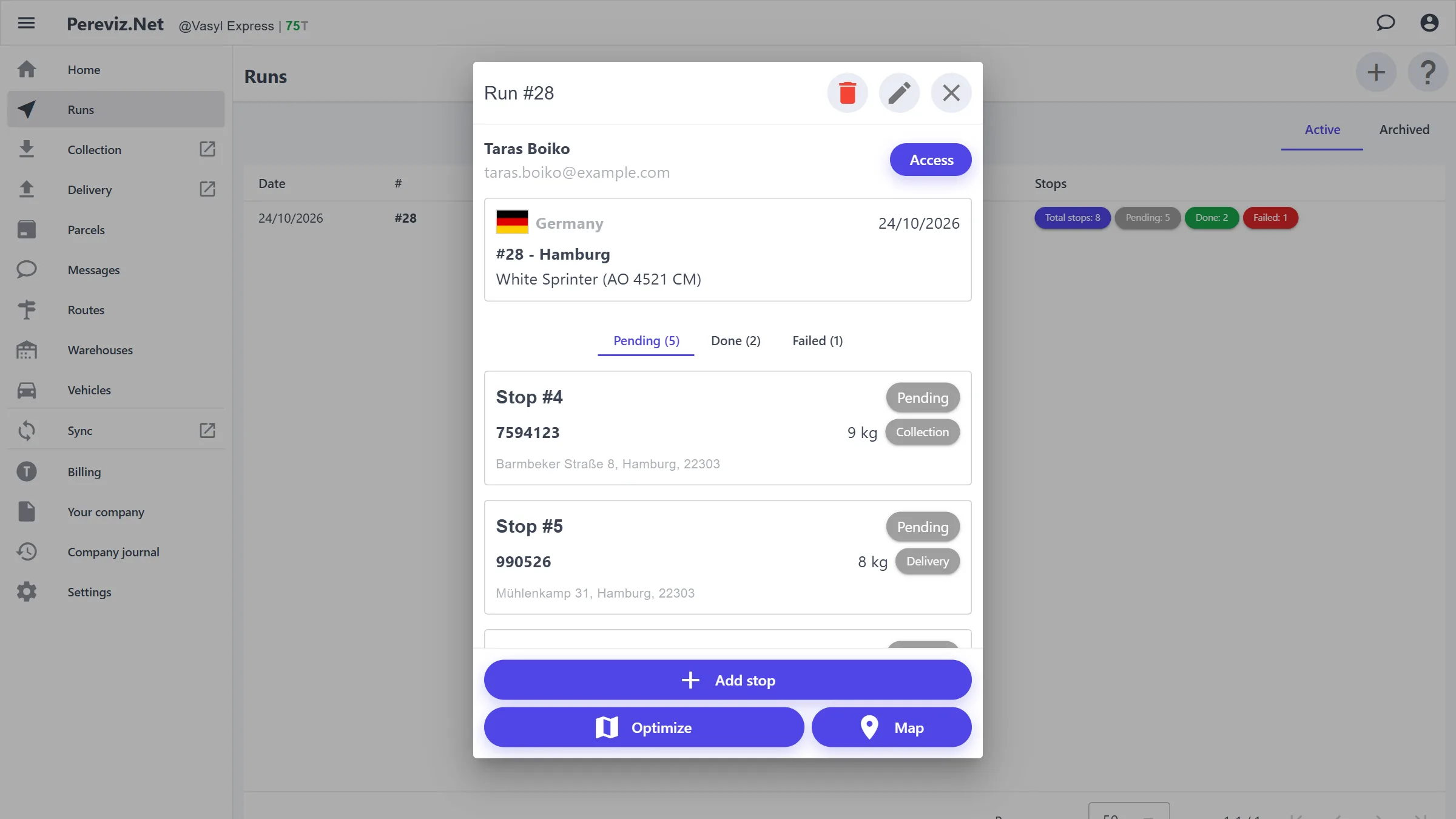
“Active” and “Archived”. A run card shows the country, date, number and name, the vehicle and the stop counters: “Pending”, “Done”, “Failed”.
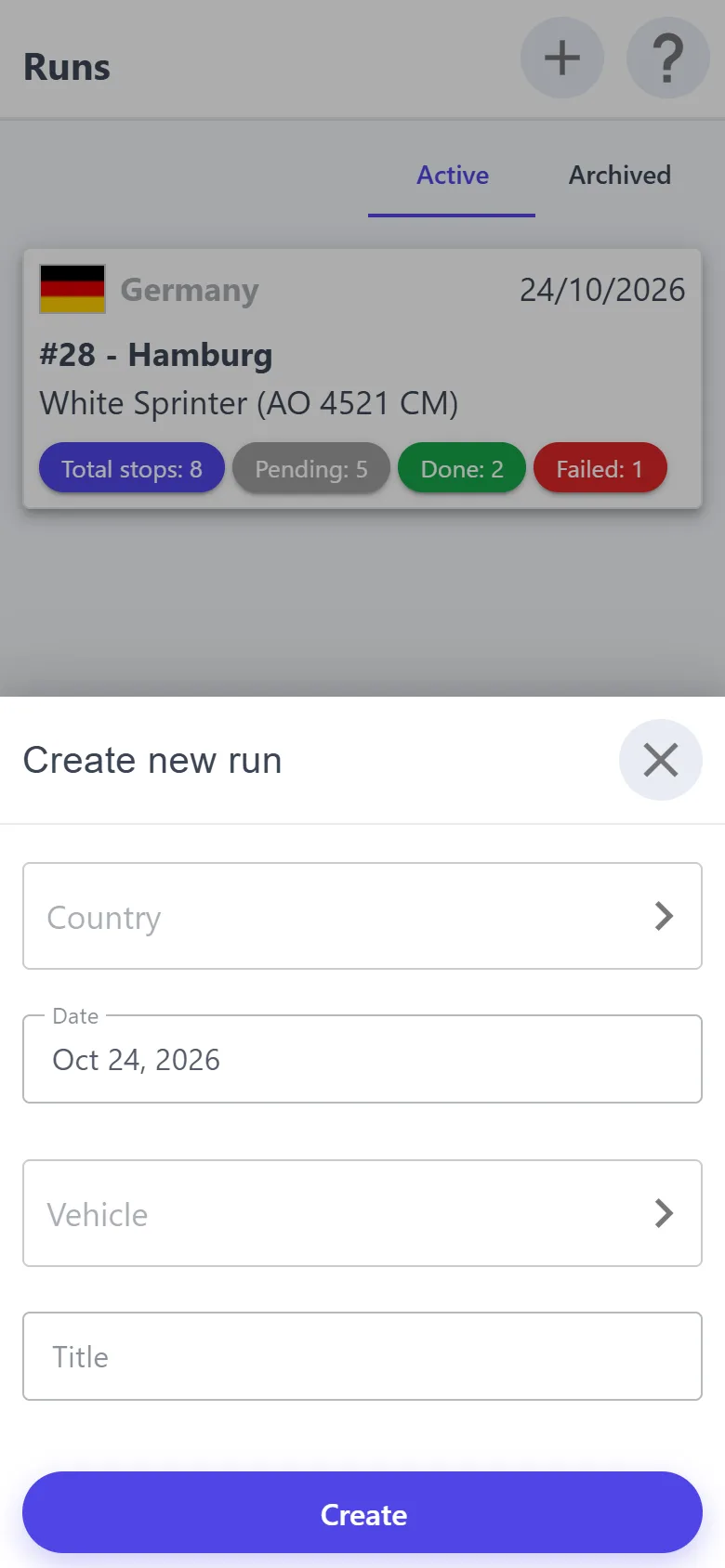
A new run — “+”: country, date, vehicle (required), name.
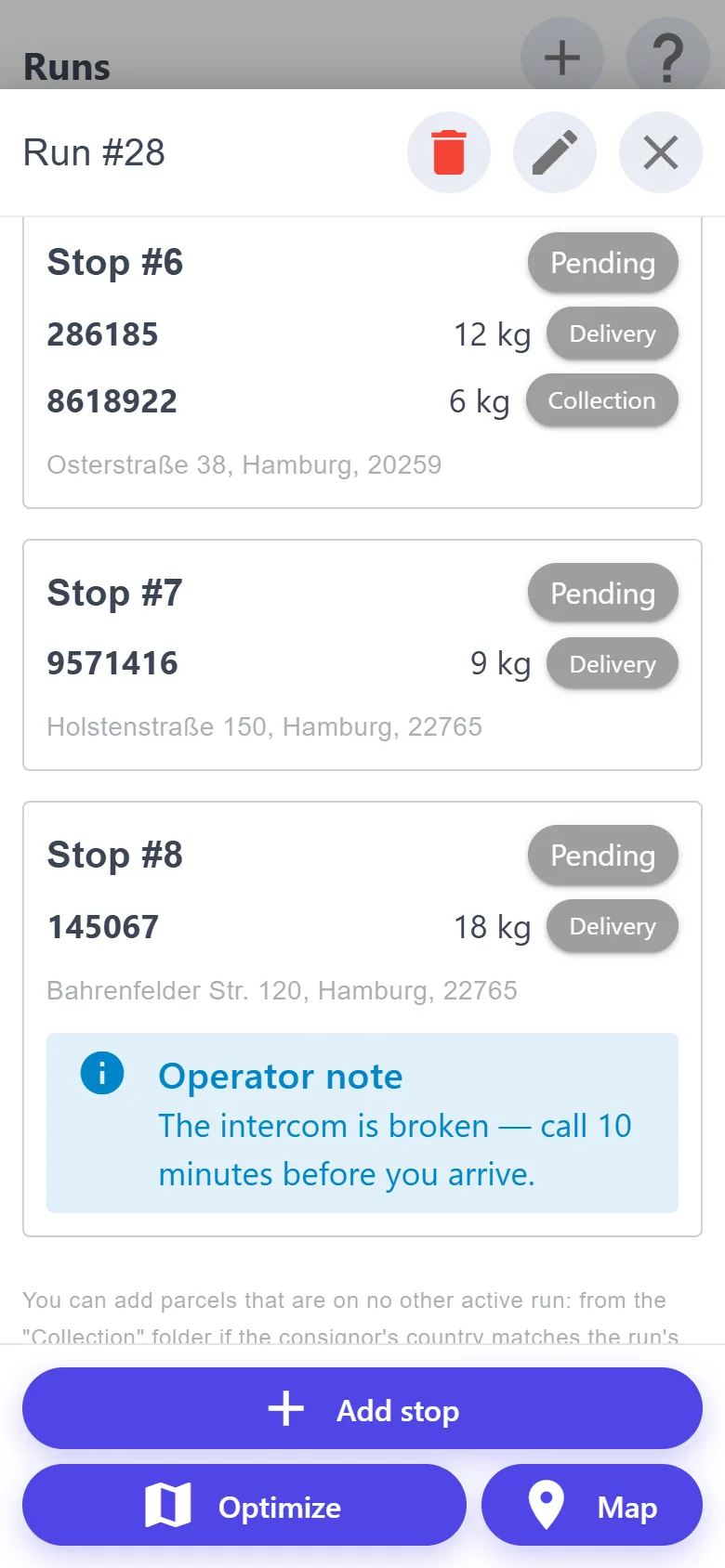
Inside a run — the driver (the “Access” button: a ticked driver sees the run in their own app), stop tabs by status and numbered stop cards: parcels with their weight and a “Collection” or “Delivery” tag, the address, the operator's note.
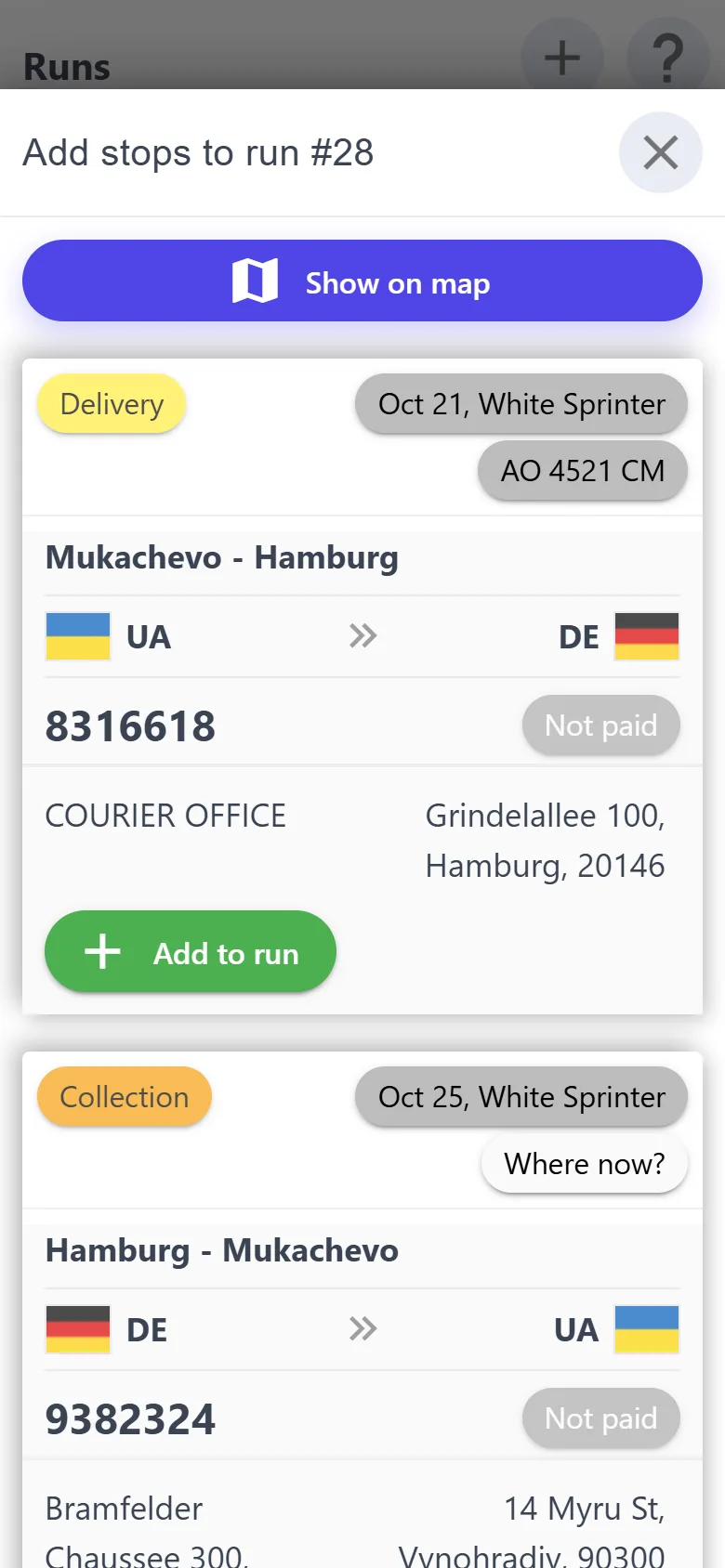
“Add stop” — a list of the parcels this very run can take, with “Add to run” and “Remove from run” buttons. “Show on map” — the same parcels on the map: tap a marker and ✓, or circle them with a finger.
Parcels at one address become one stop — collection and delivery alike. A new stop goes to the end of the list.
“Optimize”: start and finish on the map → the stops are put in order by straight-line distance, ignoring roads.
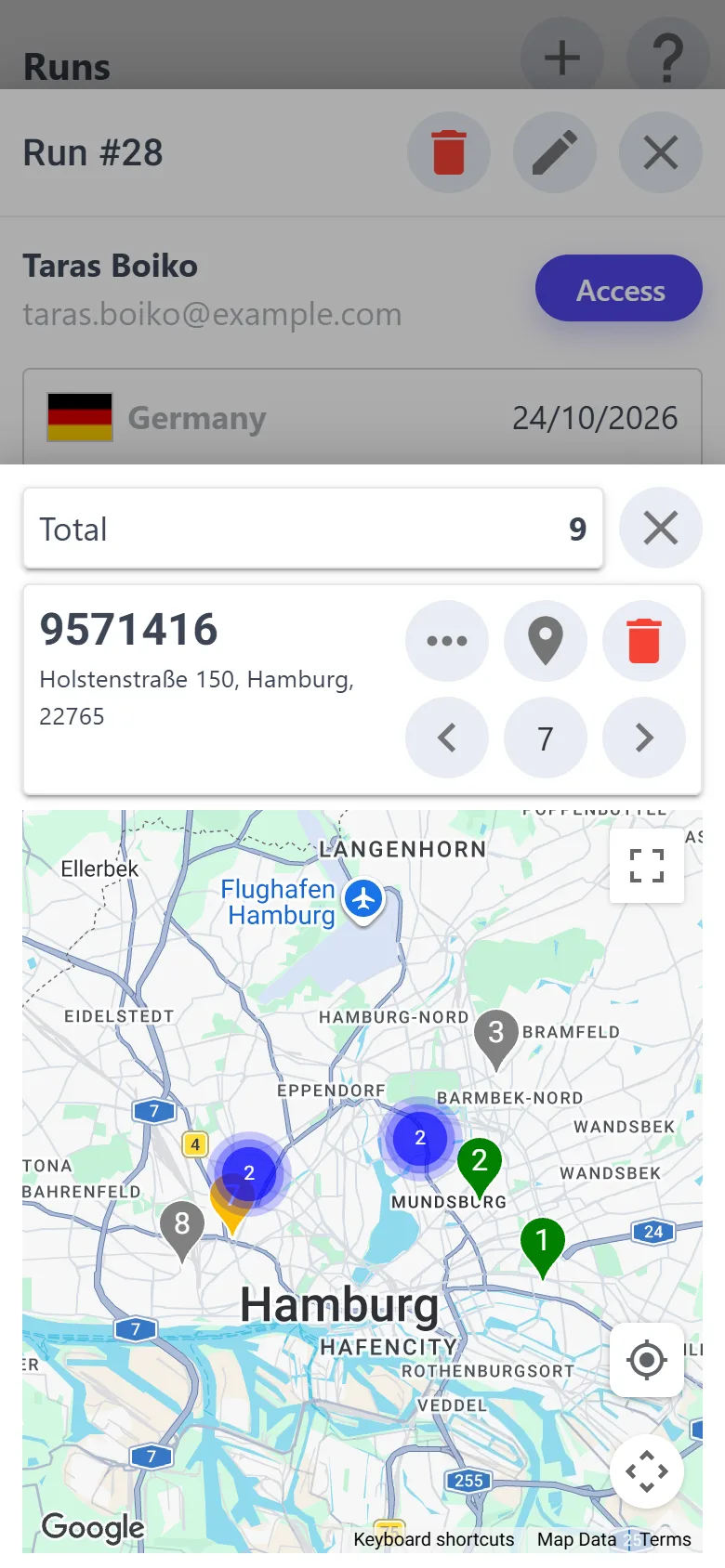
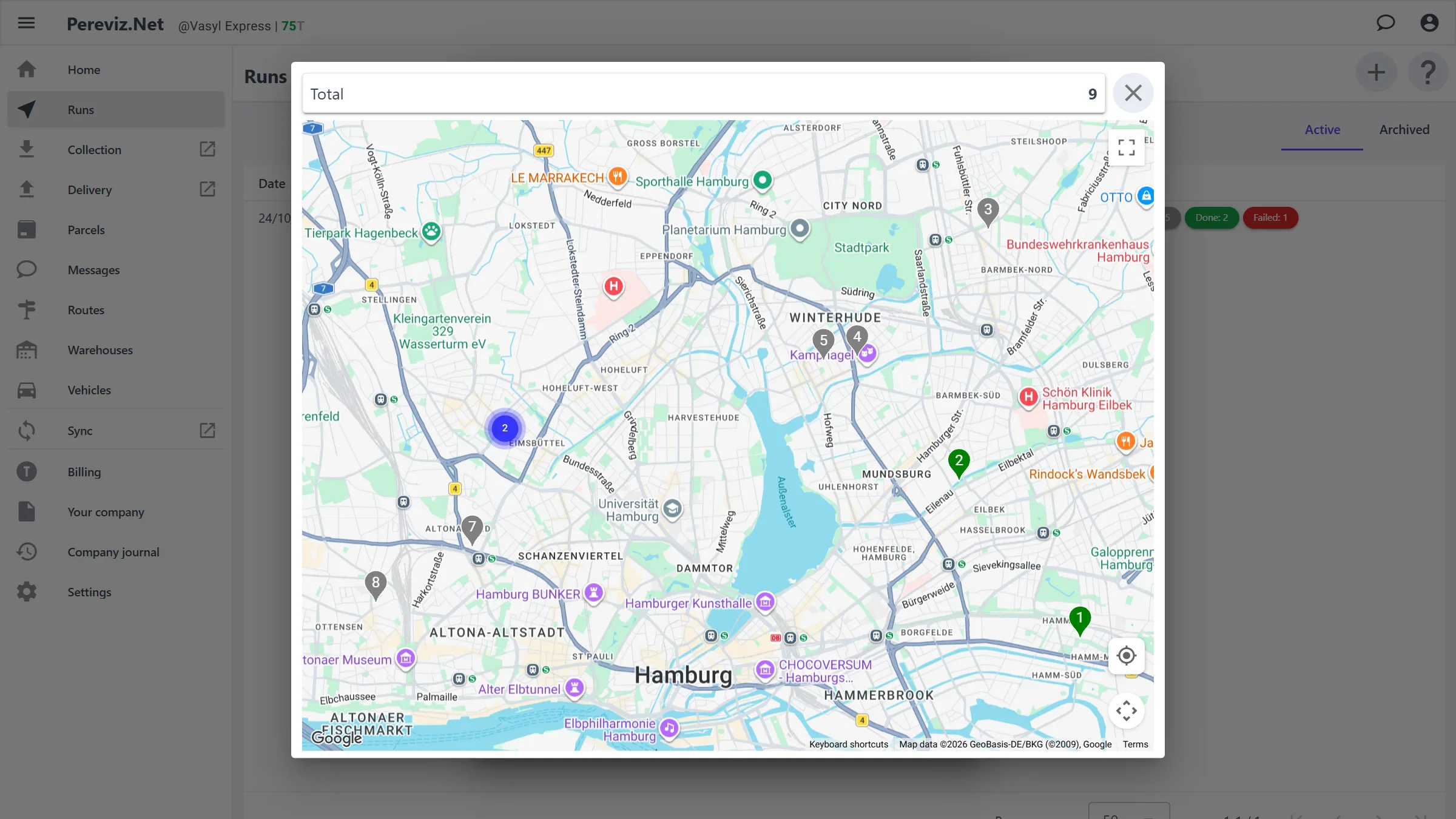
“Map” — the stops with numbers and your location. A tap on a marker shows the stop's parcels: the ‹ › arrows — neighbouring stops, the number — change the order, “…” — the parcel card, the bin — remove the stop.
The bin at the top of a run archives it; “History” — every change to the run and its stops.
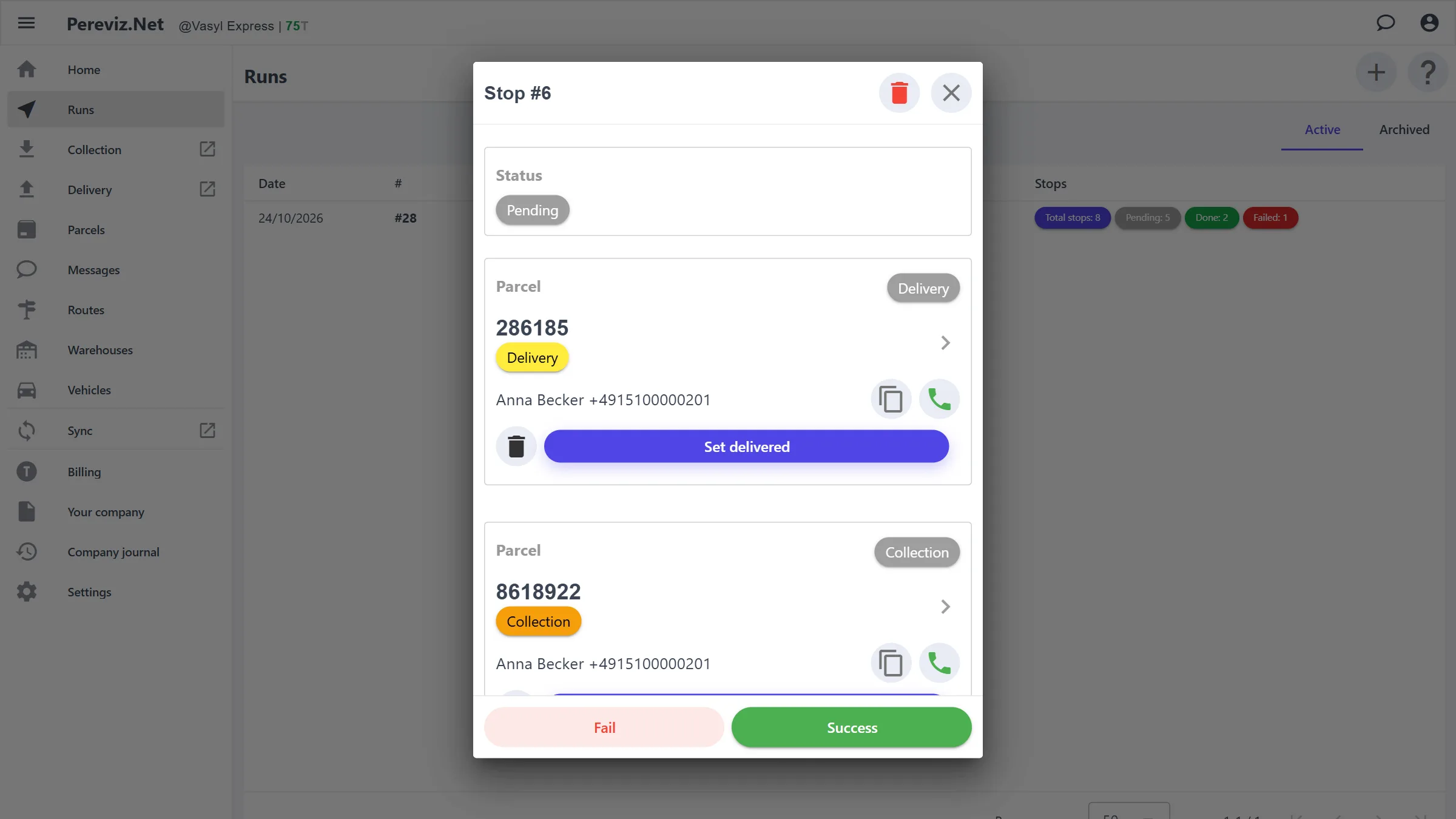
On a computer runs are a table, and a run, a stop and the map open in a window in the middle of the screen.
A run takes only parcels at an address that are in no other active run: from “Collection” — if the consignor is in the run's country and the parcel is not listed in another vehicle; from “Delivery” — if the consignee is in the run's country and the parcel is already in the run's vehicle. The map shows only addresses with a geolocation.
Offline, a run opens from the copy on the phone: the stops and addresses are visible, while stop marks and planning wait for the network.
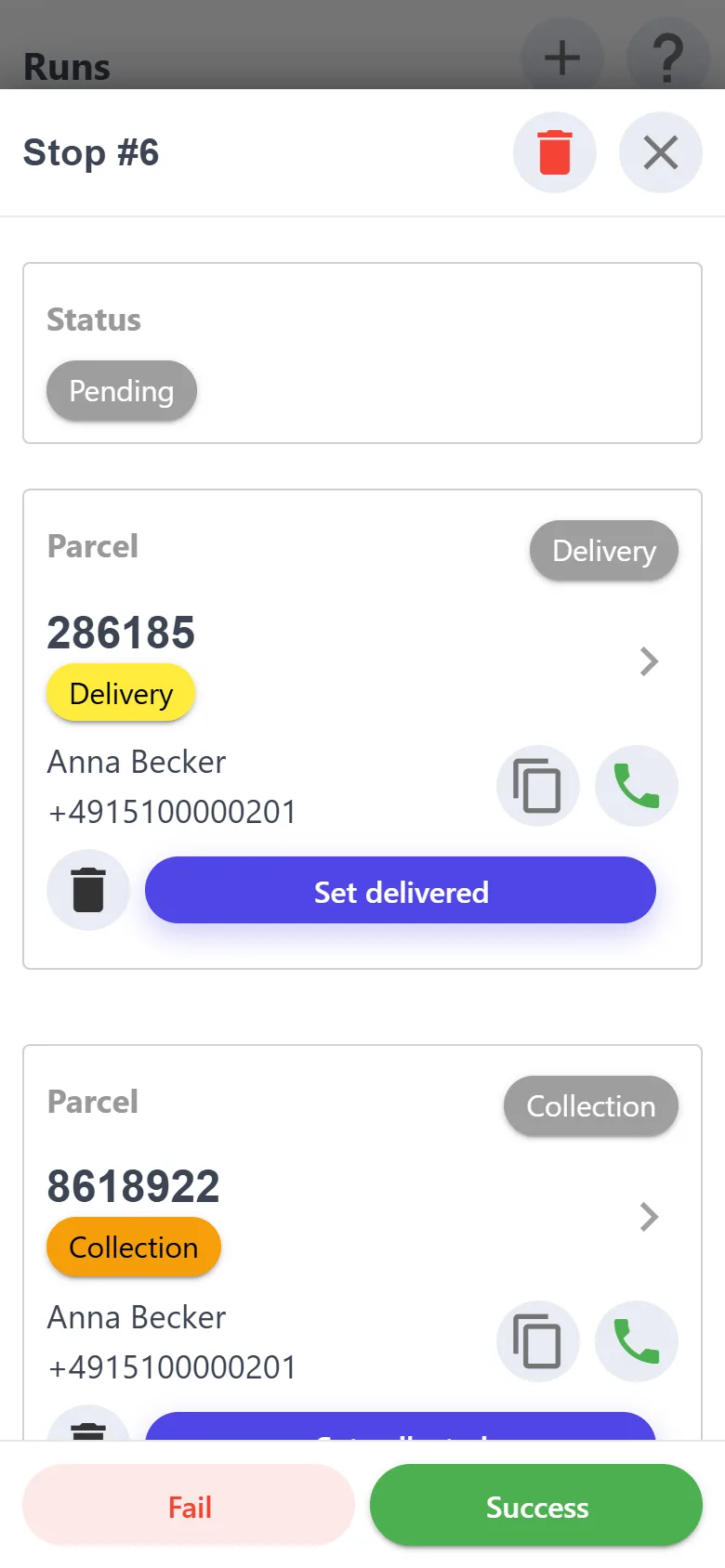
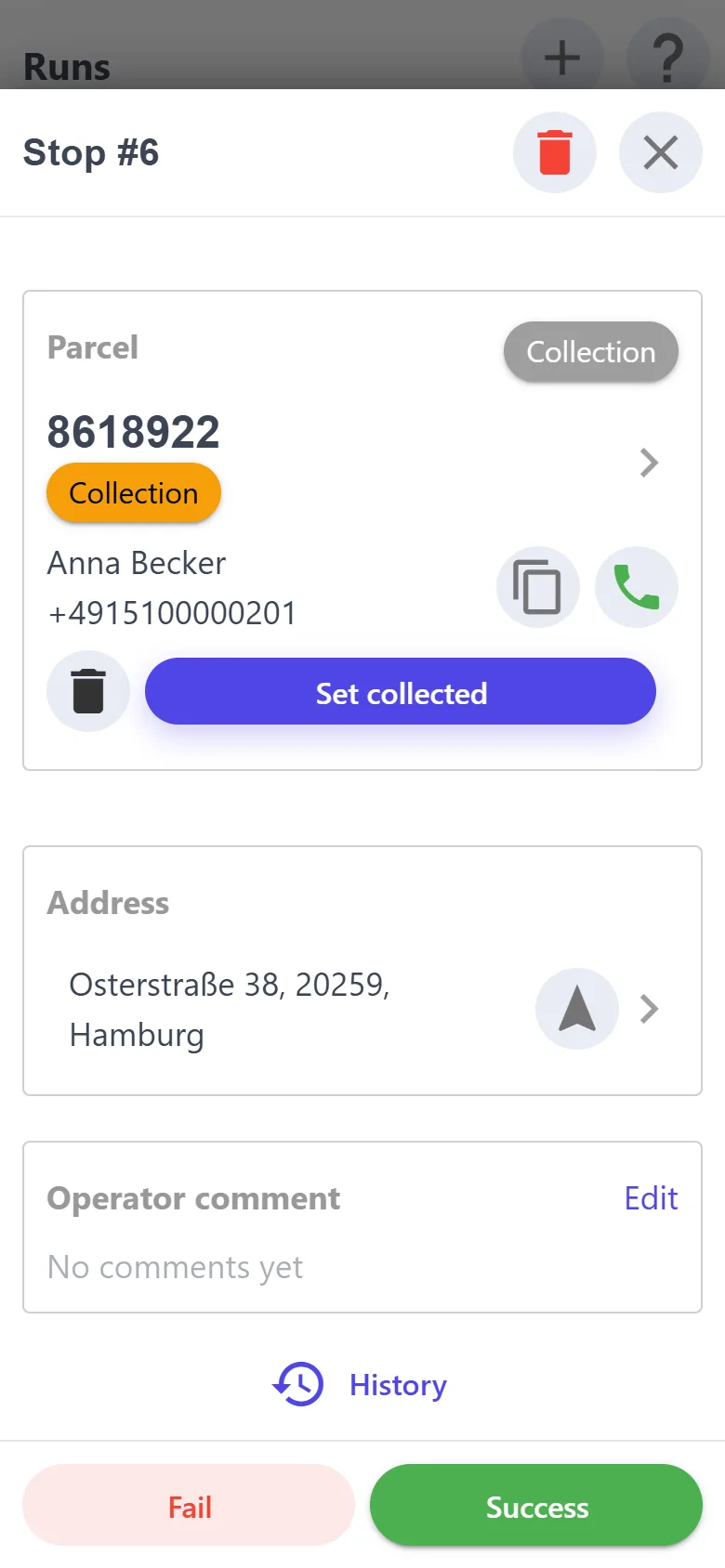
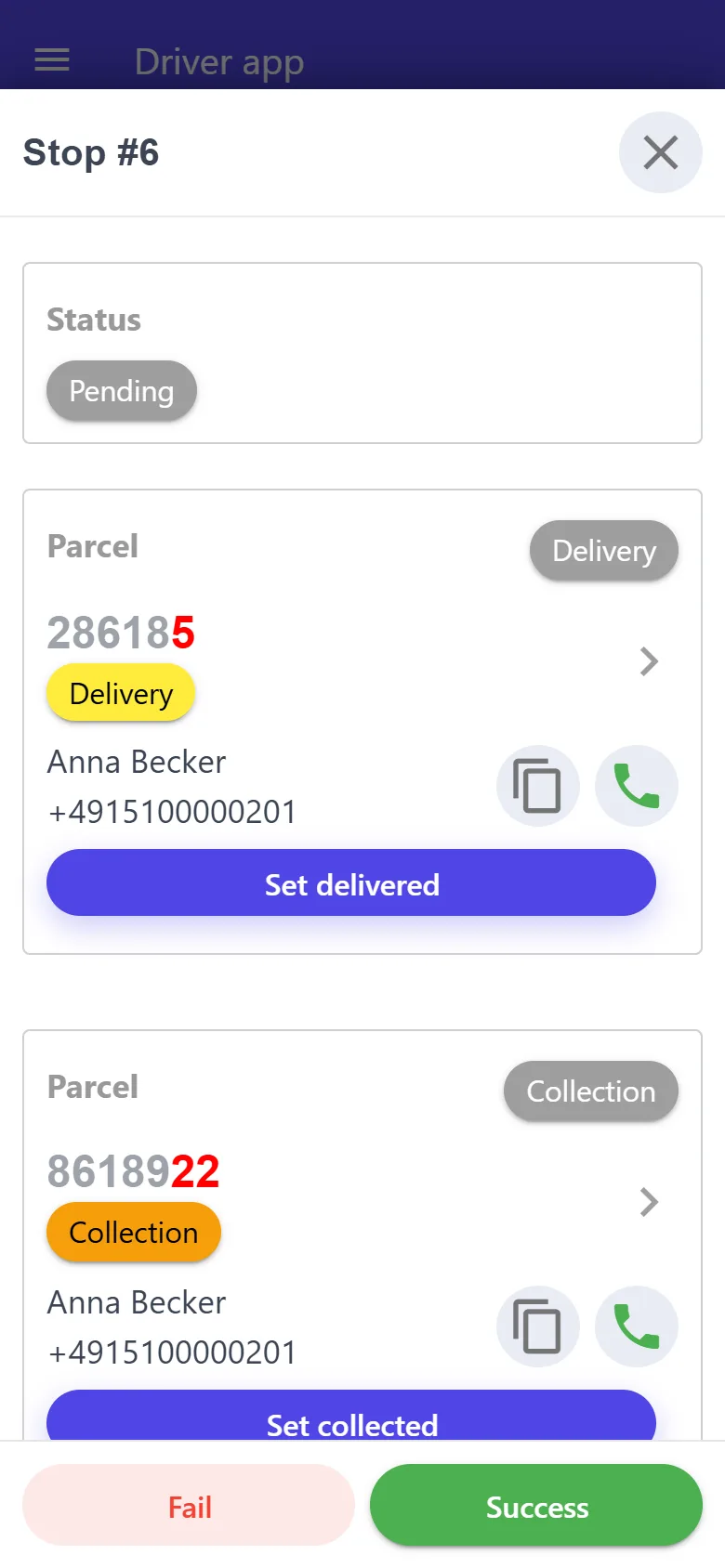
Everything about one address on one screen: what to hand over, what to collect, whom to call, how to get there.
The stop's status and the time it changed.
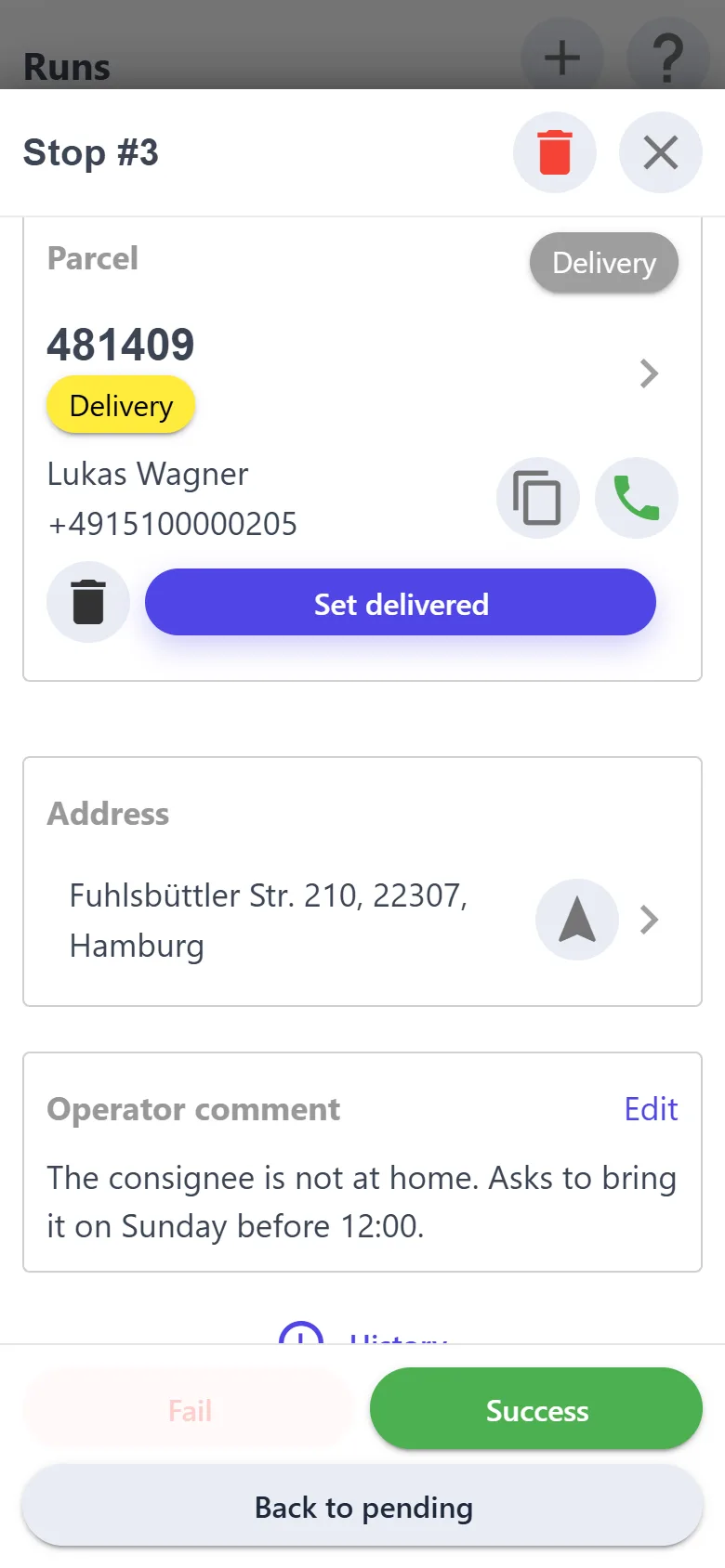
Each parcel of the stop: the tracking number (a tap opens the parcel card), a “Collection” or “Delivery” tag and the current folder, the contact with copy and call buttons, “Set collected” or “Set delivered”. The bin removes the parcel from the stop.
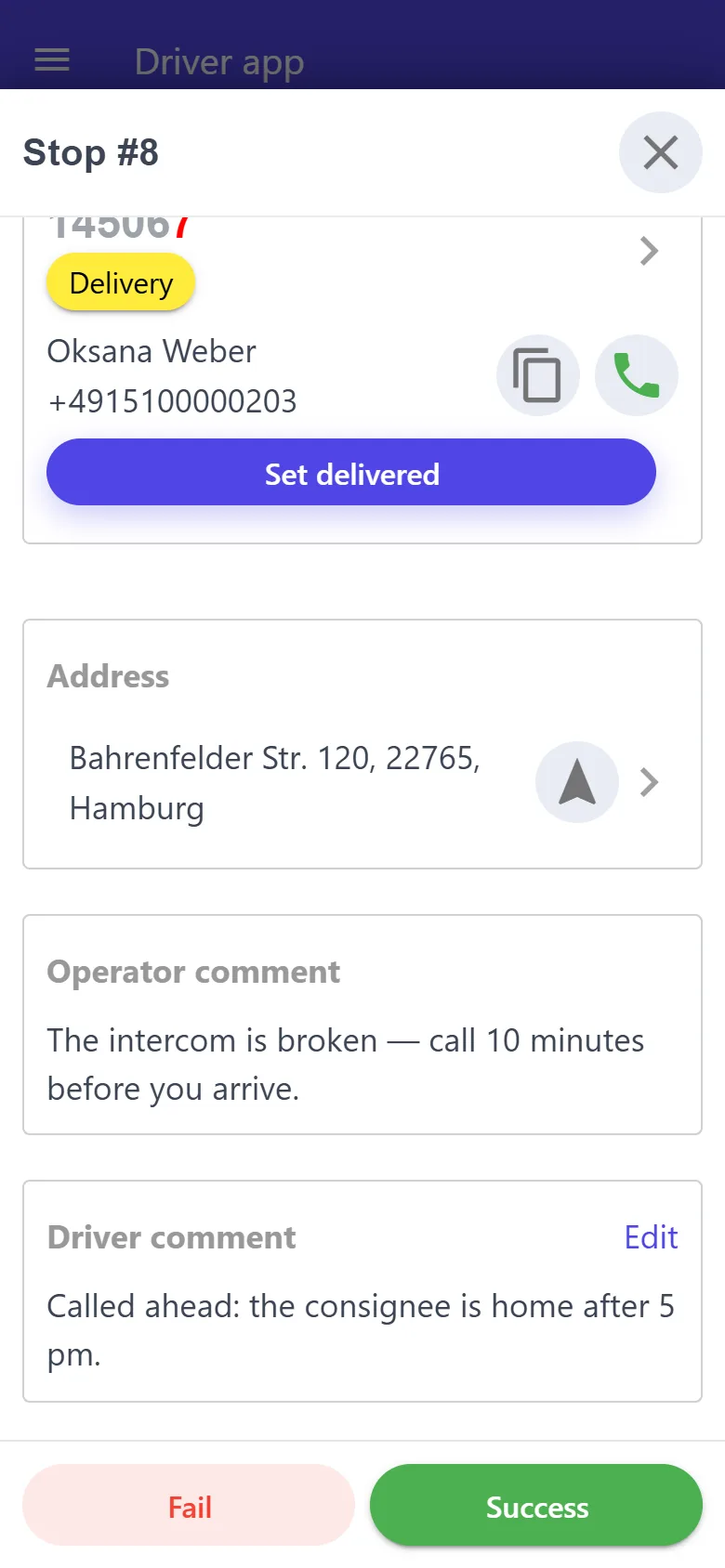
“Address” — navigation: with a geo point Google Maps opens at once, without one it searches by the address.
“Operator comment” — a note to the stop; it also shows on the stop's card in the run.
At the bottom: “Success” — the stop moves to “Done”; “Fail” — only with a reason in the comment; “Back to pending”.
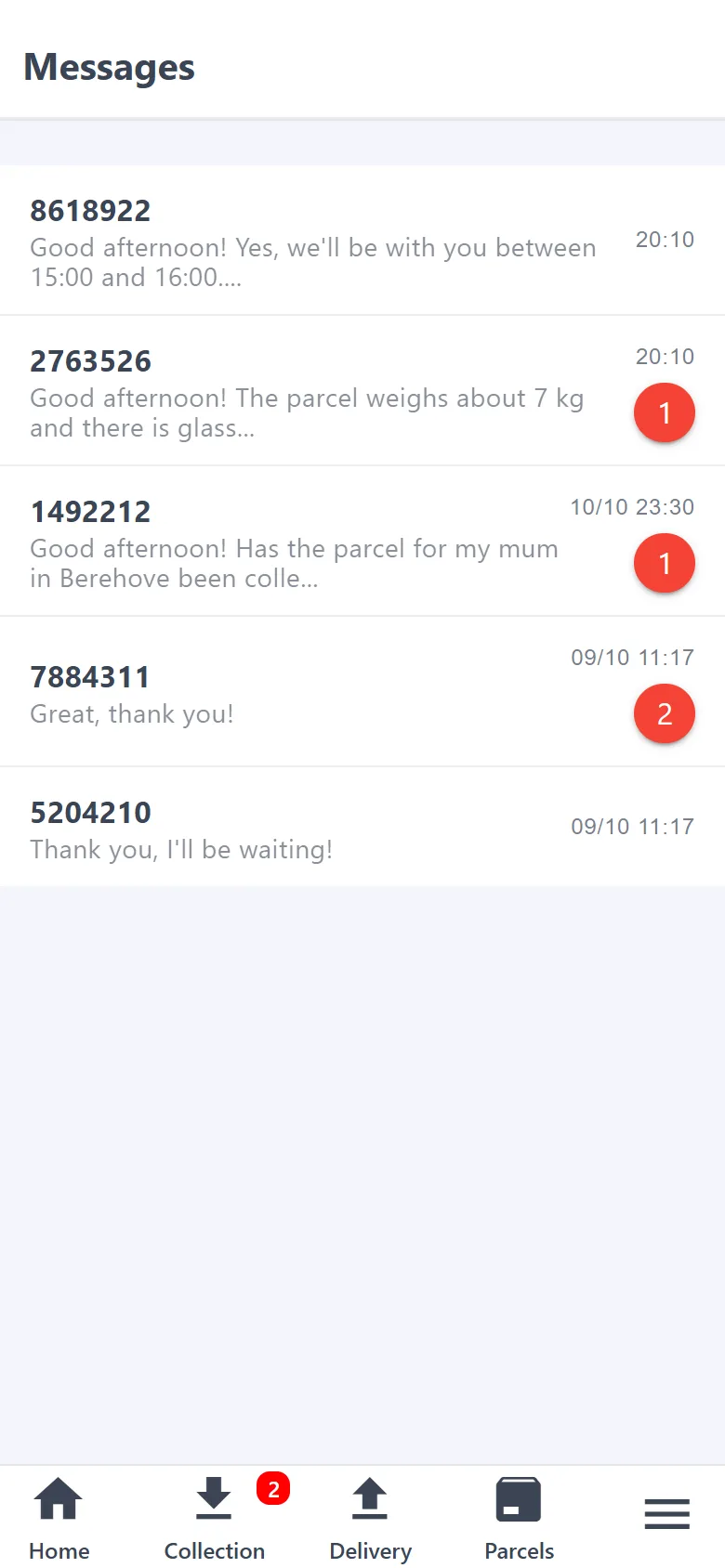
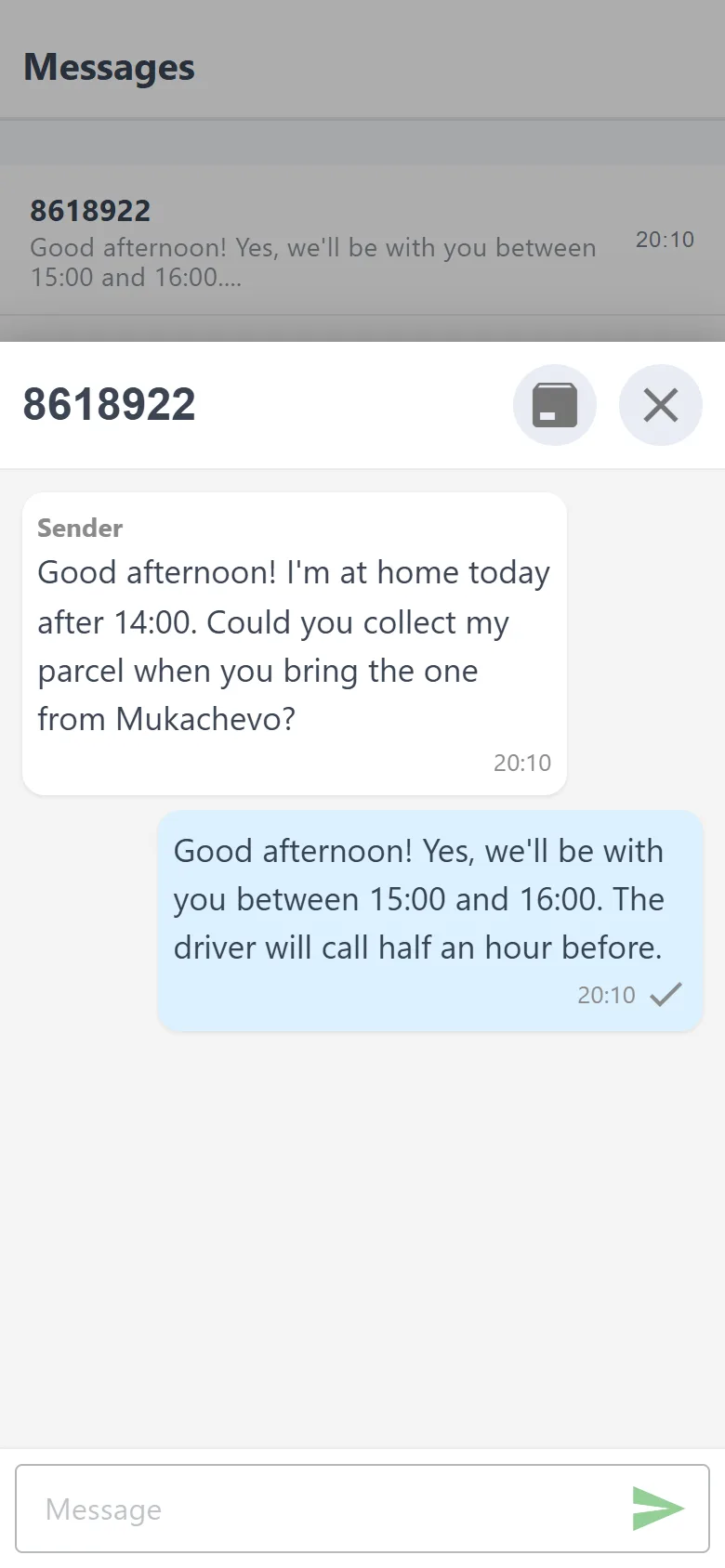
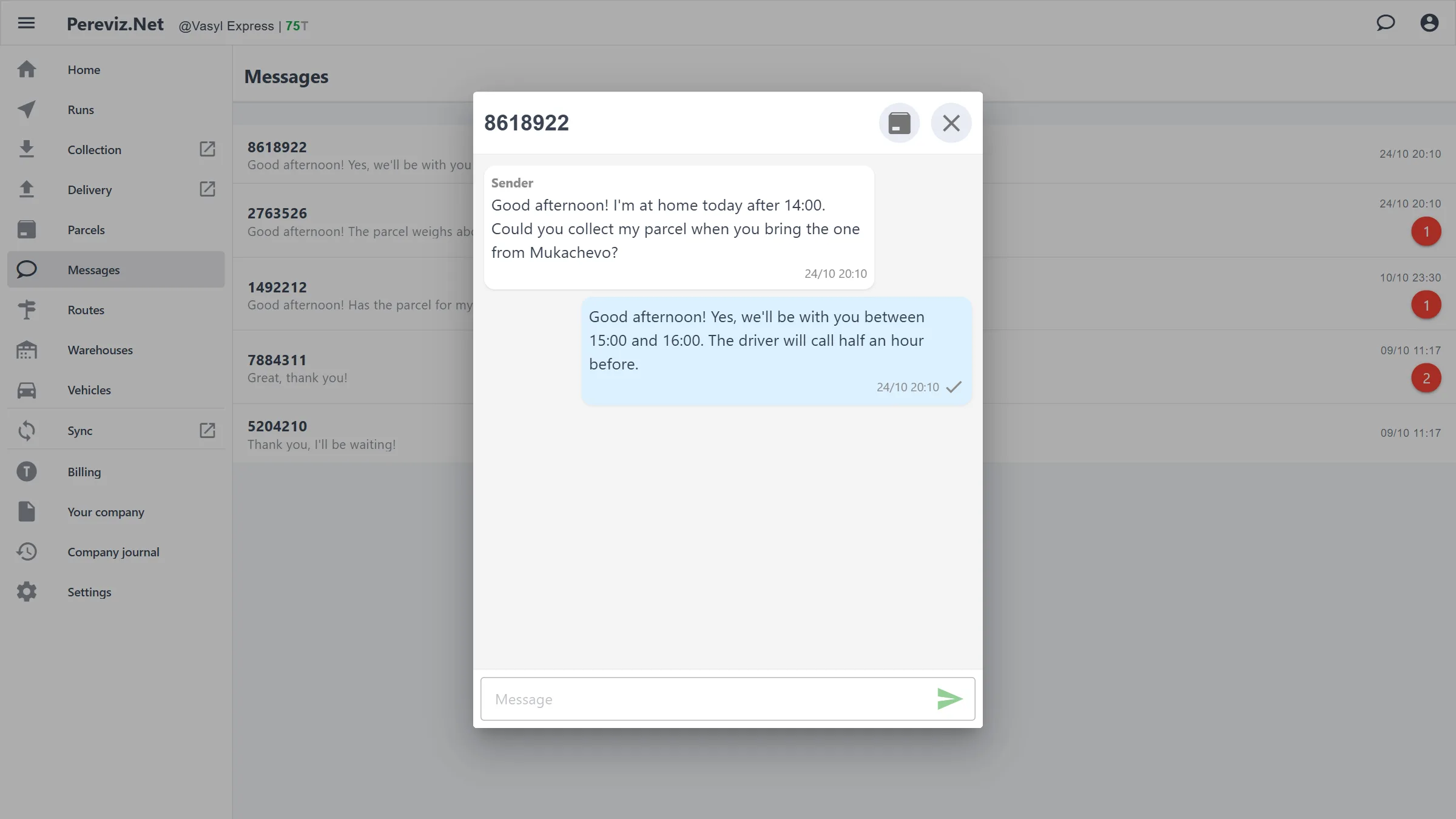
Conversations are tied to the parcel — nothing gets lost in a personal messenger.
Conversations with customers about parcels: a list of chats with unread messages, the counter next to “Messages” in the menu. A new message arrives as a notification on the phone.
A chat opens from the list or from the parcel card. The consignor and the consignee see everything you write.
A trip brings together the vehicle, the drivers, the parcels and the road expenses — with a total in each currency.
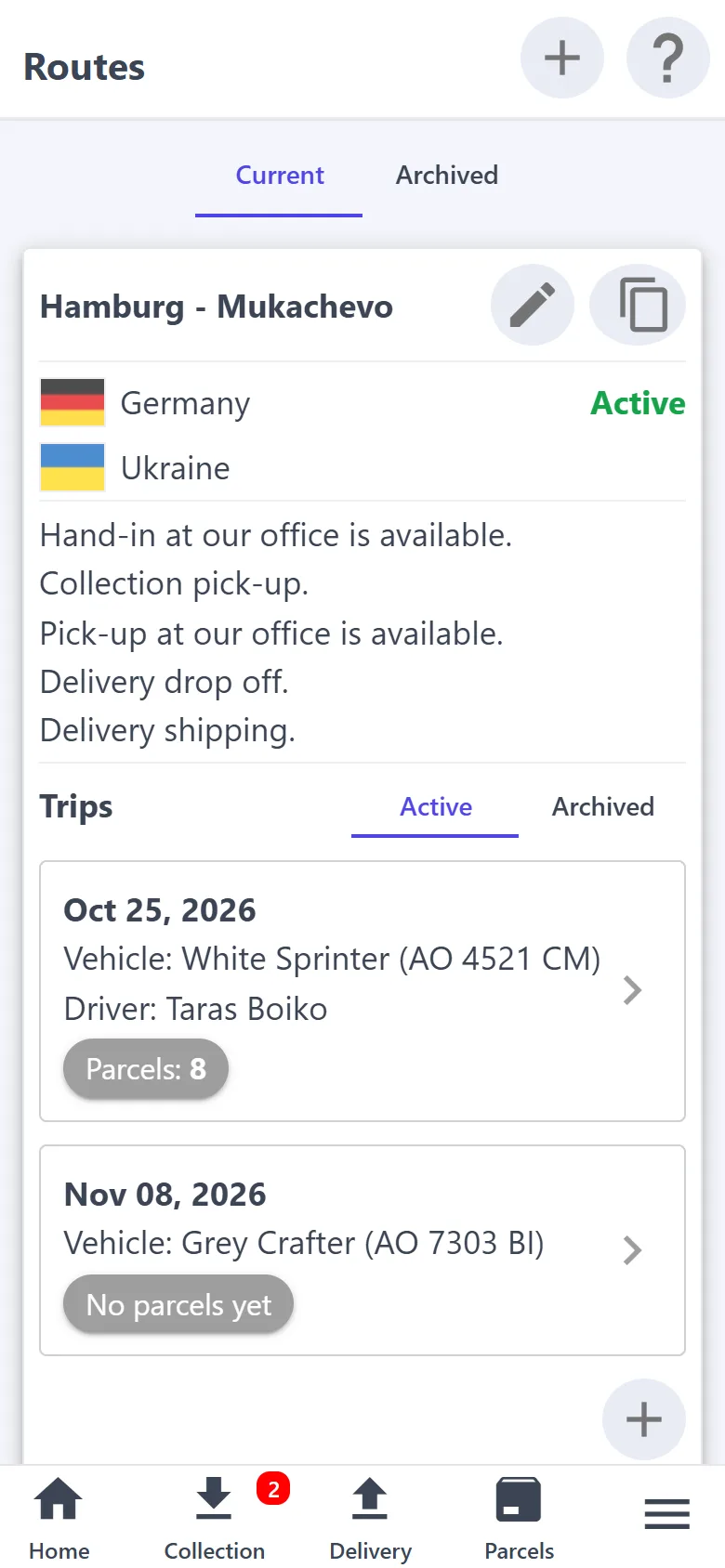
“Current” and “Archived” tabs. The route card: countries, “Active” (green) or “Inactive” (red), collection and delivery methods, copying the route link for customers.
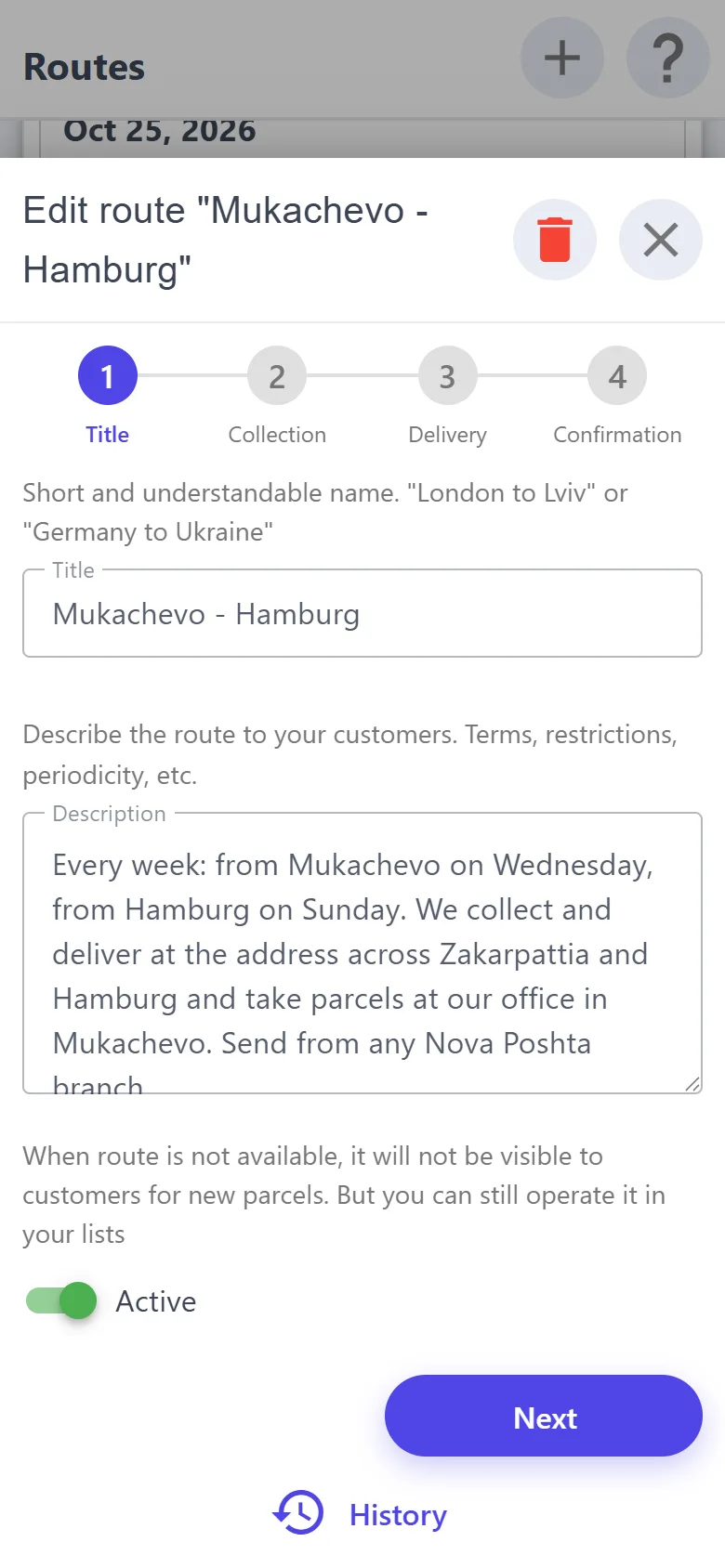
The pencil on the card opens the editor: a name and description for customers (terms, restrictions, frequency) and the “Active” switch — customers see only active routes and can't create a parcel on an inactive one.
Collection: “Pick-up is available” and/or “PUDO collection is available” with a list of branches; additionally “Hand-in at our office is available” with the courier office details the customer sees in the parcel form.
Delivery: “Drop Off is available” and/or “Shipping to carriers is available” with the sending branch; additionally “Pick-up at our office is available” with the courier office details.
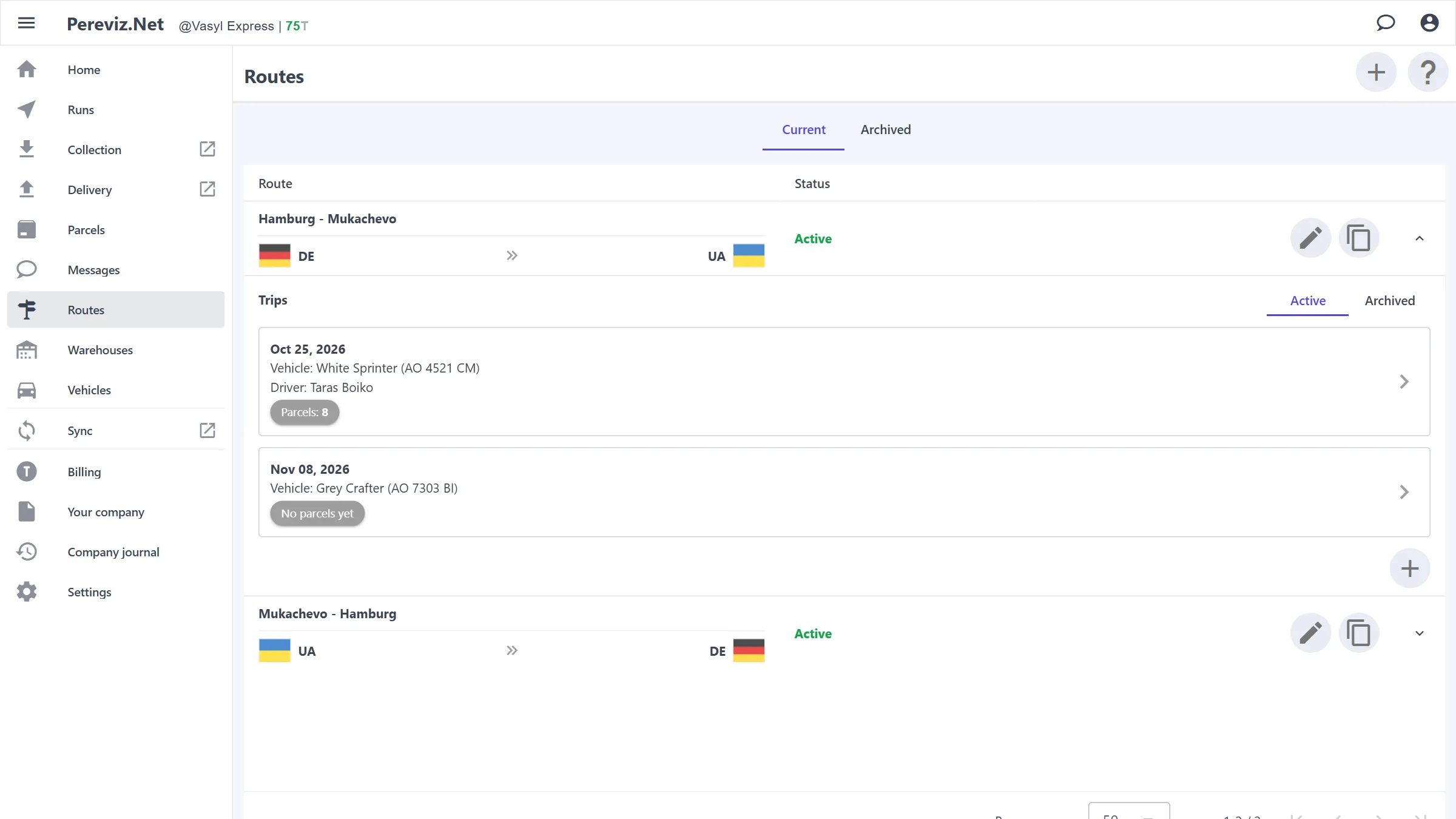
Trips are on the route card: date, name, vehicle, drivers and parcel count; “+” — a new trip.
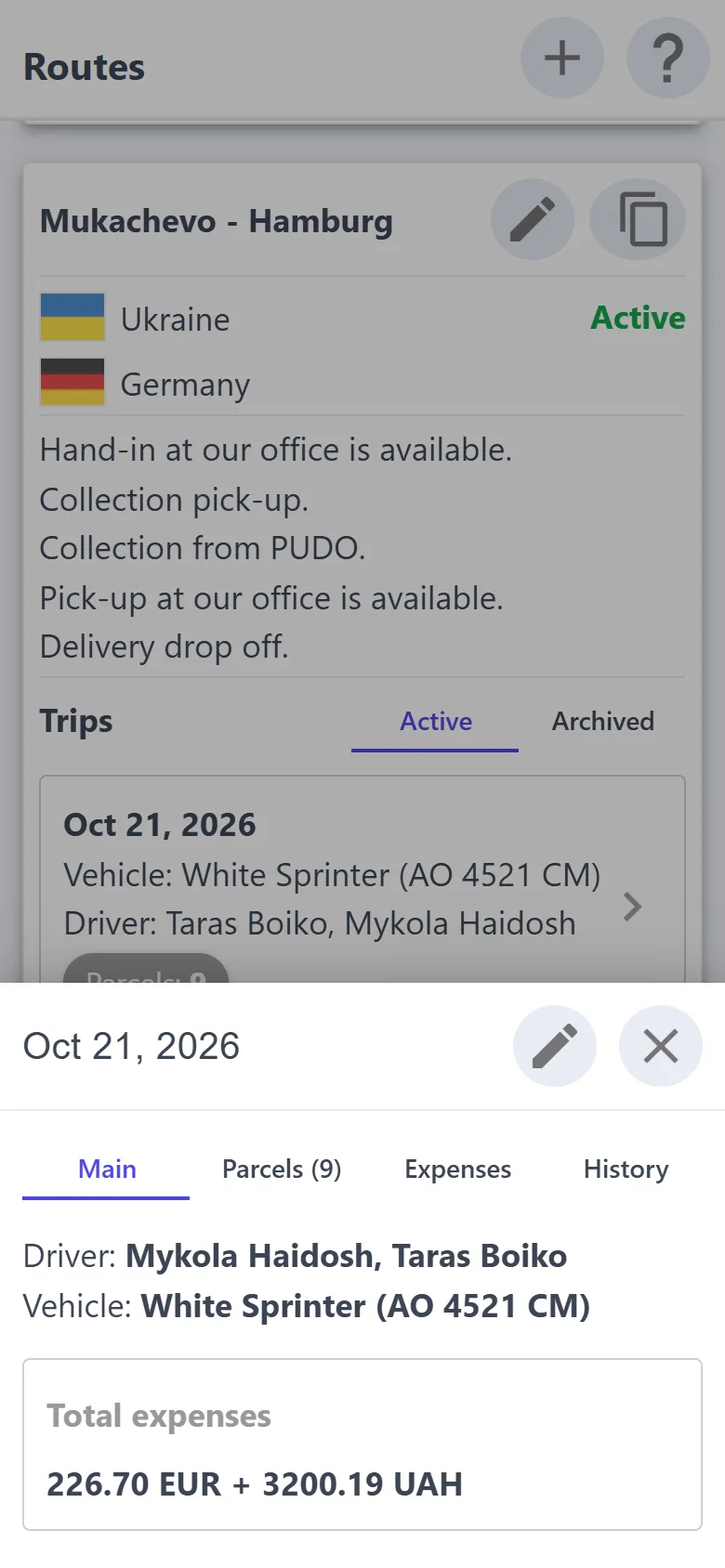
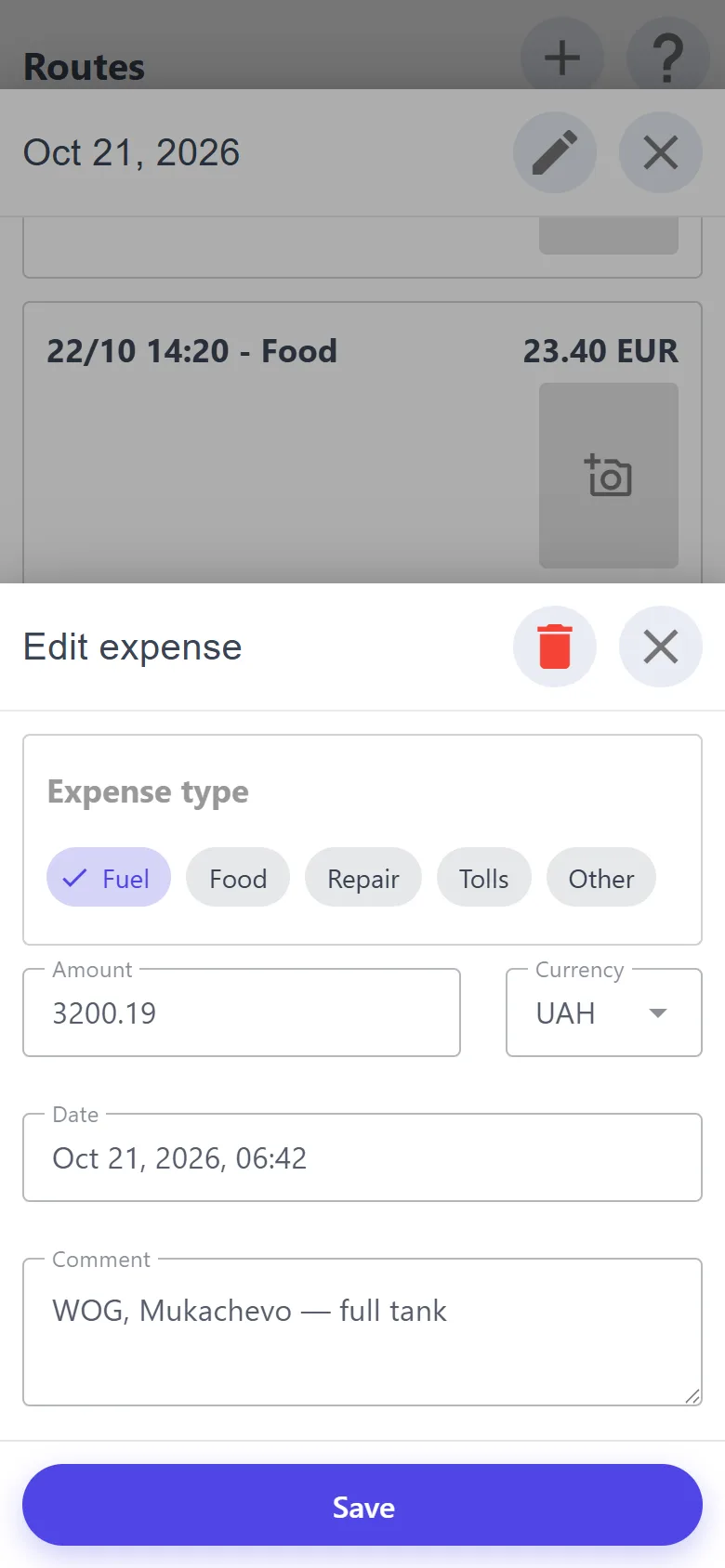
A trip opens for viewing: “Main” — the drivers, the vehicle and the total expenses; “Parcels” — a breakdown by status and the parcel cards; “Expenses” — fuel, food, repairs, tolls or other: the amount, the currency (EUR, UAH, USD, GBP — the last one used is filled in for you), the date, a comment and a receipt photo; “History”.
The pencil on a trip edits it: route, start date, name, vehicle, description, archiving; the “Access” tab — the drivers who see the trip in their app.
On a computer routes are a table: the arrow in a row unfolds the route's trips, and a trip opens in a window.
Order in the vans and in the warehouses: you see what is where, and a run won't take a parcel out of another van.
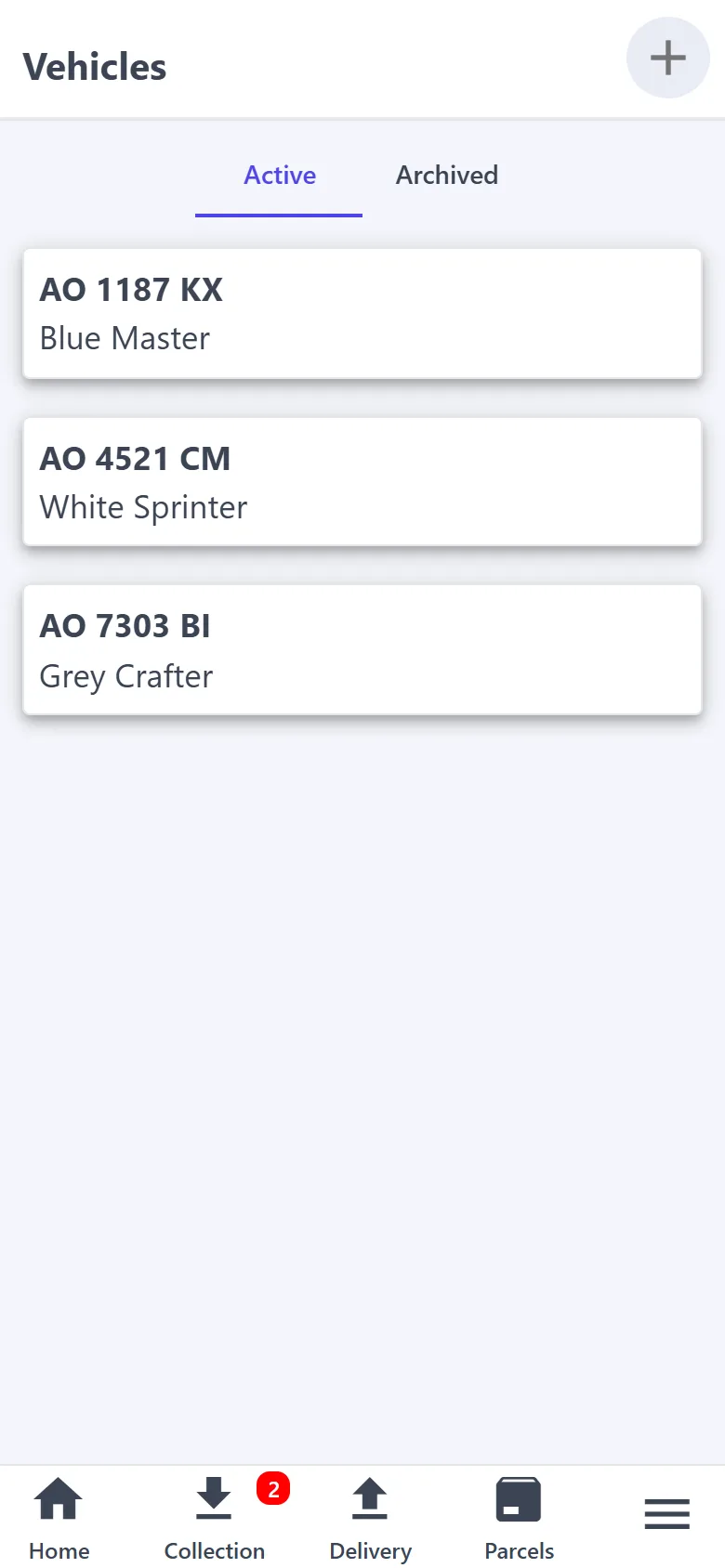
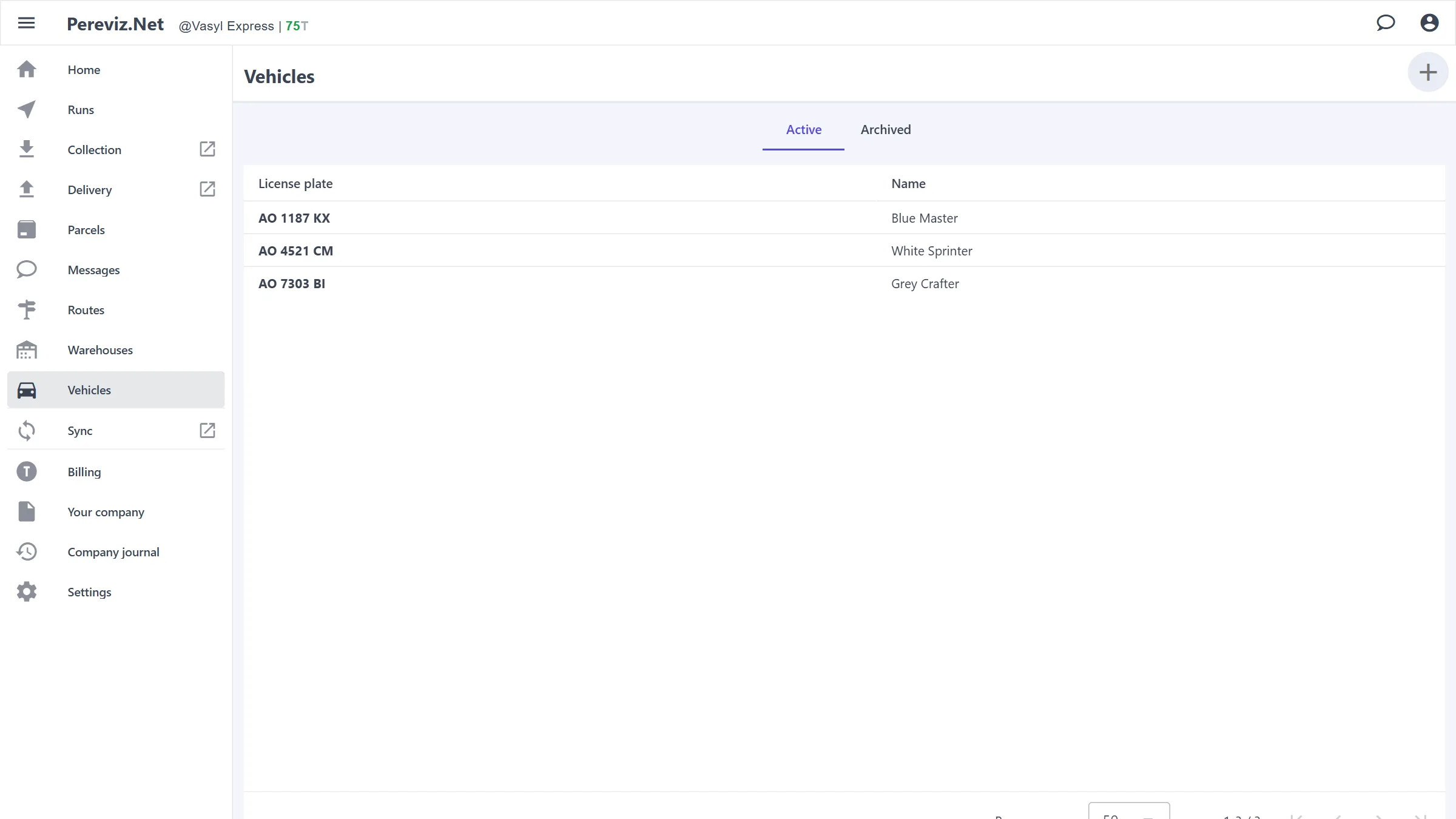
“Vehicles”: license plate and name; “Active” and “Archived”, “+” — a new one. A vehicle is required for a run and shows on trips and parcels.
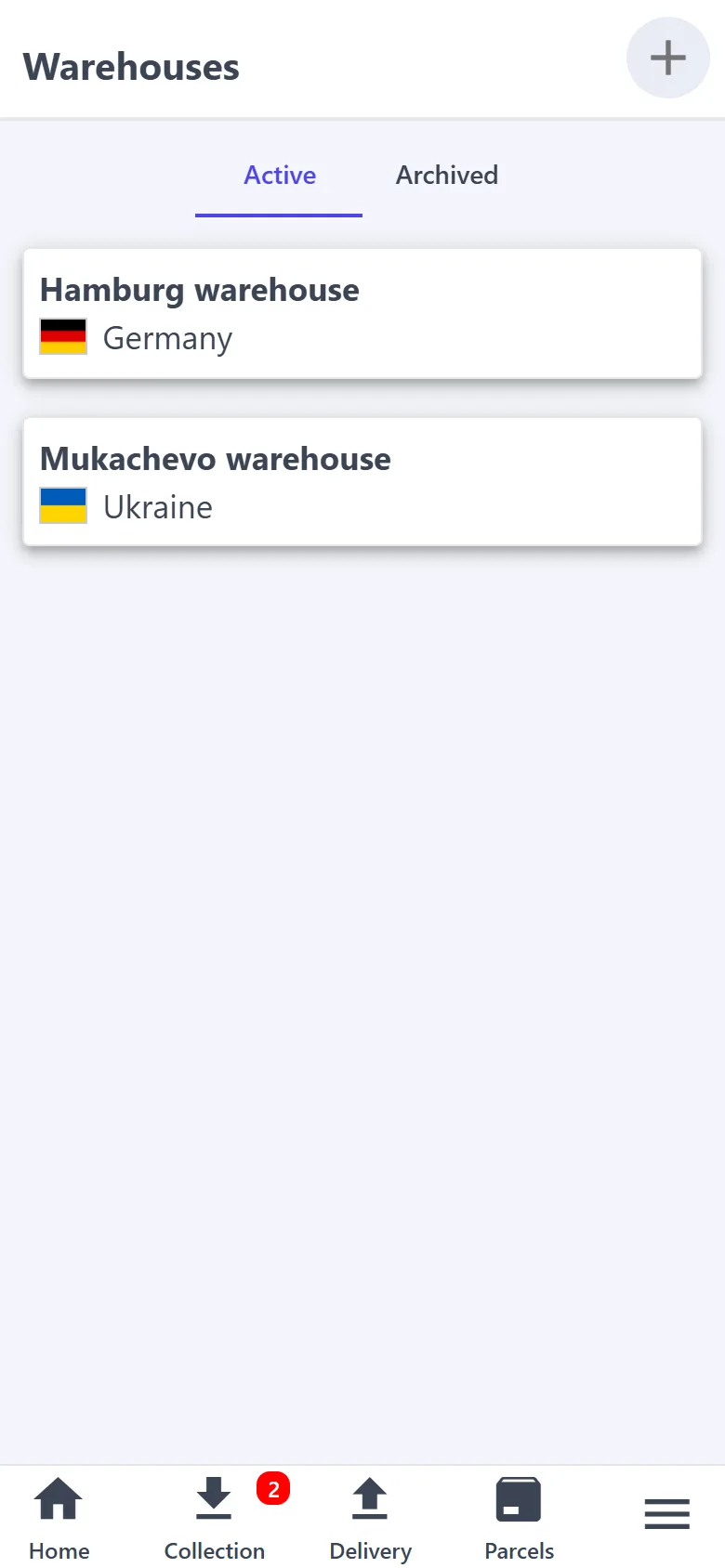
“Warehouses”: name and country; “Active” and “Archived”.
A parcel's place is set with the “Where now?” tag on its card: a vehicle or a warehouse. A run delivers the parcels in its own vehicle, and won't offer for collection a parcel already sitting in another vehicle.
Vehicles and warehouses have a “History” of changes.
Your own page for customers — phone, terms and cover image — without a separate website.
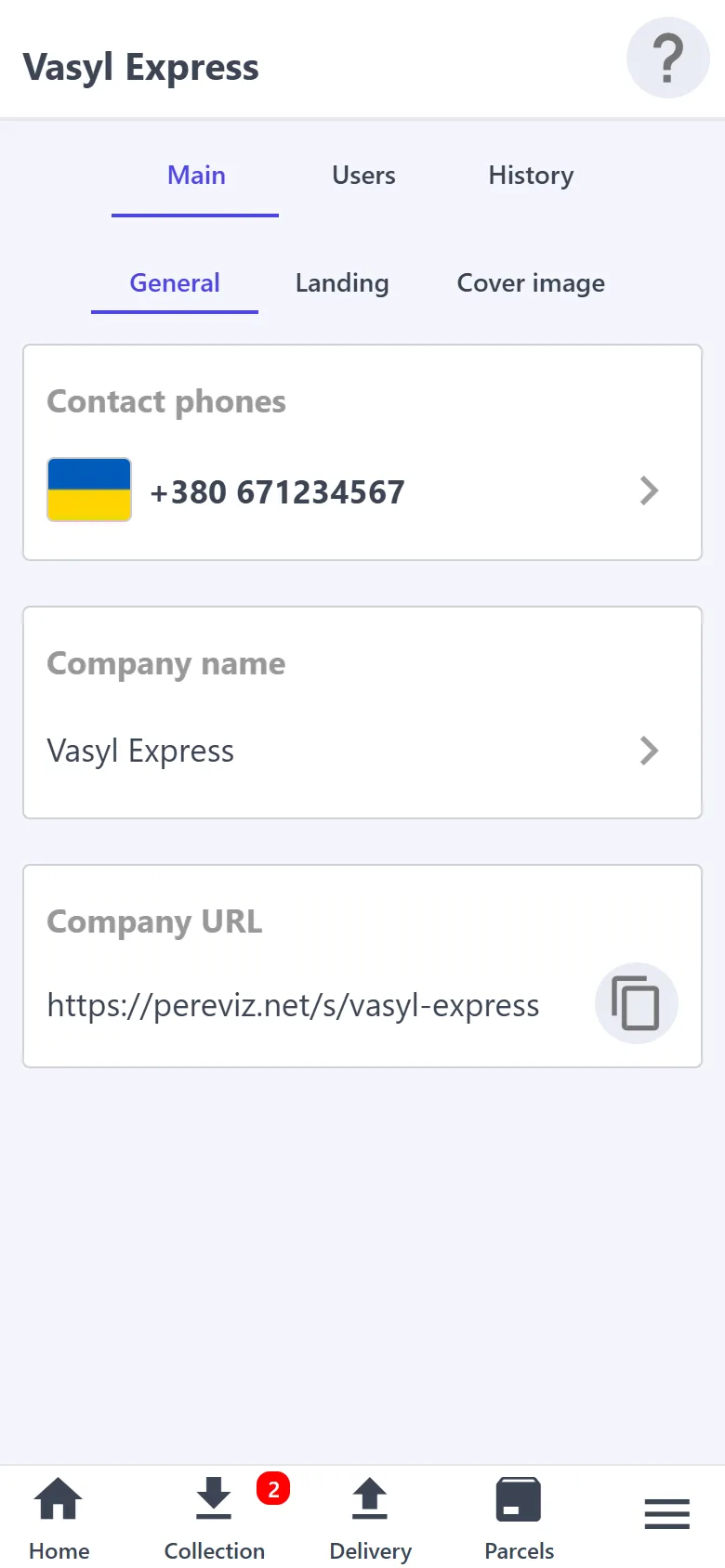
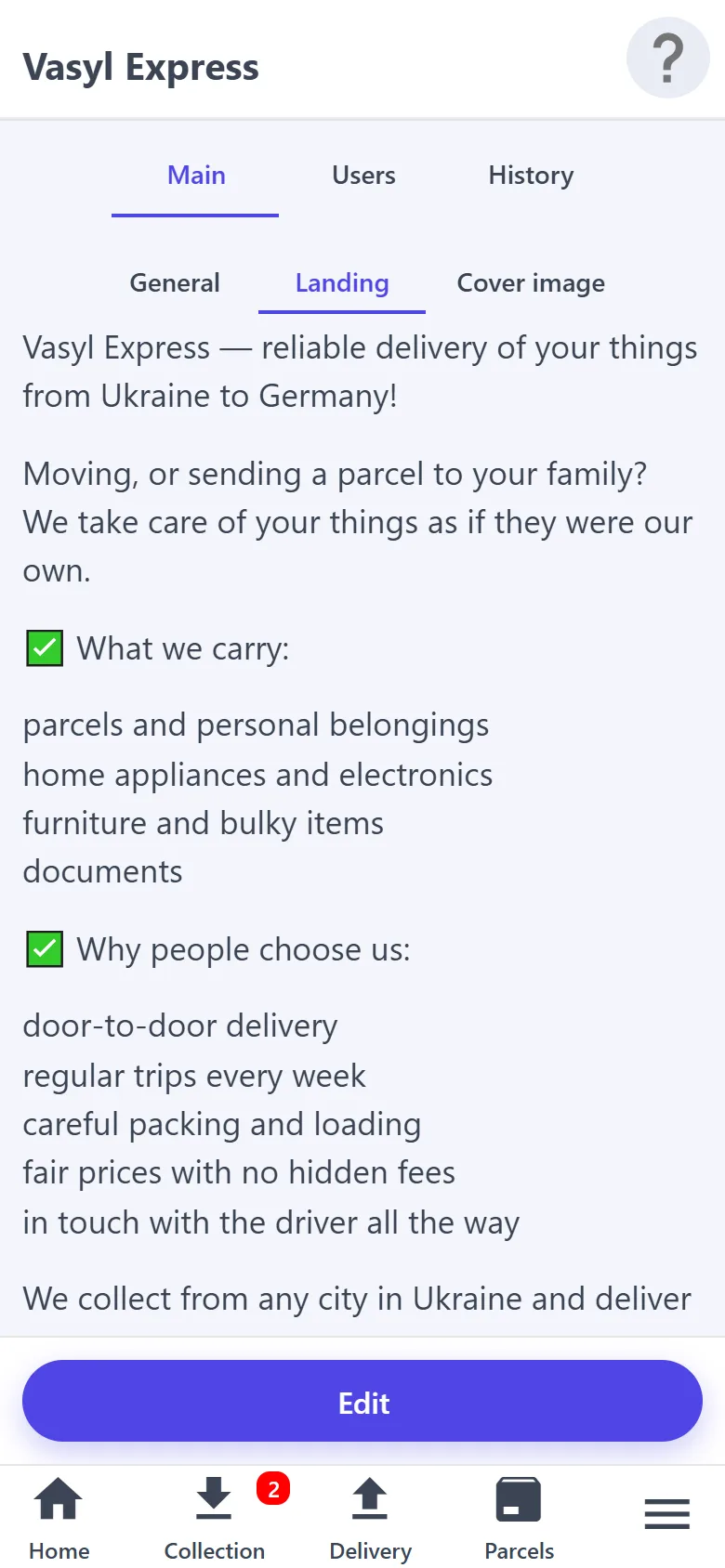
“Main”: “General” — contact phones, company name, company URL; “Landing” — the welcome text on the company page; “Cover image” — upload or delete the picture.
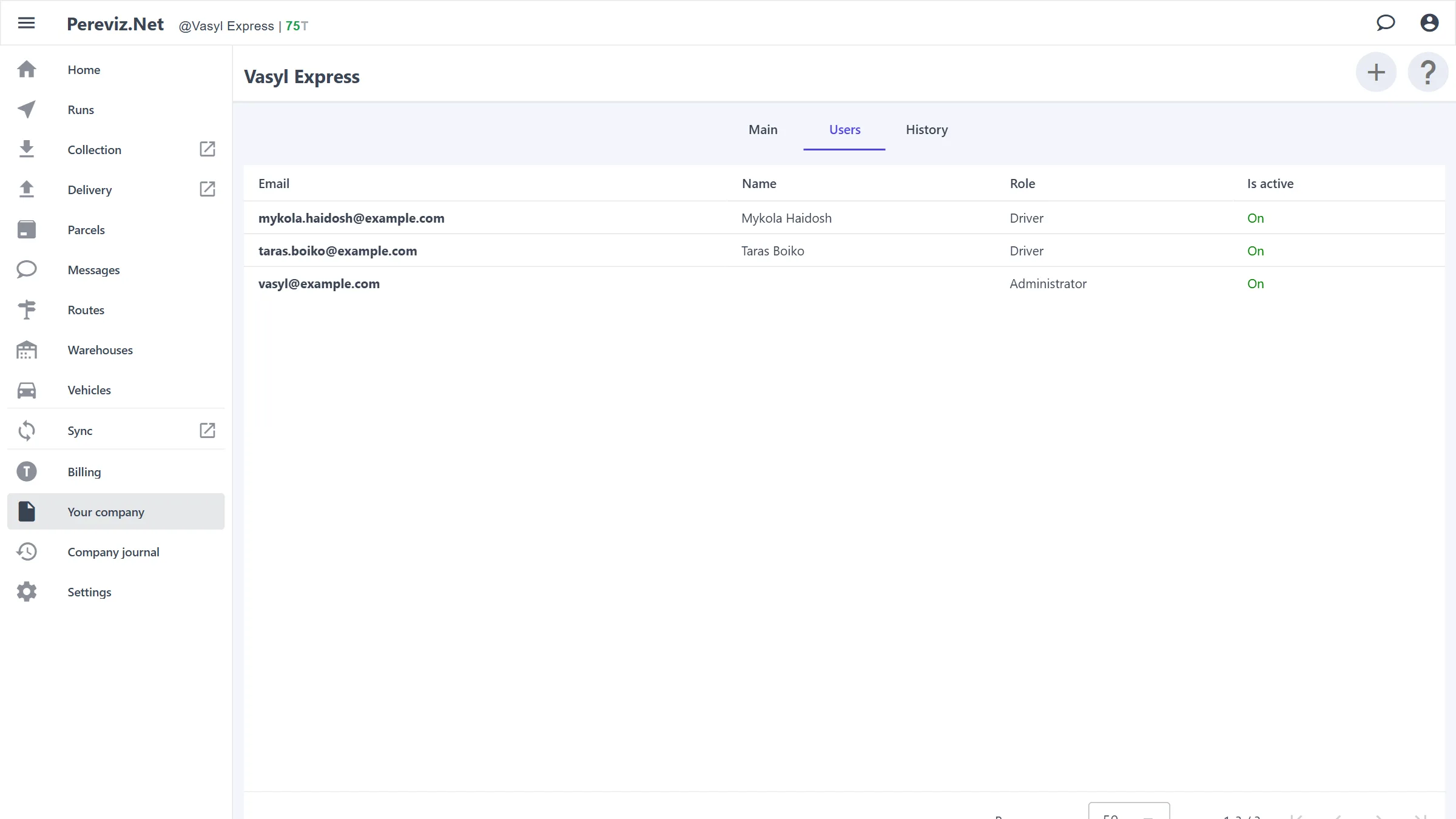
“Users”: staff members. “+” in the header adds one (email, name, role — Administrator or Driver, “Is active”); tap a row to edit or delete it. A staff member signs in with Google using their email: an administrator to the courier app, a driver to the driver app.
A dispute is easy to sort out: you see who changed what and when — even what was done offline.
“History” — a button or tab on a parcel, run, stop, trip, route, vehicle, warehouse, staff member, the company and in “Settings”: the changes to that object, newest first.
An entry shows who did it, what changed (“field: was → now”), when, and from which app (courier, driver or customer), the Telegram bot or the scheduler. An action done offline shows the time on the device (“done offline at …”); a refused action is listed with the reason.
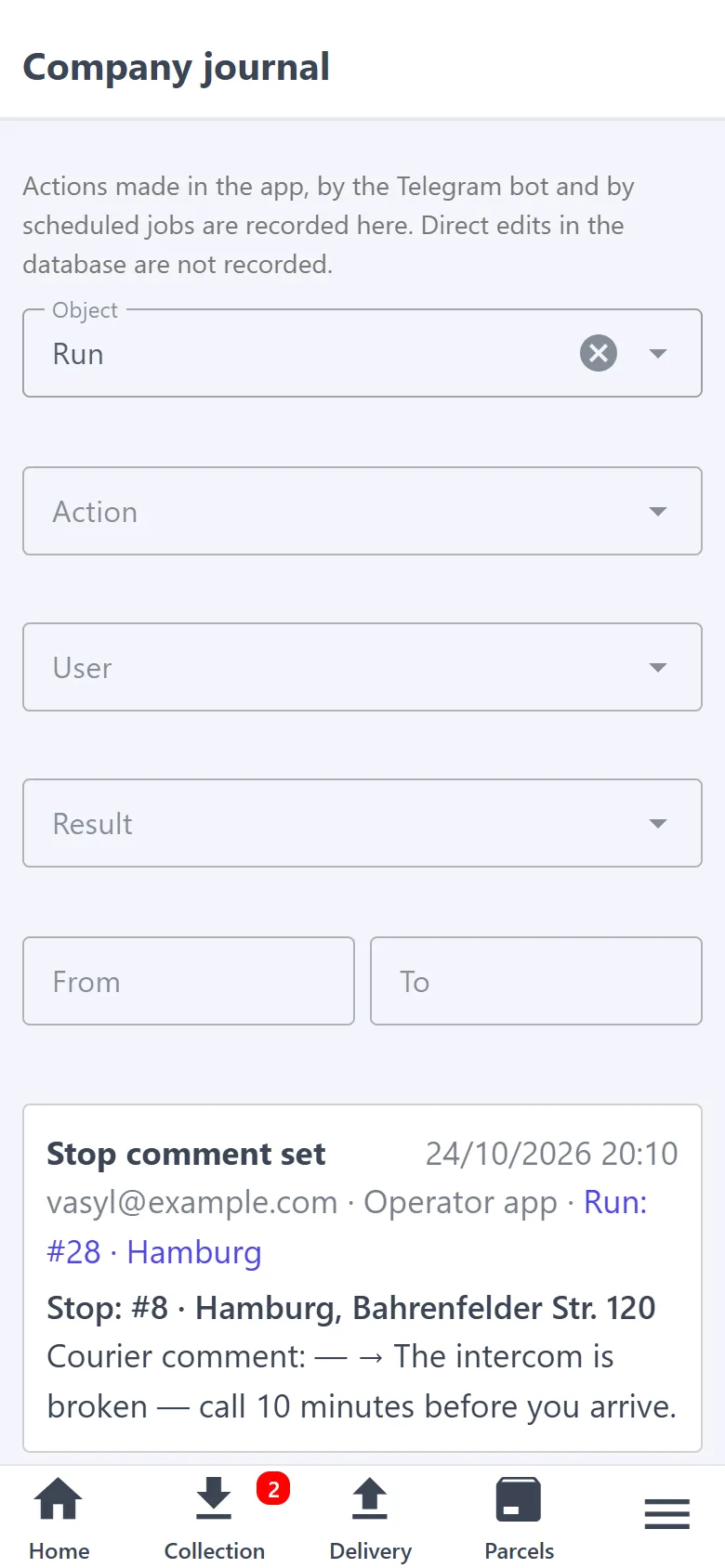
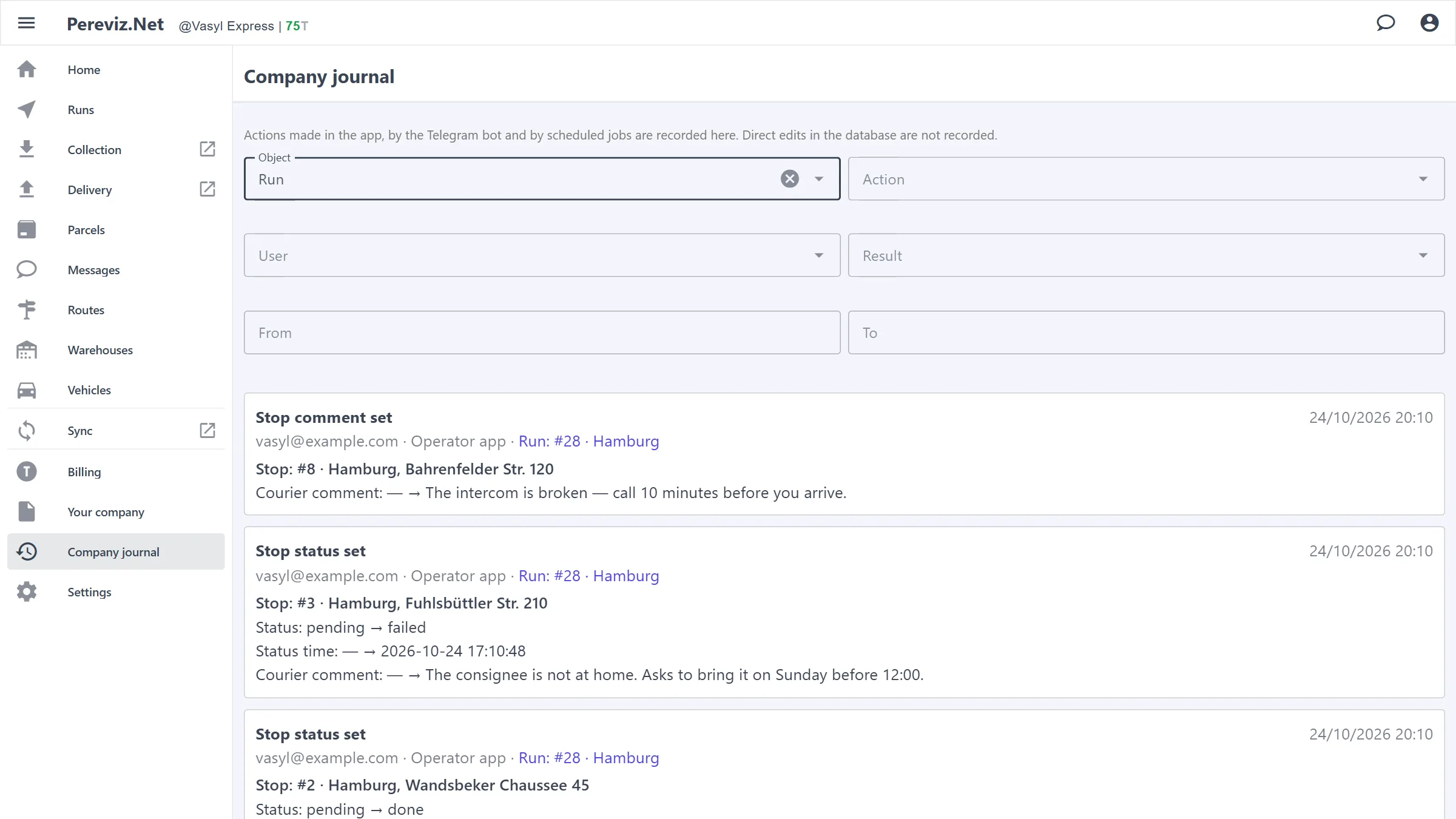
“Company journal” in the side menu: every action in the company, filtered by object, action, user, result and date. Needs a network.
Entries are kept for 180 days. When a delivered parcel is deleted automatically, its entries stay as anonymous records: what was done, from which account and when, without the parcel's data.
Steps for iPhone (Safari) and Android (Chrome) — “How to install the app” on the sign-in screen. Once installed, the app opens from the icon on the home screen.
An “Update now” banner at the top of the screen announces a new version.
Sorting out requests, planning trips and checking expenses is easier on a big screen: the same data, just as tables and with a menu that is always in view.
It opens at /desktop on the same site, or from the phone's side menu — “Desktop version”. The account and data are the same; on a new computer you sign in with Google, as on the phone. To go back — “Mobile version” in the account menu.
The section menu is on the left; ☰ folds it to icons. At the top — the company and balance, the chat icon with the unread counter and the account menu: email, role, “Mobile version”, “Logout”.
“Parcels” is a table: tracking number, folder, route, consignor, consignee, trip, location, weight, payment, dates and chat. Most columns sort with a click on the header; the trip and “Where now?” change right in the row. Search, map, Excel and “+” are at the top, as on the phone.
A row opens the parcel card as a panel on the right — the table stays in place. For a new request the panel header has “Decline” and “Approve”.
Runs, routes with trips, vehicles, warehouses and users are tables too; a run, a stop, a trip and a chat open in a window in the middle of the screen.
“Collection”, “Delivery” and “Sync” are marked with an arrow: these are screens for working with a parcel in hand, and they open in the mobile version.
The desktop version works only online: no offline mode, notifications or home-screen install.
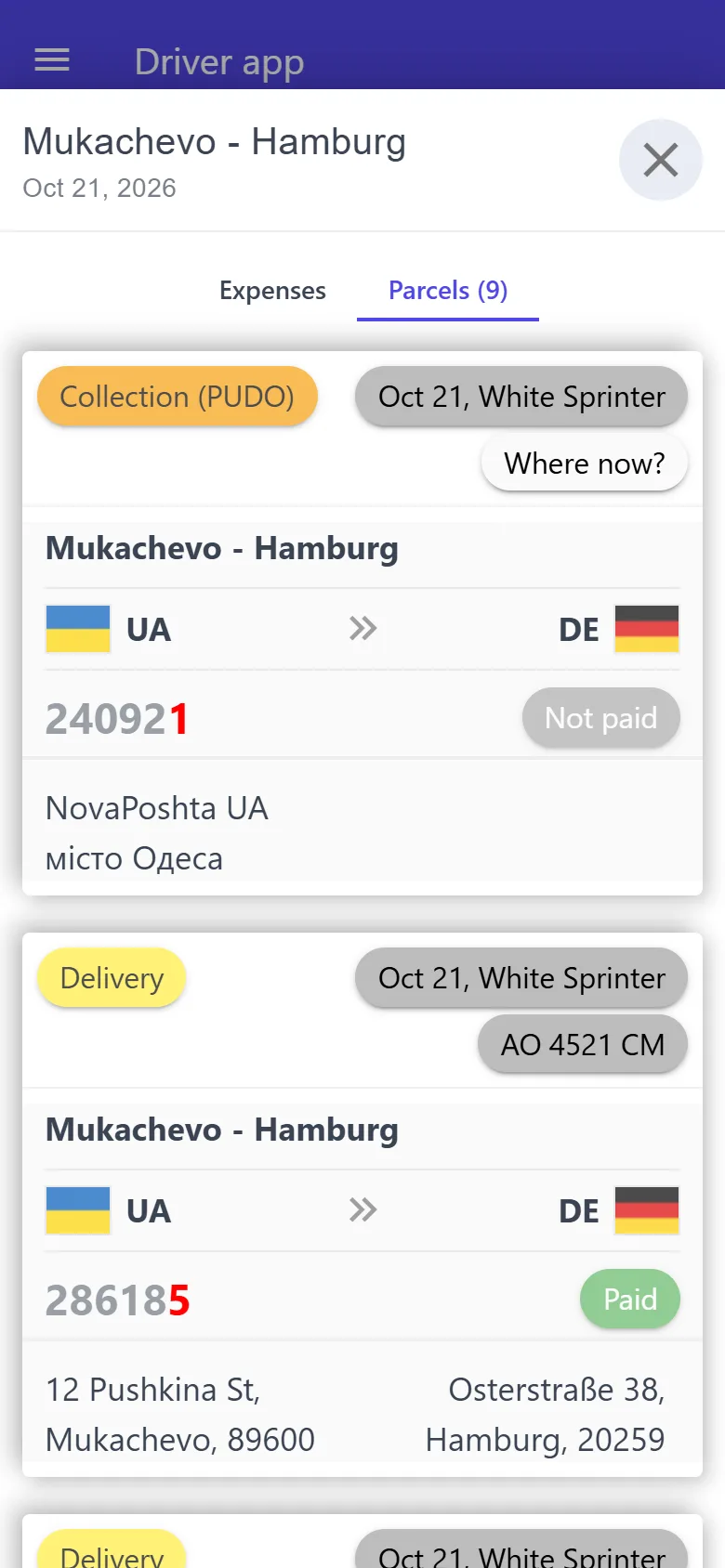
A driver gets only what they need on the road: their trips and runs, stops in order, expenses with receipts, collection and delivery. They don't see the company settings, customer chats, billing or other drivers' trips.
Sign-in — a separate app at /driver on the same site: “Authorize with Google” with the email the driver was added with in “Your company” → “Users”, then choose the company. The language can be picked before signing in; the app installs on the home screen just like the courier app.
“Home” — the “Trips” and “Runs” the driver is ticked on. A trip card shows the route, date, parcel count and total expenses; a run card shows the country, date, number and name, vehicle and stop counters.
A run — its drivers, the “Pending”, “Done” and “Failed” tabs and numbered stop cards. “Optimize” puts the stops in order from start to finish; “Map” shows the numbered stops and your location — tap a marker to see the stop's parcels, and its number to change the order.
A stop — each parcel with its contact, copy and call buttons and “Set delivered” or “Set collected”; “Address” opens navigation. At the bottom — “Success” or “Fail”; a failure needs a reason.
“Driver comment” — the driver's own note on the stop (“Edit”), which the operator sees too. The “Operator comment” is read-only for the driver.
A trip opens “Expenses” — “Add expenses”: type, amount, currency and a receipt photo — and the trip's “Parcels”.
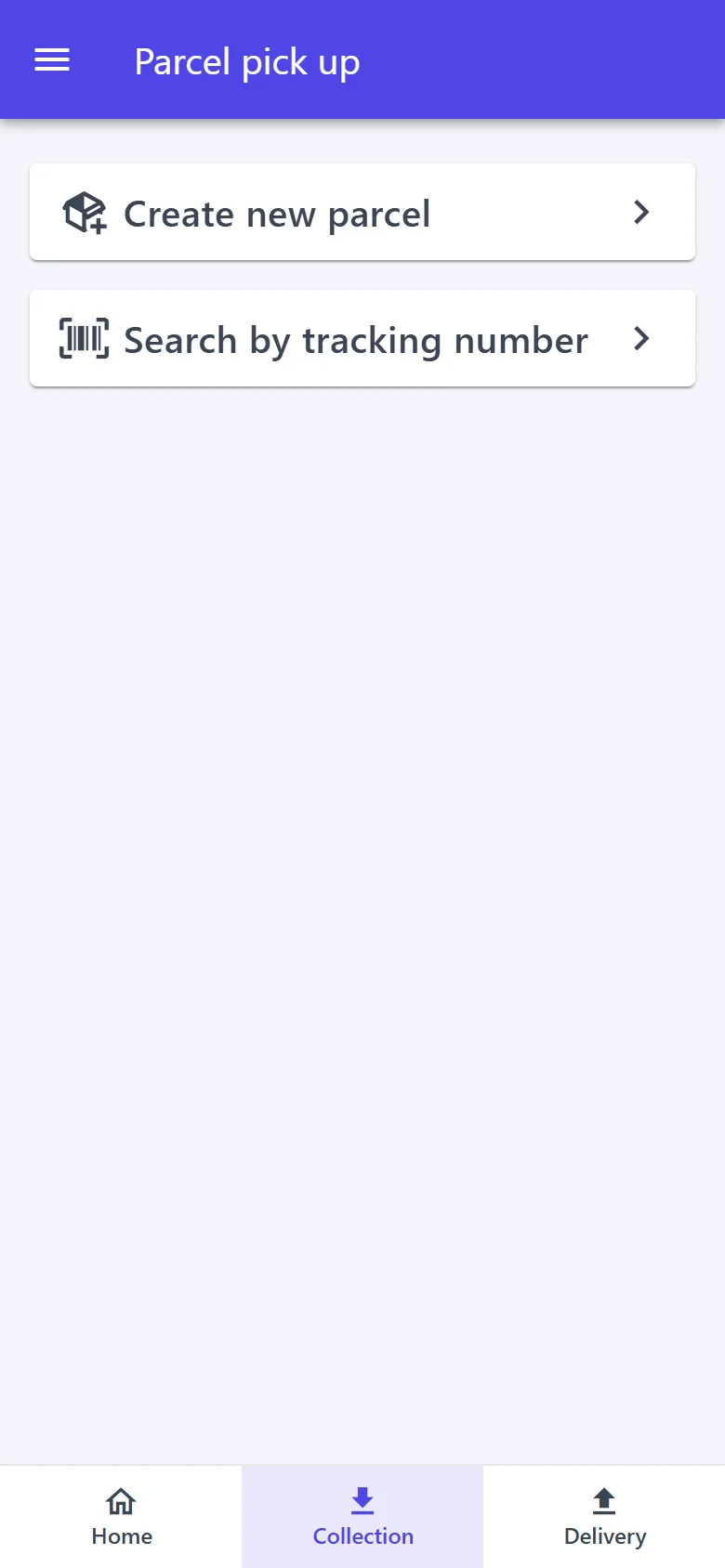
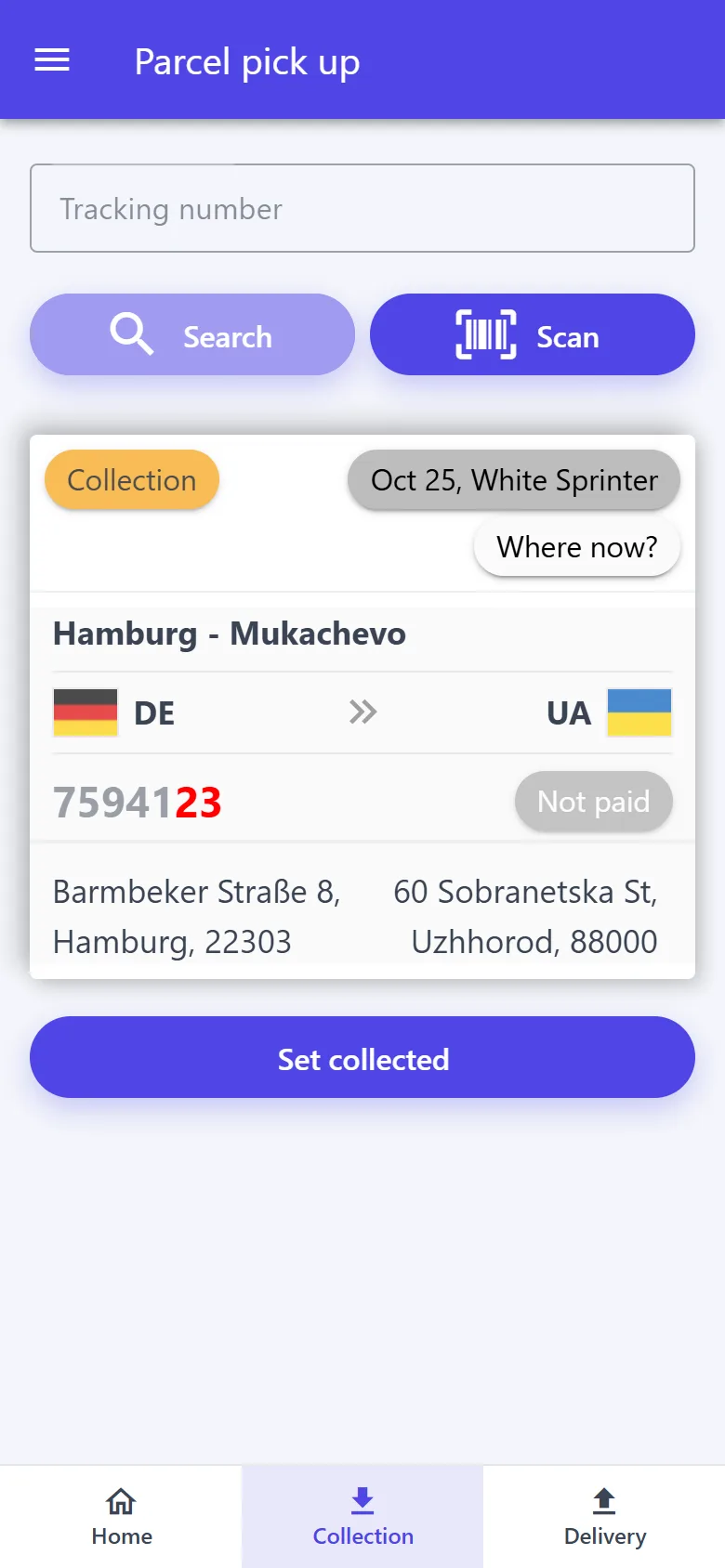
“Collection” — “Create new parcel” (the same steps as in the courier app) or “Search by tracking number”: type the number or scan the QR code, then “Set collected”.
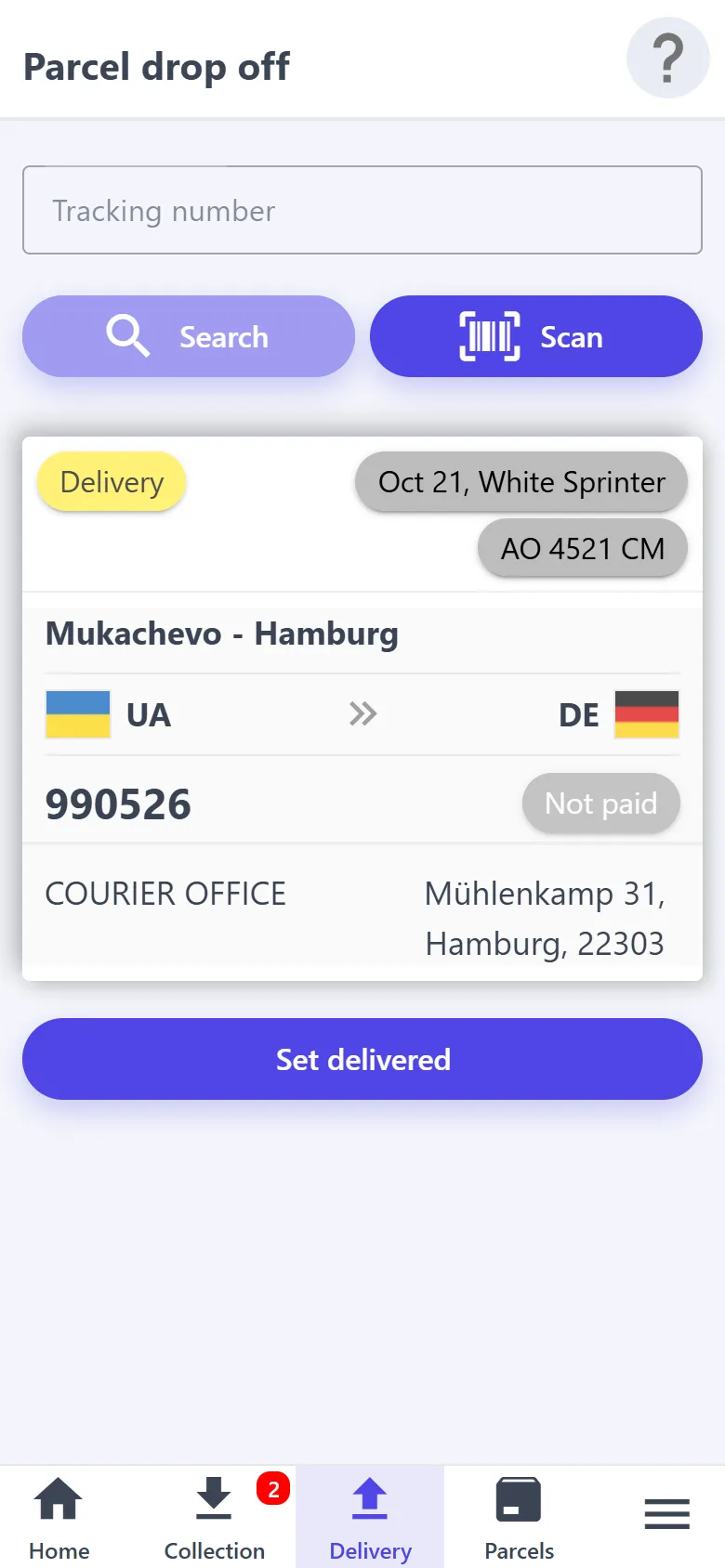
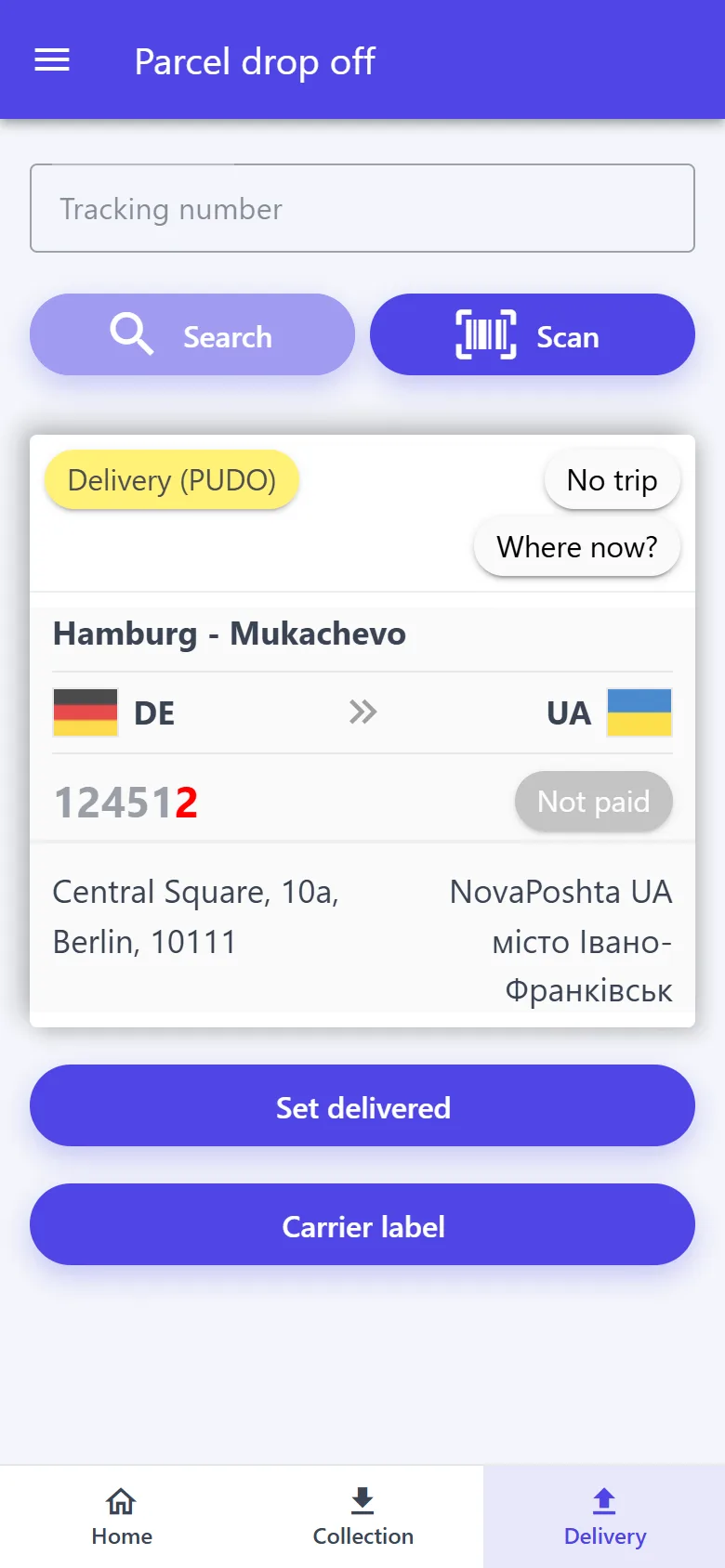
“Delivery” — find the parcel and “Set delivered”; for a delivery through a Nova Poshta branch — “Carrier label”.
The ☰ menu holds the email and company, “Settings” with the app language, installing on the home screen and “Logout”.
A driver does not plan runs: no adding or removing stops, no editing or archiving the run, no “History”. The driver app works only with a network.
Courier app on the phone and on a computer: parcels, runs, routes and trips, vehicles, warehouses, company, billing, journal, settings
yes
no
Driver app: own trips and expenses, trip parcels, runs with stop updates, collection and delivery
yes
yes
A driver sees only the trips they are ticked on in the “Access” tab and the runs they are ticked on with the “Access” button. An administrator in the driver app sees all the company's active trips and runs.
Offline
The signal drops at the border or in a basement — the work goes on.
The phone keeps active parcels (new, to collect, to deliver — up to 500) and up to 20 active runs nearest by date; it refreshes them as soon as the network is back.
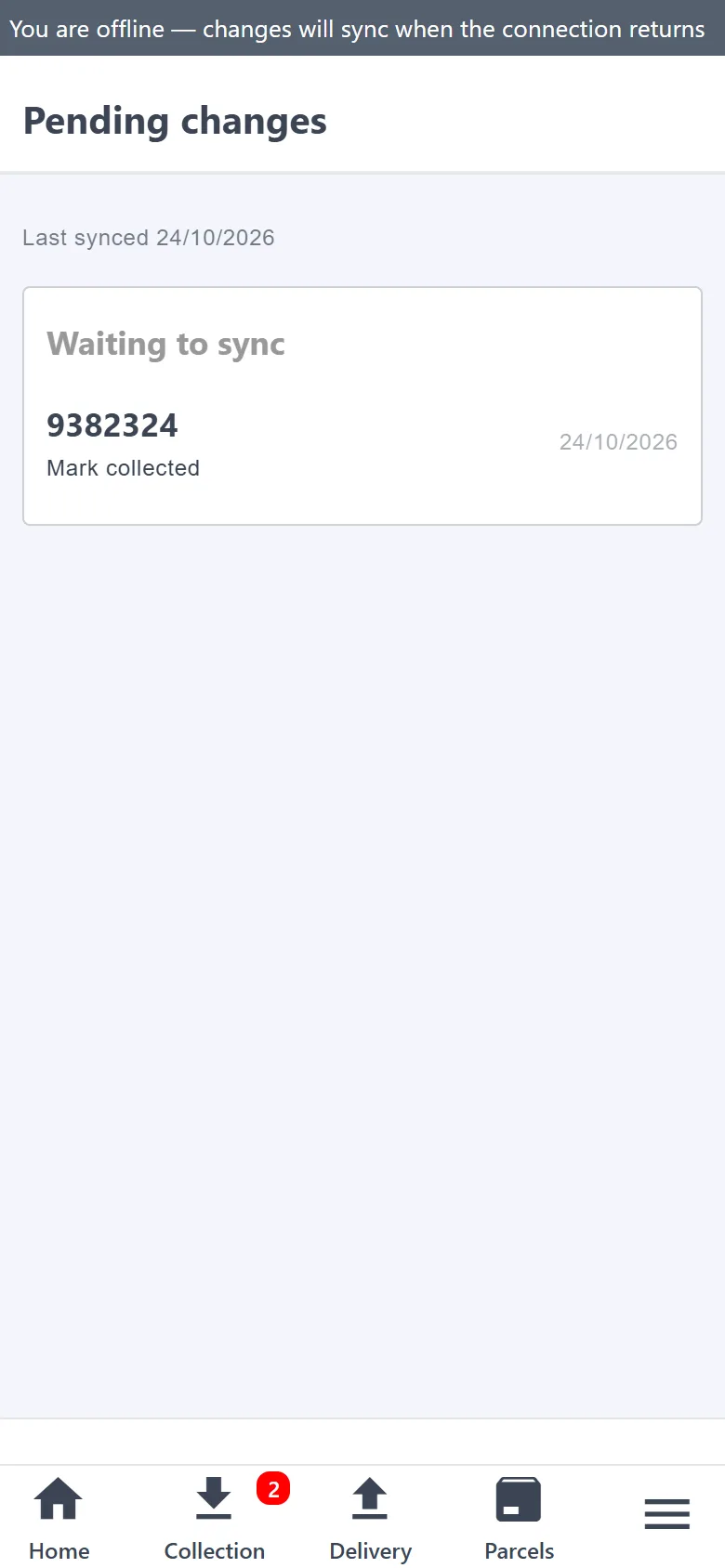
Offline you can open “Collection”, “Delivery”, search and the parcel card, “Runs” and “Sync”. A grey bar at the top reads “You are offline — changes will sync when the connection returns”.
Changes pile up on the device and are sent to the server by themselves once connected; if the parcel was changed on the server in the meantime, “Sync” warns you.
Works offline
“Set collected” and “Set delivered” — on the card of a parcel found through “Collection” or “Delivery”
Mark the payment and the collected amount
Add photos
View runs, stops and addresses
Needs a network
Marks and comments at stops, planning runs
Creating and approving parcels, waybills, geolocation, a parcel's trip and place, changing the status by hand, cancelling
Routes, trips, vehicles, warehouses and the other sections; the driver app and the desktop version
Sign in with Google, set up the company in a few steps, and the first 100 parcels are free. Set up a route, give the link to your customers — and the first requests may come in today.